Getting Started with SQLMessenger
- 1. Starting SQLMessenger
- 2. Opening SQLMessenger Console
- 3. Stopping SQLMessenger Service
- 4. About SQLMessenger Console
1. Starting SQLMessenger
After installation, the installer automatically launches the SQLMessenger Service Manager. You can also start it by double-clicking the SQLMessenger desktop shortcut.
You can start or stop SQLMessenger Service via the Service Manager.
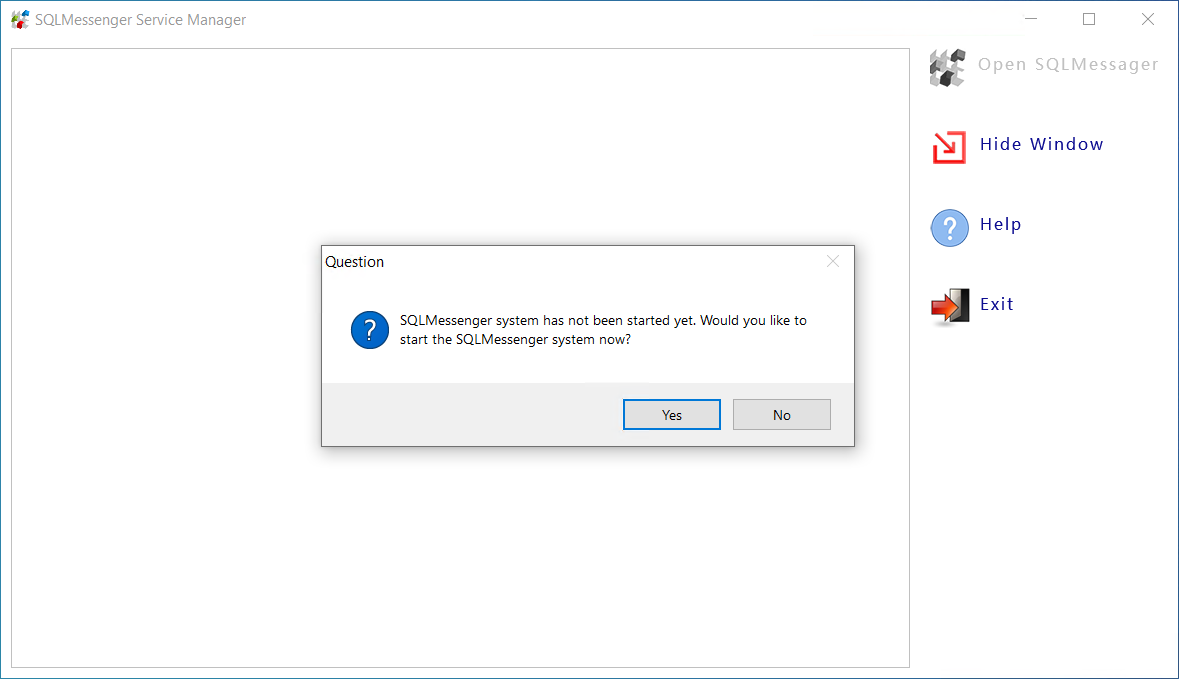
Start SQLMessenger Service when the Service Manager launches
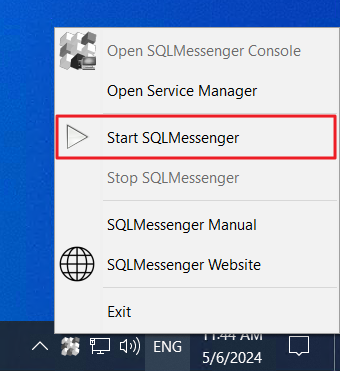
Start SQLMessenger Service from the Service Manager popup menu
2. Opening SQLMessenger Console
You can configure and manage the SQLMessenger system using the SQLMessenger Console.
Click the Open SQLMessenger Console button in the Service Manager dialog to launch it.
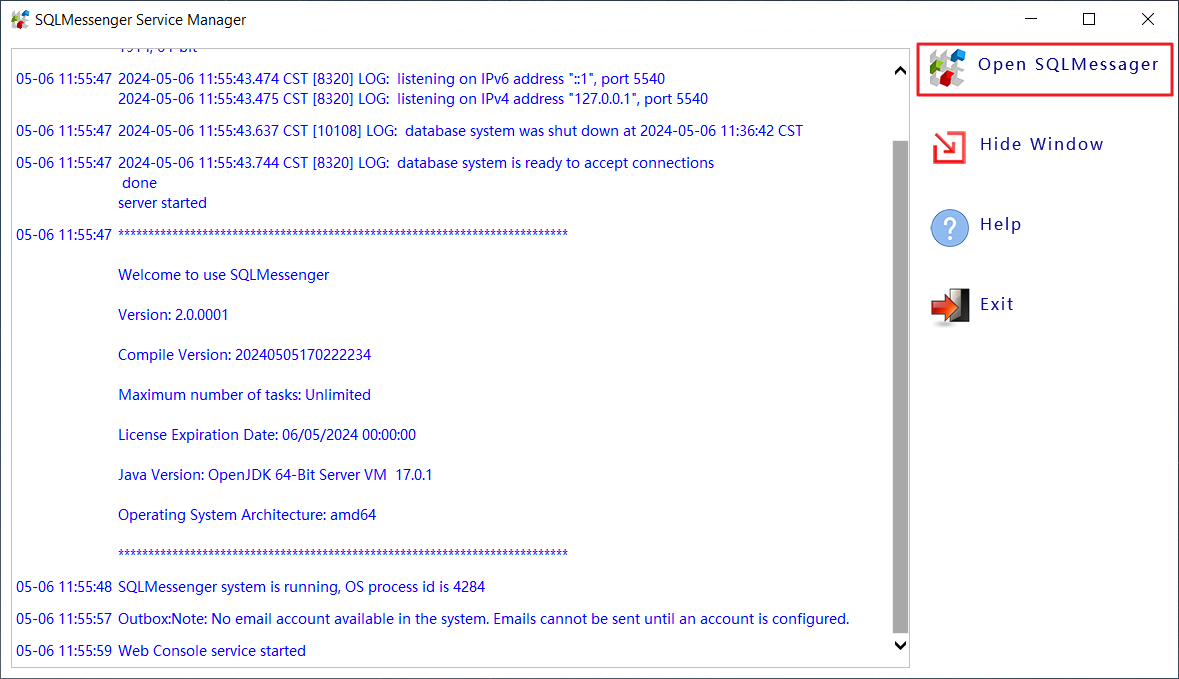
Open the SQLMessenger Console
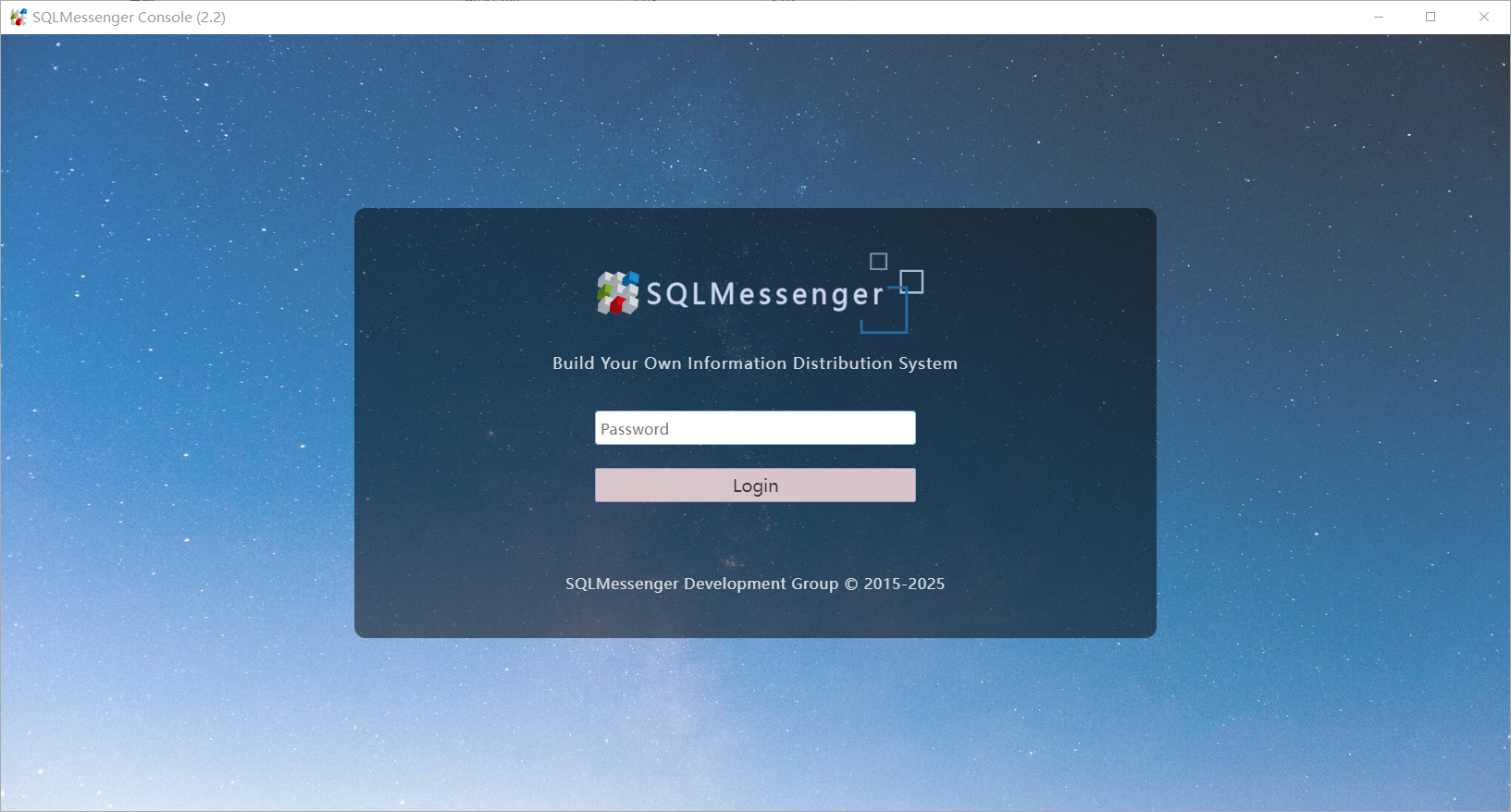
The SQLMessenger Console
When you first access the SQLMessenger Console, you must set a login password. This password will be used for all future logins.
3. Stopping SQLMessenger Service
You can stop the SQLMessenger Service via the Service Manager popup menu.
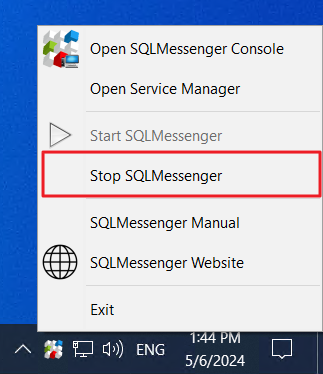
Stop SQLMessenger Service via the Service Manager popup menu
Note: If the SQLMessenger Service is stopped, configured tasks will no longer start automatically, and all running tasks will be aborted.
4. About SQLMessenger Console
You can configure and manage the SQLMessenger system in SQLMessenger Console.
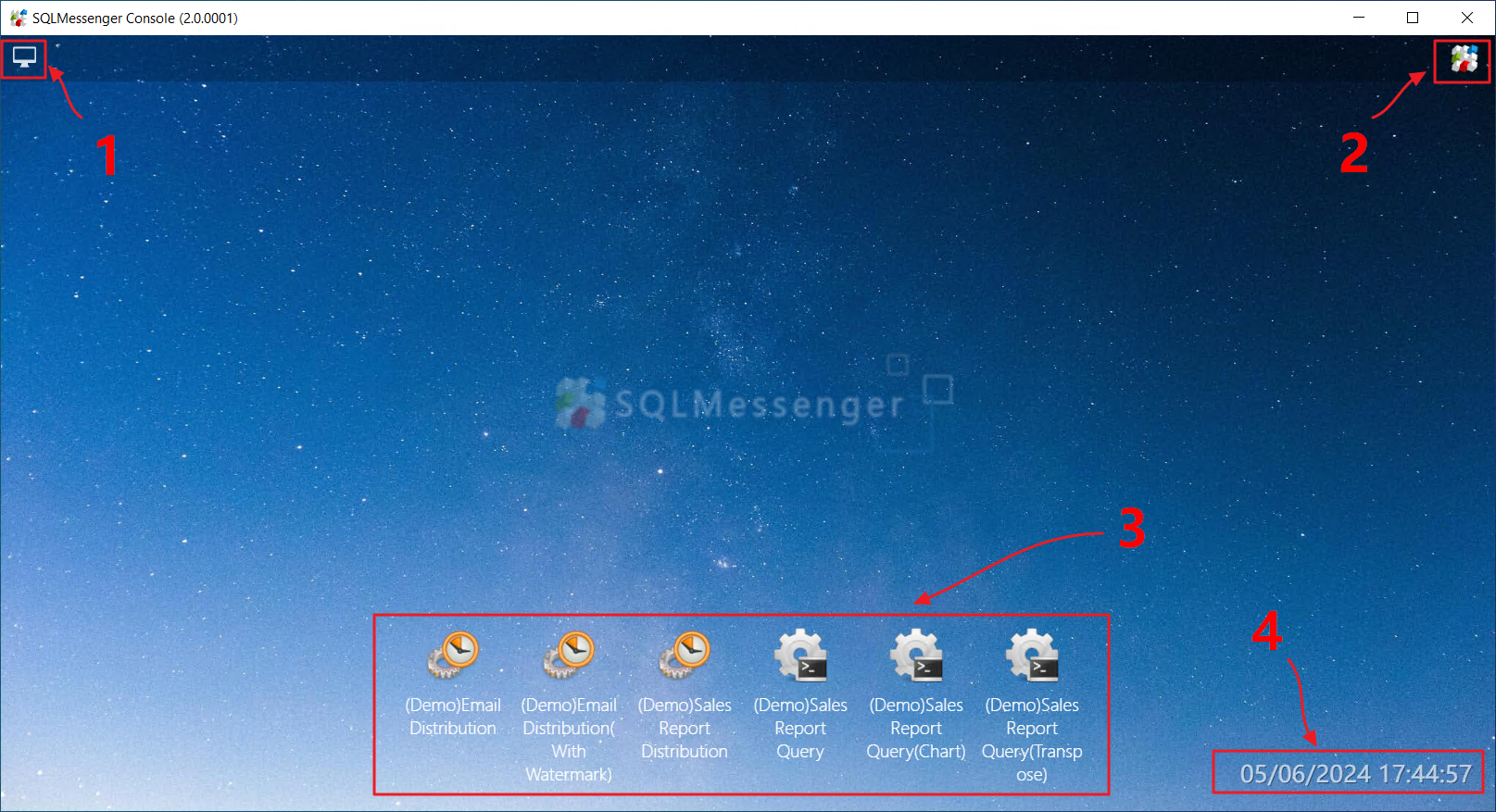
SQLMessenger Console Interface
 |
MainPage icon. Click this icon to switch to the console’s MainPage. |
 |
MainMenu icon of the console. Click this icon to display the console’s MainMenu. |
 |
MainPage of the console. You can create shortcuts for frequently used tasks here. Double-click the shortcut icon to start the corresponding task. You can also right‑click here to display the popup menu of the MainPage. |
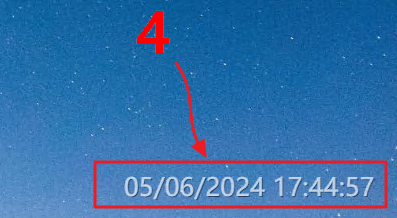 |
The system time can be displayed on the MainPage. |
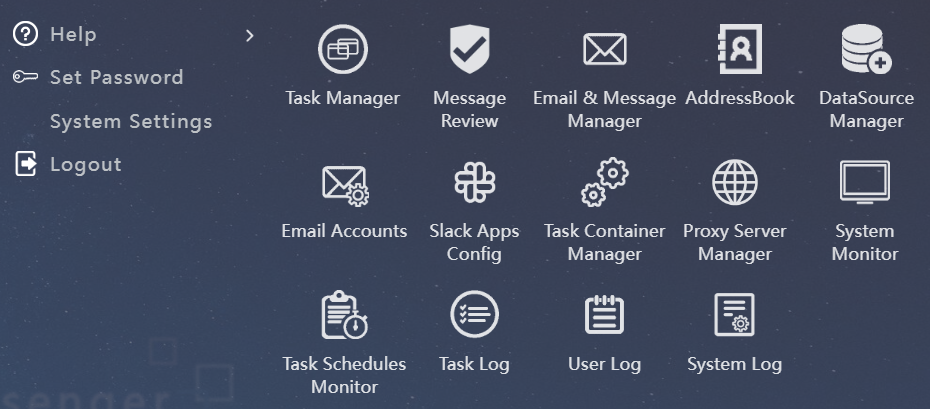
The MainMenu of the console
 |
Click to open the Task Manager. |
 |
Click to open the Message Approval window. |
 |
Click to open the Email & Message Manager. |
 |
Click to open the AddressBook Manager. |
 |
Click to open the DataSource Manager. |
 |
Click to open the Email Account Manager. |
 |
Click to open the Slack App Manager. |
 |
Click to open the Task Container Manager. |
 |
Click to open the Proxy Server Manager. |
 |
Click to open the System Monitor. Here you can check the running status of all modules, view runtime logs, and restart the SQLMessenger Service. |
 |
Click to open the Scheduled Task Monitor. You can view the status of all scheduled tasks and their next execution time here. |
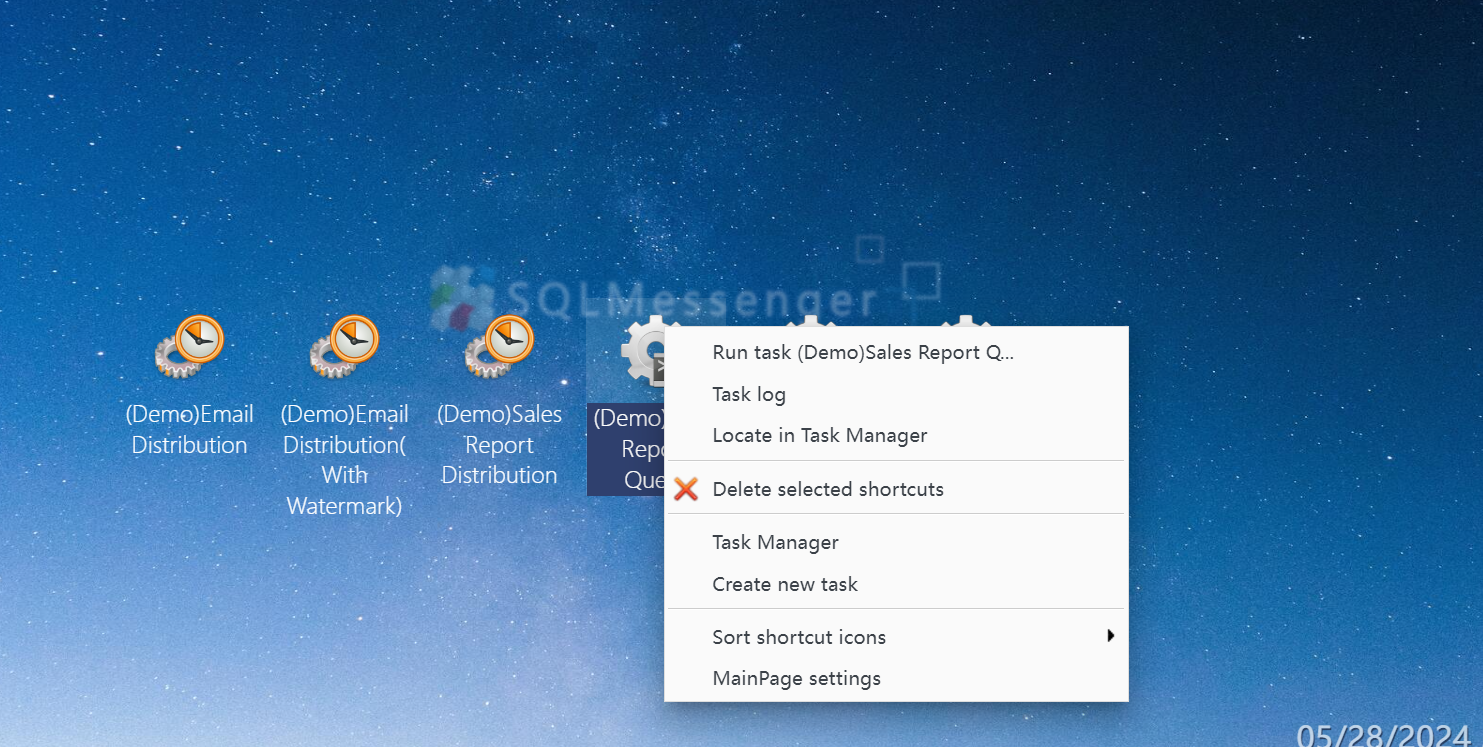
The popup menu of the MainPage
Run Task |
Manually start the selected task. |
Task Logs |
View the logs of the selected task. |
Show in Task Manager |
Display relevant tasks in Task Manager. |
Edit Task Configuration |
Click to edit the configuration of the selected task. |
Delete Selected Shortcuts |
Remove selected task shortcut icons from the MainPage. |
Task Manager |
Open the Task Manager. |
Email & Message Manager |
Open the Email & Message Manager. |
Sort Shortcut Icons |
Reorder the shortcut icons on the MainPage. Note that this will reset the positions of the icons. |
MainPage Settings |
Set the options for the MainPage, such as background image, shortcut label style, etc. |