Data Source Management
- 1. What Is a Data Source
- 2. Managing Data Sources
- 3. Create a New Data Source
- 4. Data Source Management Menu
- 5. Data Source Status
- 6. About the Default Data Source
1. What Is a Data Source
A data source contains information such as database type, server address, username, and other connection details. SQLMessenger uses this information to establish database connections. Therefore, you must configure a data source in the system before querying data with SQLMessenger.
SQLMessenger supports the following database types:
Oracle
MySQL
SQL Server
PostgreSQL
Informix
2. Managing Data Sources
You can click the Data Source Manager icon in MainMenu to open the Data Source Manager.
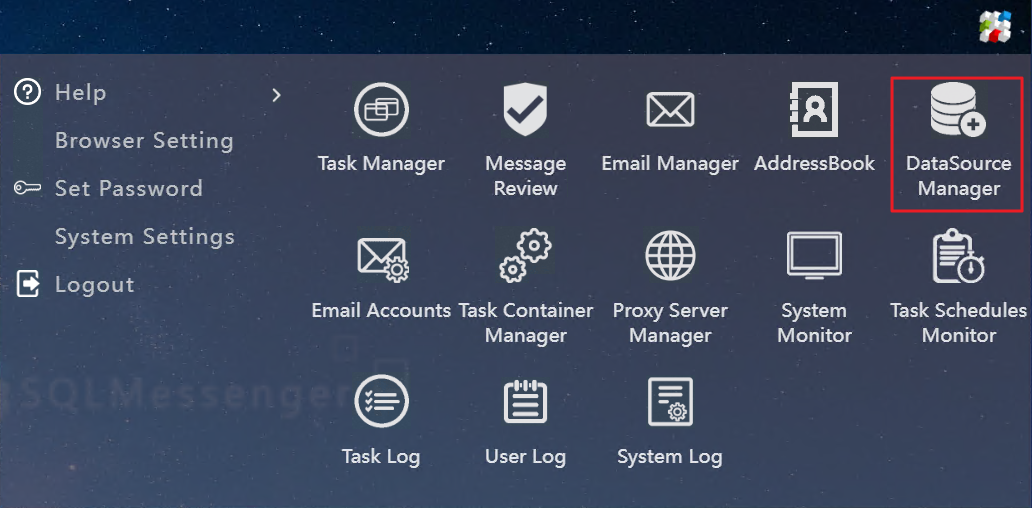
Open the Data Source Manager
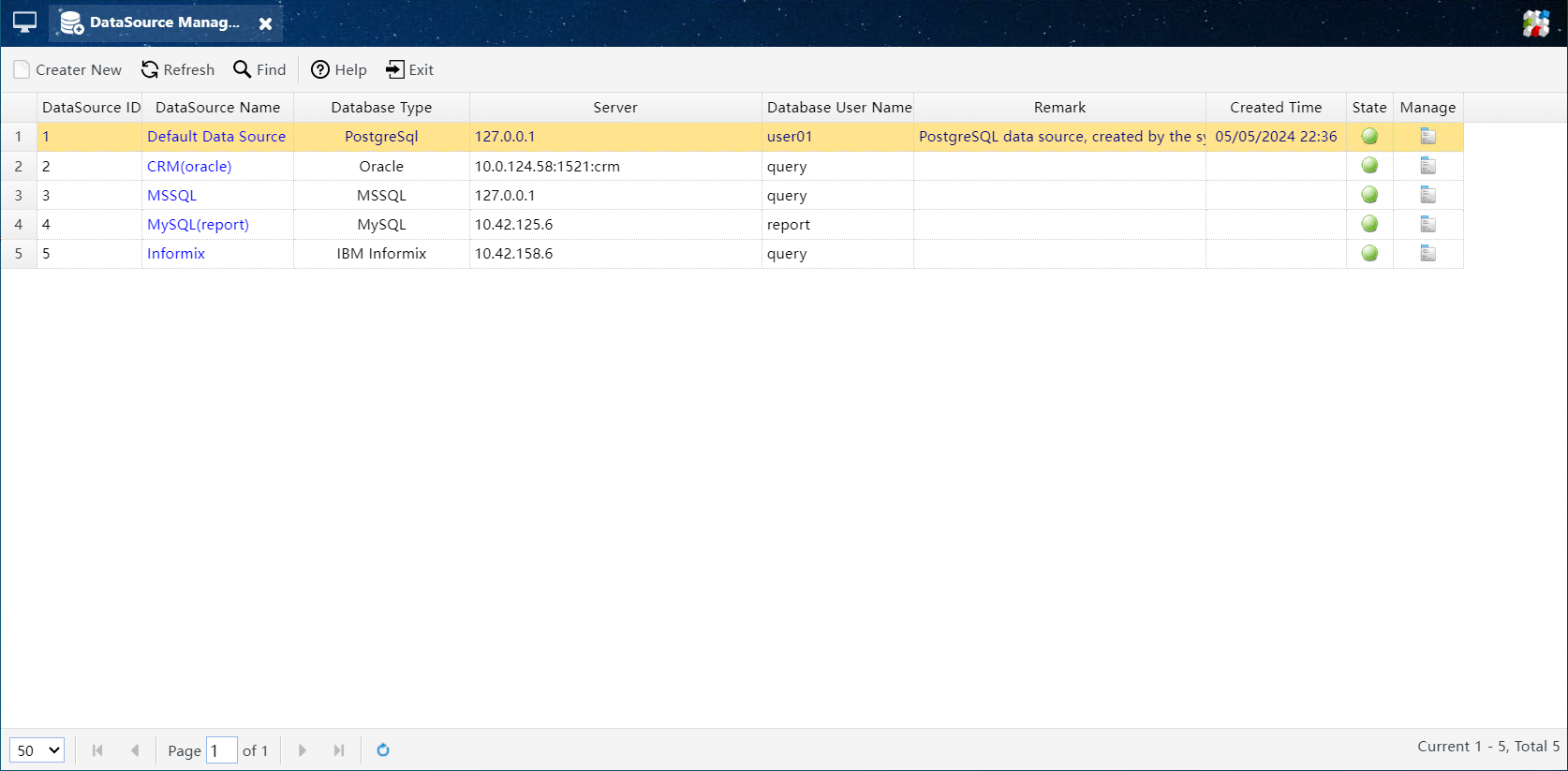
The Data Source Manager
In DataSource Manager, you can add a new data source, modify, disable, or delete existing ones.
3. Create a New Data Source
Click the Create New button in the Data Source Manager to open the Data Source Configuration dialog.
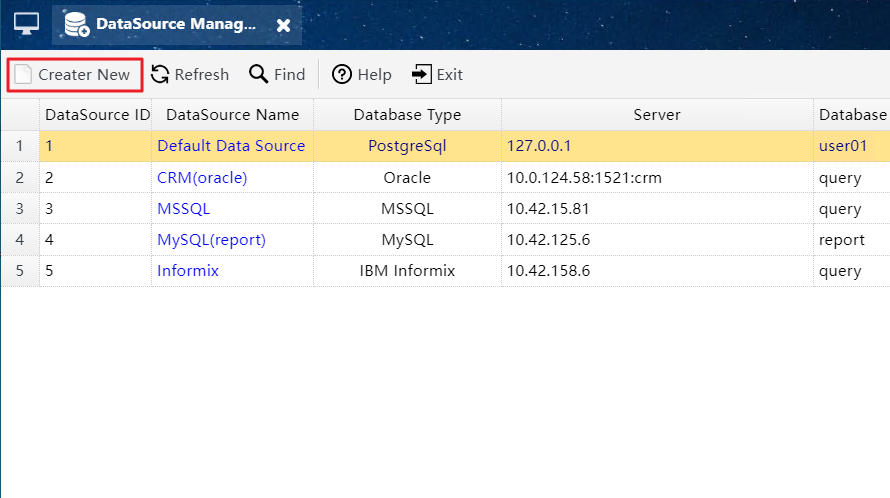
Click the Create New button to open the Data Source Configuration dialog
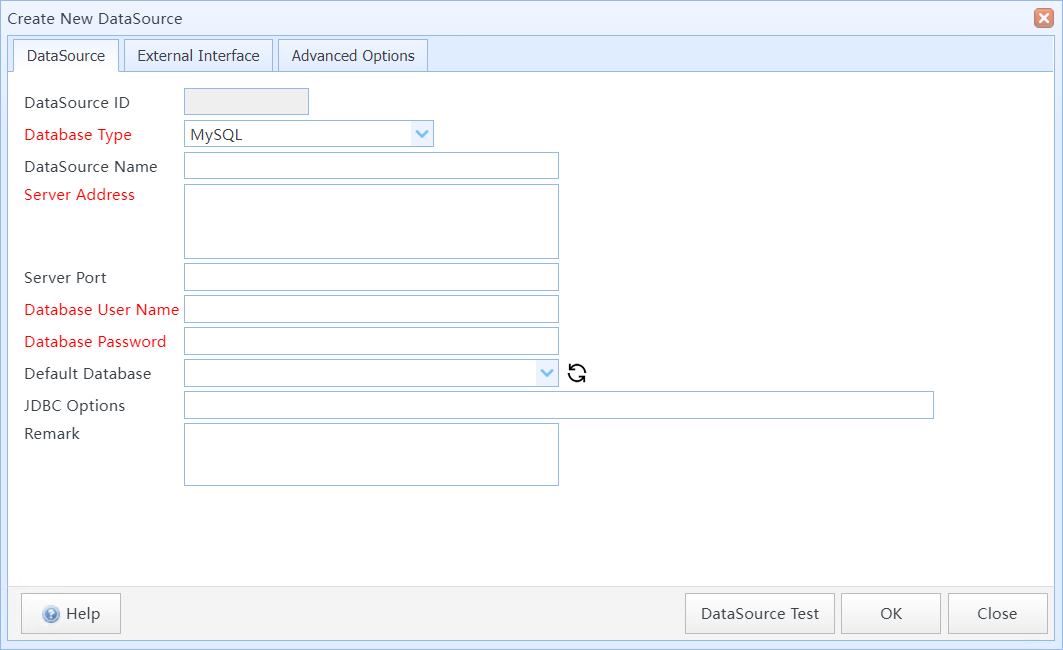
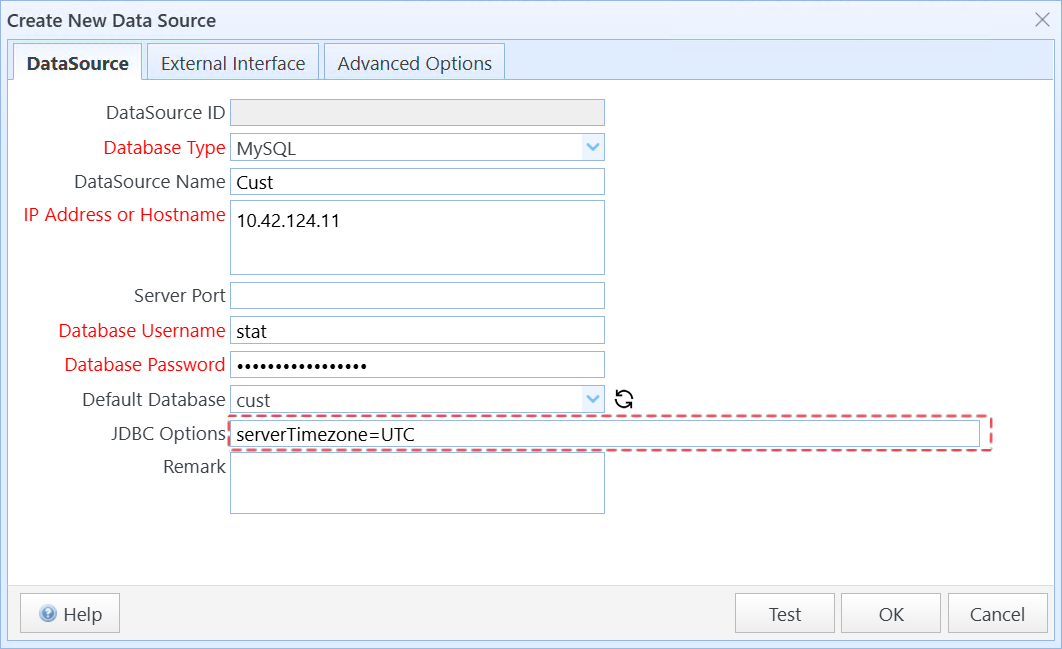
Data Source Configuration dialog
In this dialog box:
Database Type |
Select the database type for the data source. |
Database Name |
Set a name for the data source. If left blank, the system will assign one automatically. |
IP Address or Hostname / TNS(Oracle) |
For Oracle databases, enter the database TNS string (e.g., 10.42.124.11:1521:orcl). For other databases, enter the database server IP address or hostname. |
Server Port |
Enter the database server network port. If left blank, the system uses the default port for the selected database: SQL Server 1433, MySQL 3306, Oracle 1521, PostgreSQL 5432. Note: For Informix, this field is required. |
Database Username |
Enter the database server username. |
Database Password |
Enter the database server password. |
Default Database |
Enter the default database name for the connection. |
JDBC Options |
Enter custom JDBC connection parameters here. For MySQL connections, you may specify timezone settings such as "serverTimezone=UTC".
|
Remark |
Enter descriptions for this data source here. |
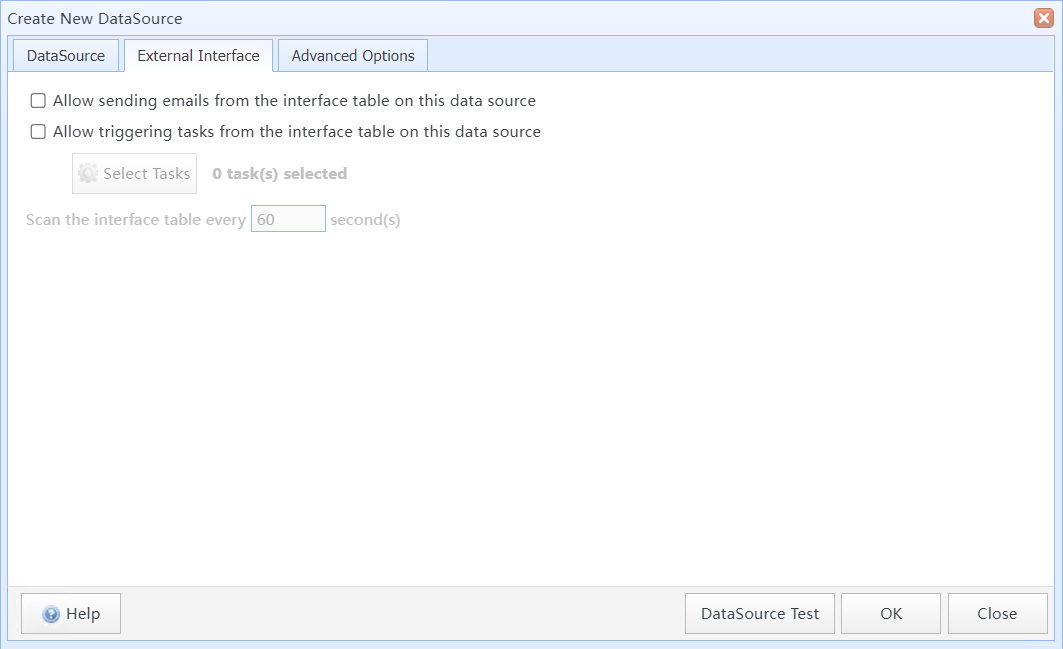
Data Source Config dialog - External Interface
Enable sending emails from the interface table on this data source |
If enabled, you can send emails using the interface table of this data source. Sample SQL statements are shown below:
INSERT INTO sqlmessenger_intf
|
Enable triggering tasks from the interface table on this data source |
If enabled, you can launch tasks in SQLMessenger through this data source's interface table. Sample SQL statements are shown below:
INSERT INTO sqlmessenger_intf
|
Select Tasks |
If task triggering is enabled, select tasks allowed to be triggered via this data source's interface table. |
Enable sending messages to Slack from the interface table on this data source |
If this option is enabled, you can send messages to Slack members through the interface table of this data source. |
Scan the interface table every xx second(s) |
Set the interval in seconds to detect new requests from interface tables. The default interval is 60 seconds. |
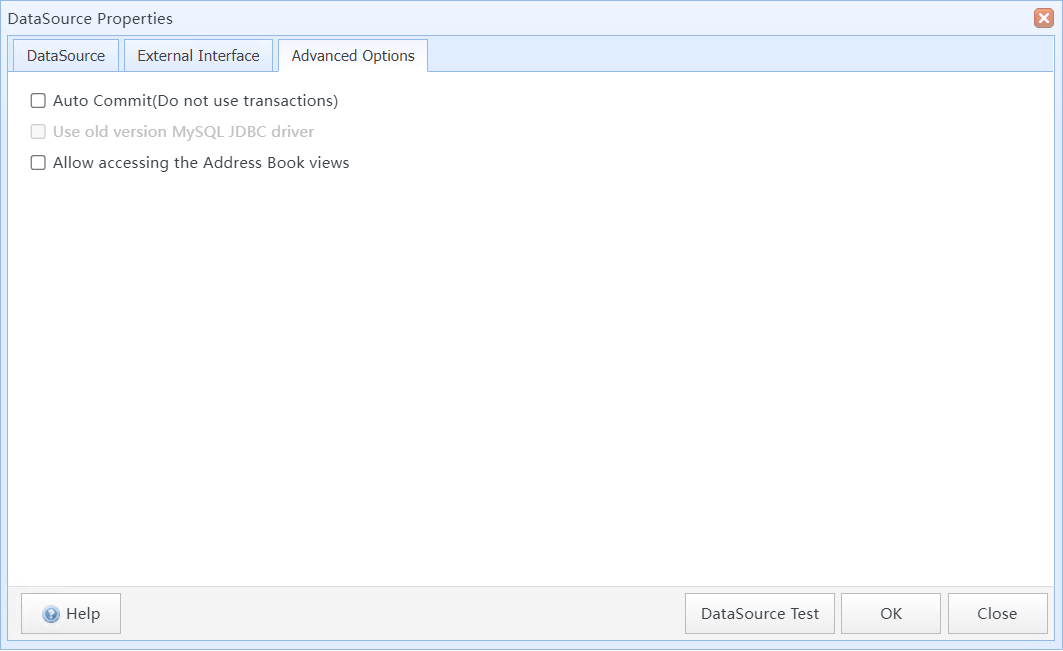
Data Source Config dialog - Advanced Options
Advanced Options:
Auto Commit (commit each operation immediately, without transactions) |
Determines whether UPDATE, INSERT, DELETE, and other data modification statements are automatically committed for this data source. Note: Enabling this option may result in data inconsistency if tasks fail. For more details, refer to the transaction documentation for your database. |
| Use older MySQL JDBC driver | If enabled, SQLMessenger will adopt the legacy JDBC driver to connect to MySQL 5.1 and earlier versions. |
4. Data Source Management Menu
You may click the menu icon on the right of the data source entry, or right-click it to open the management menu.
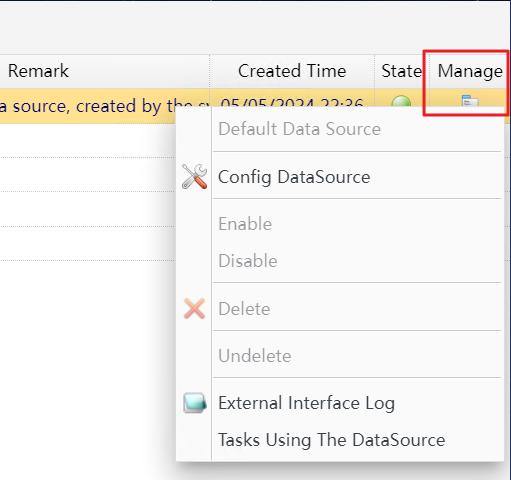
Data Source Management Menu
Data Source Management Menu:
| Config DataSource | Open the data source properties window to edit configuration settings. |
| Enable/Disable | Enable or disable the data source. Tasks using this data source will fail to run when it is disabled. |
| Delete | Delete the data source. Tasks using this data source will fail to run if the data source is deleted. |
| External Interface Log | View external interface logs of this data source. |
| Tasks Using The DataSource | Query all tasks associated with this data source. |
5. Data Source Status
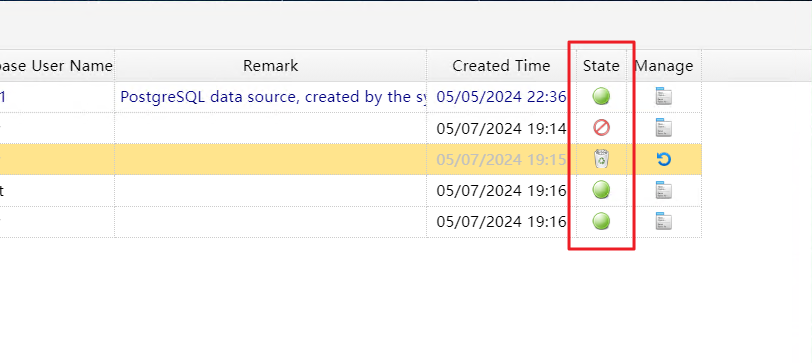
Data Source State
 |
The data source is enabled and available. |
 |
The data source is disabled. Tasks using this data source will fail to execute. |
 |
The data source is deleted. Tasks using this data source will fail to execute. |
6. About the Default Data Source
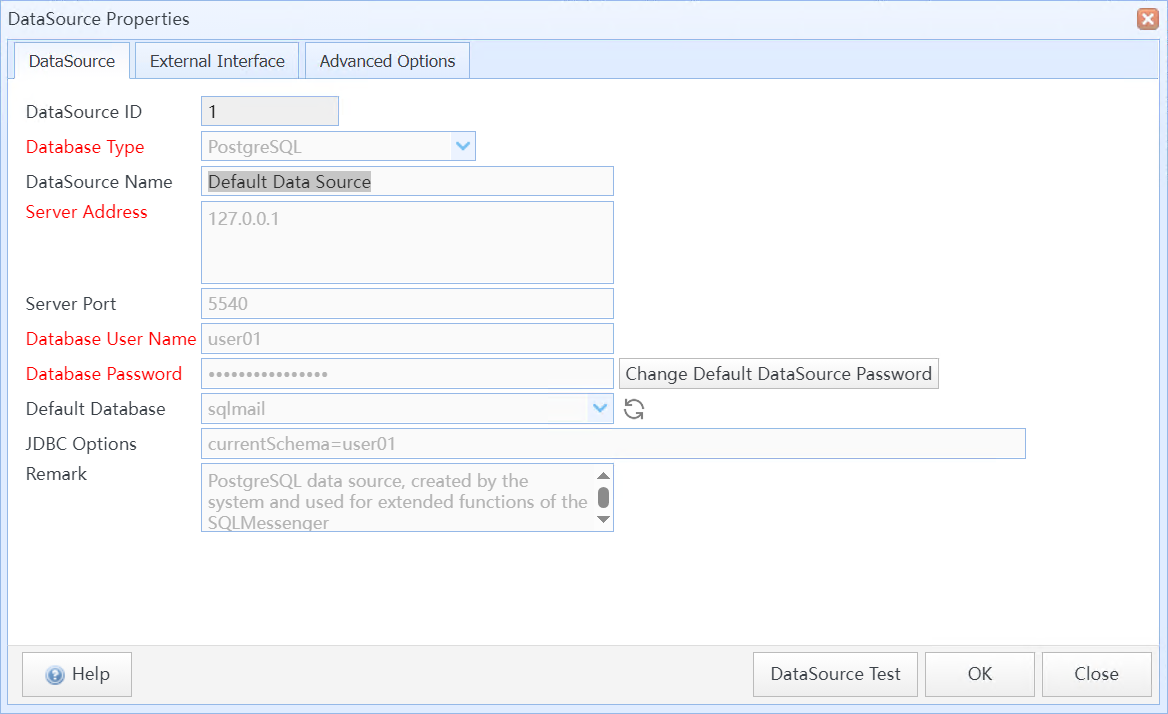
After SQLMessenger installation completes, a data source named Default Data Source will be automatically created. It is a PostgreSQL database. You can run PostgreSQL functions and SQL statements here to implement various data processing operations. All built-in demo tasks in SQLMessenger also use this data source. Please refer to official PostgreSQL documentation for detailed usage guidelines.
The Default Data Source
The Default Data Source connects to PostgreSQL using the account user01. You may modify its password in the data source configuration window.