- 1. Overview
- 2. Case Background
- 3. Automation with SQLMessenger
- 4. Testing the Workflow
- 5. If You Have Similar Requirements
- Additional Technical Resources
- More Use Cases
1. Overview
SQLMessenger has provided the ability to receive Slack messages starting from version 2.3.0001. You can use SQLMessenger to receive Slack messages and process them automatically.
This document demonstrates, through a practical example, how to receive Slack messages, query data based on the message content, and return the query results (as an Excel file) to the sender.
2. Case Background
Alex works as a data administrator at a company. His colleagues frequently send him Excel files through Slack. Each file contains some product codes. Alex needs to look up the prices and other related information of these products in the database, and then reply to his colleagues with the results.
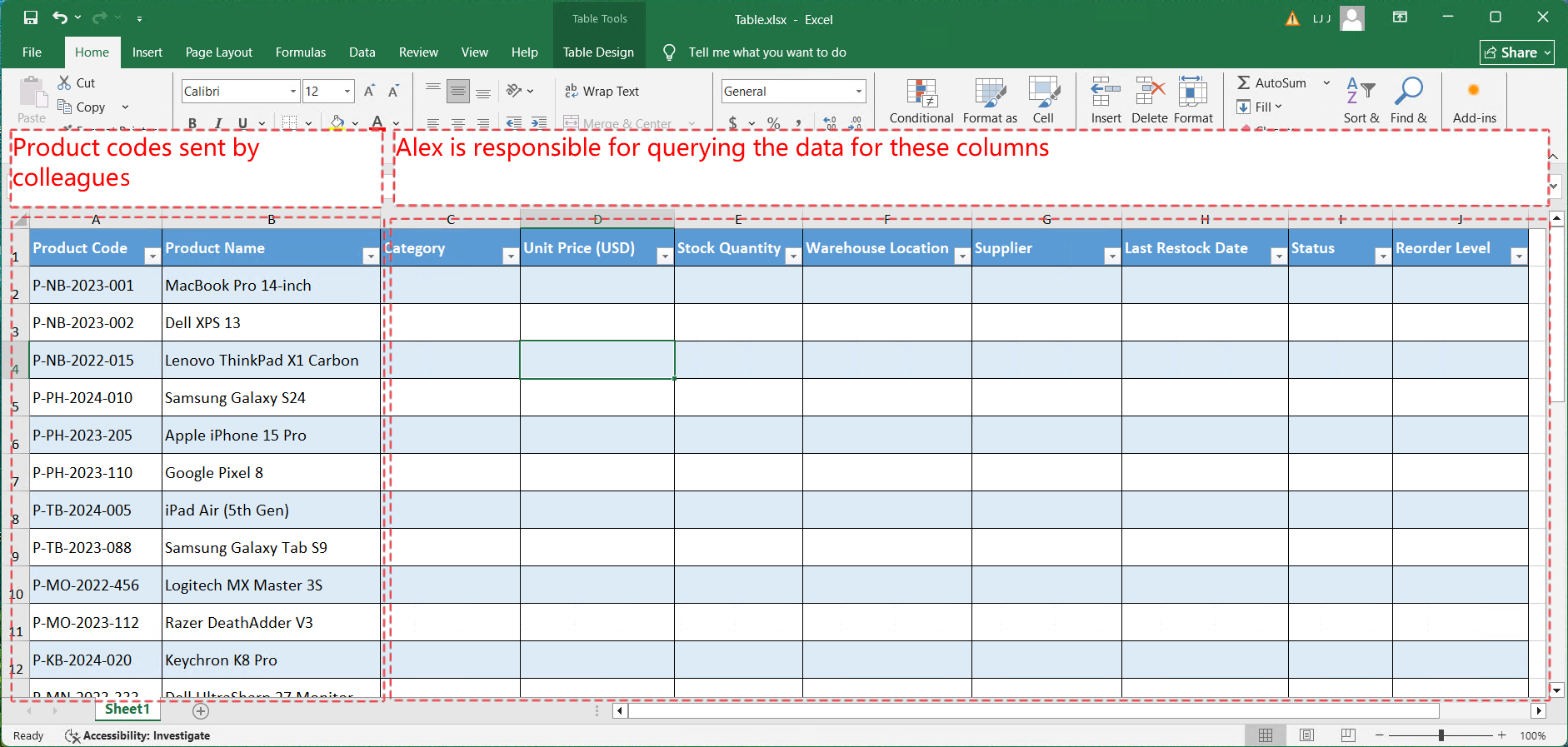
The Excel file Alex received from a colleague
After receiving a file, Alex must import the data into the database, run SQL queries to retrieve information for each product, and export the query results into an Excel spreadsheet.
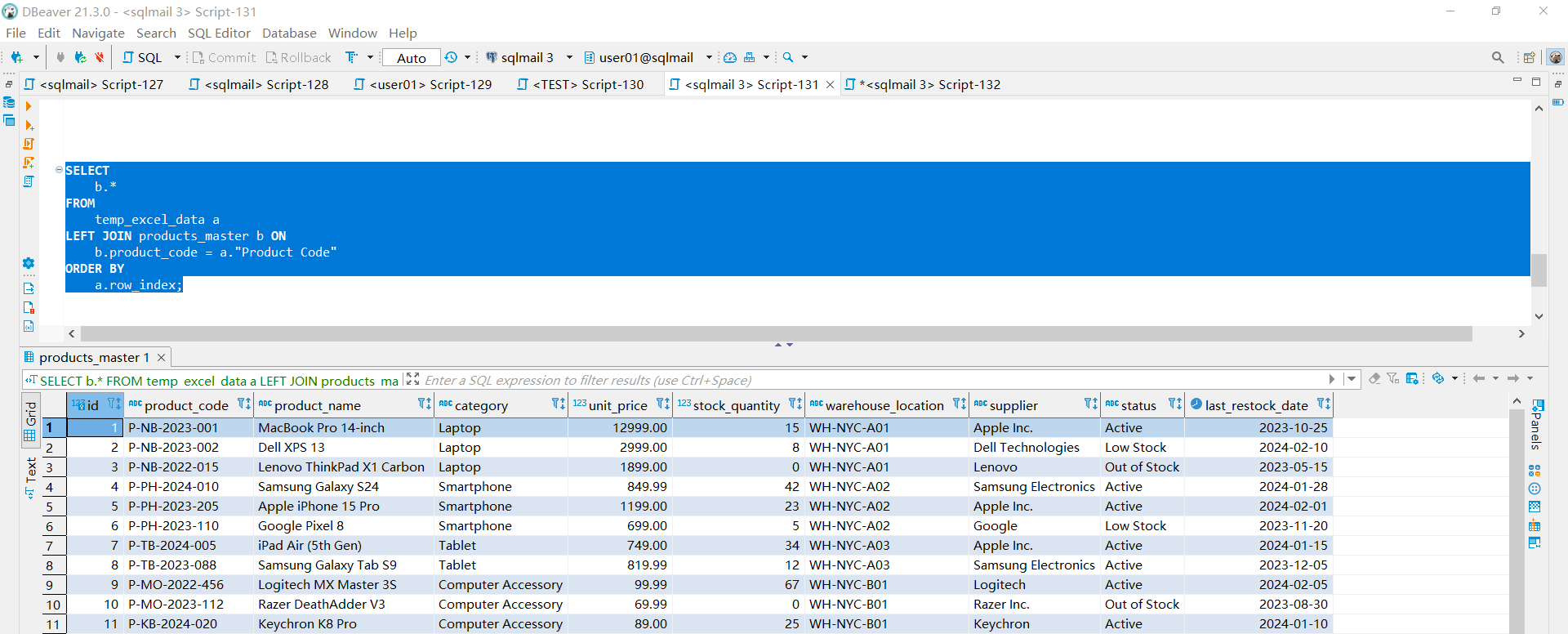
Alex imports the Excel spreadsheet into the database and queries the product data
3. Automation with SQLMessenger
Alex has now automated this entire workflow using SQLMessenger. His configuration includes the following steps:
Step 1: Configure a report task in SQLMessenger that imports the Excel file into the database, queries product data, converts the results into an Excel file, and sends the result back to the original sender.
* As Alex was just getting started with SQLMessenger, he was unfamiliar with configuring tasks. After a detailed discussion of his requirements, the SQLMessenger team set up a reporting task for him to handle incoming Excel files and query product data.
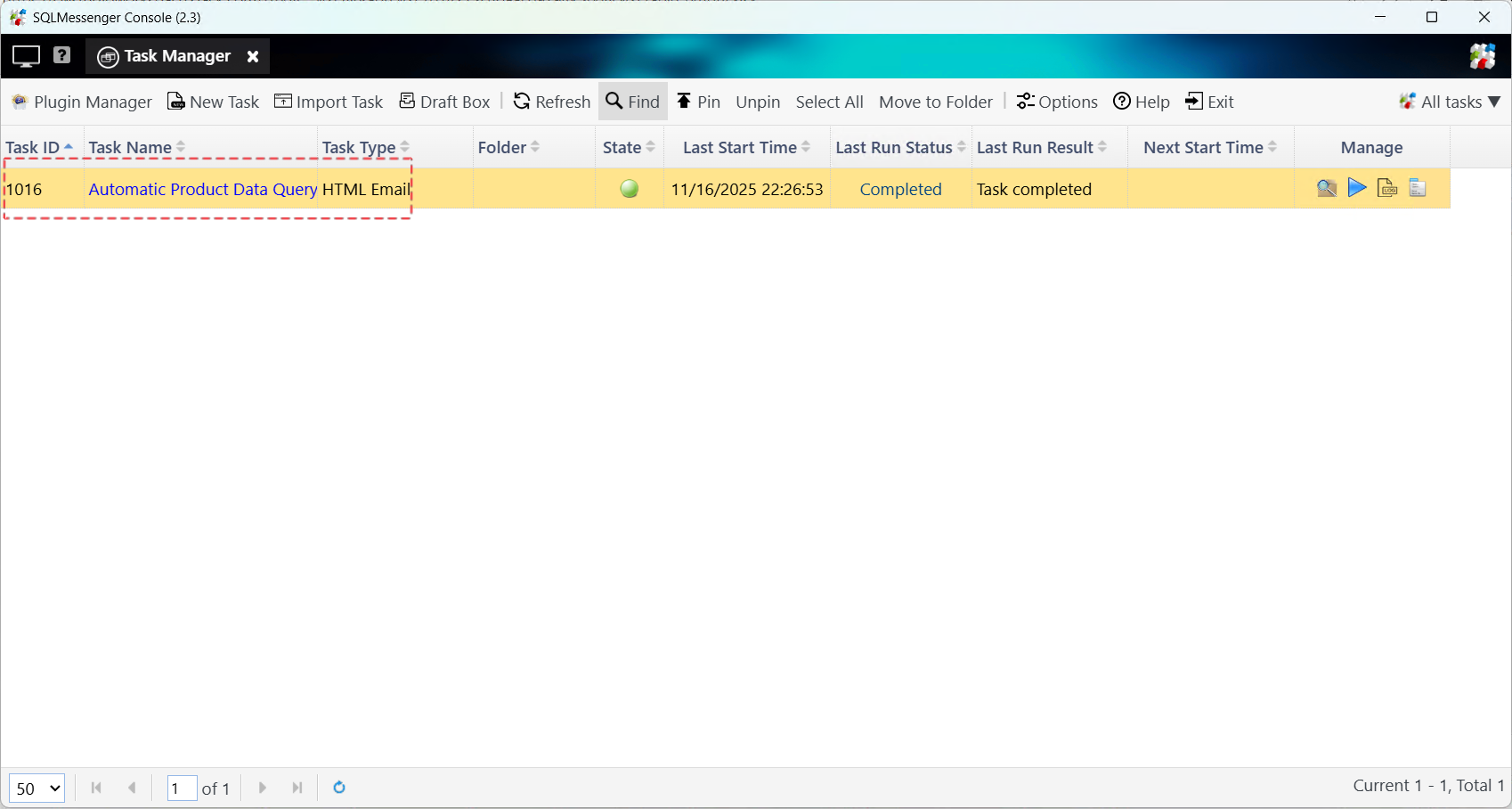
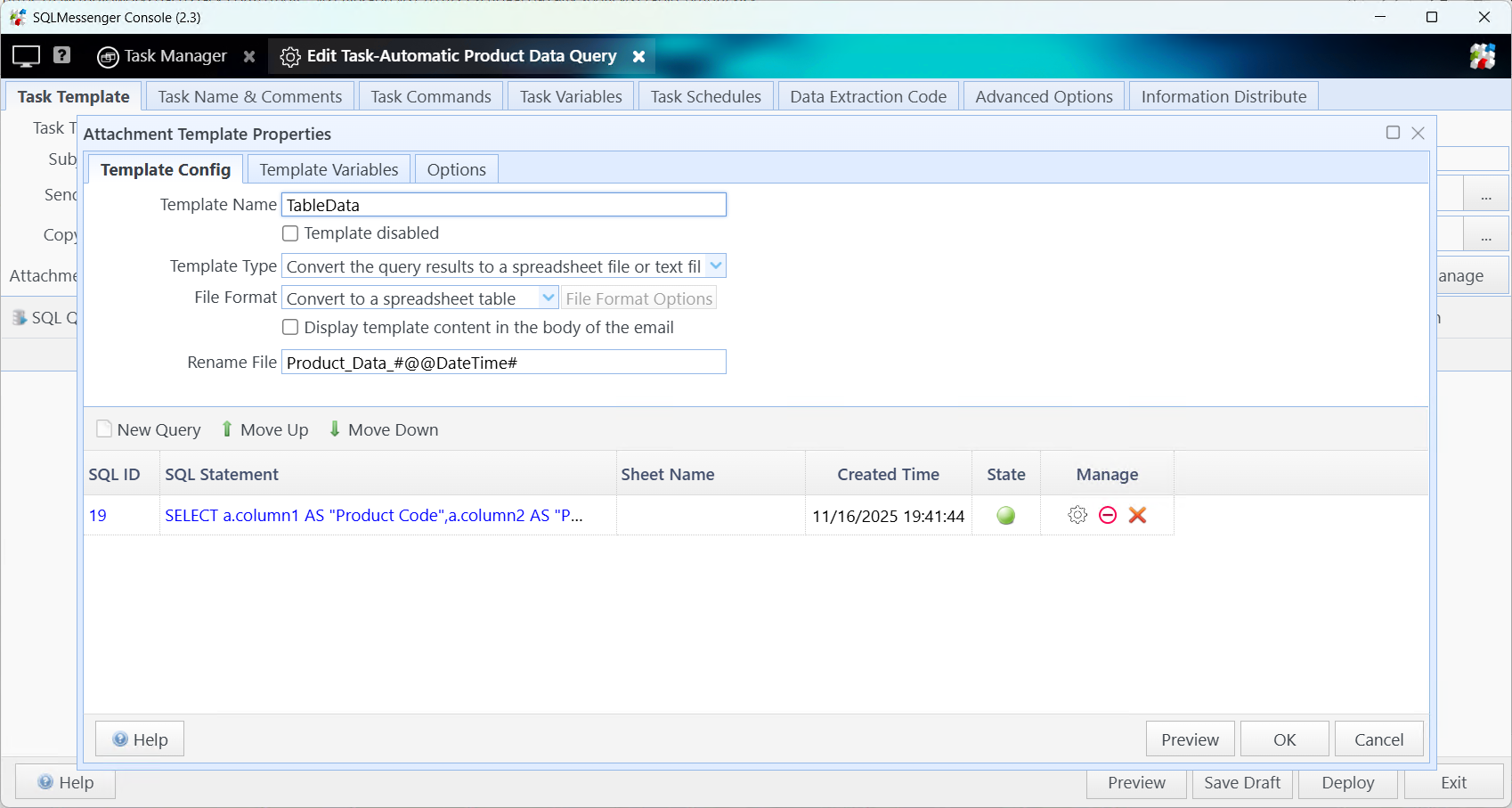
The report task the SQLMessenger team configured for Alex
Step 2: Configure two Slack bots in SQLMessenger—one for receiving Slack messages from colleagues, and another for sending the query results back through Slack.
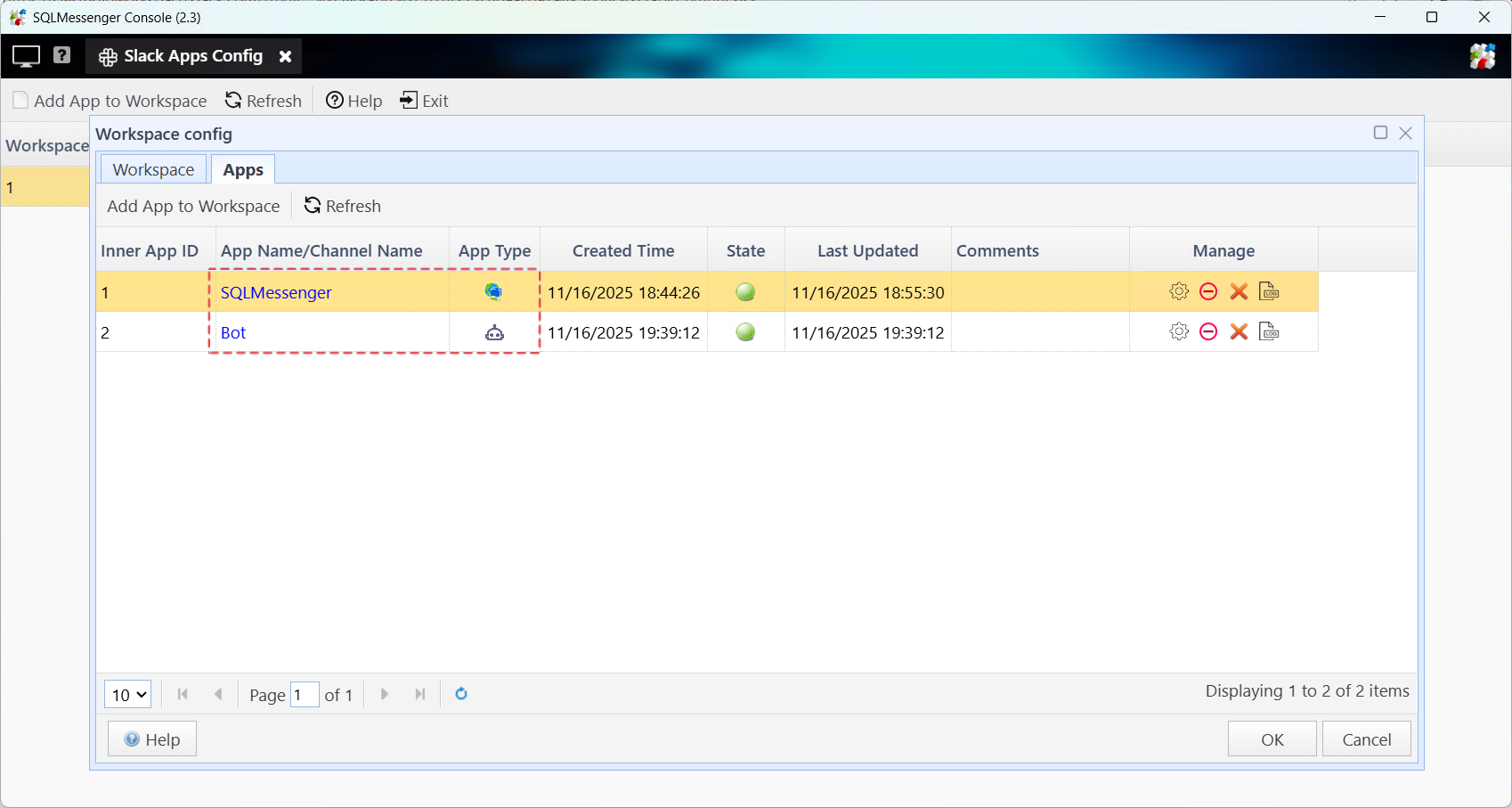
4. Testing the Workflow
After completing the configuration, we sent a file from Slack to test the system.
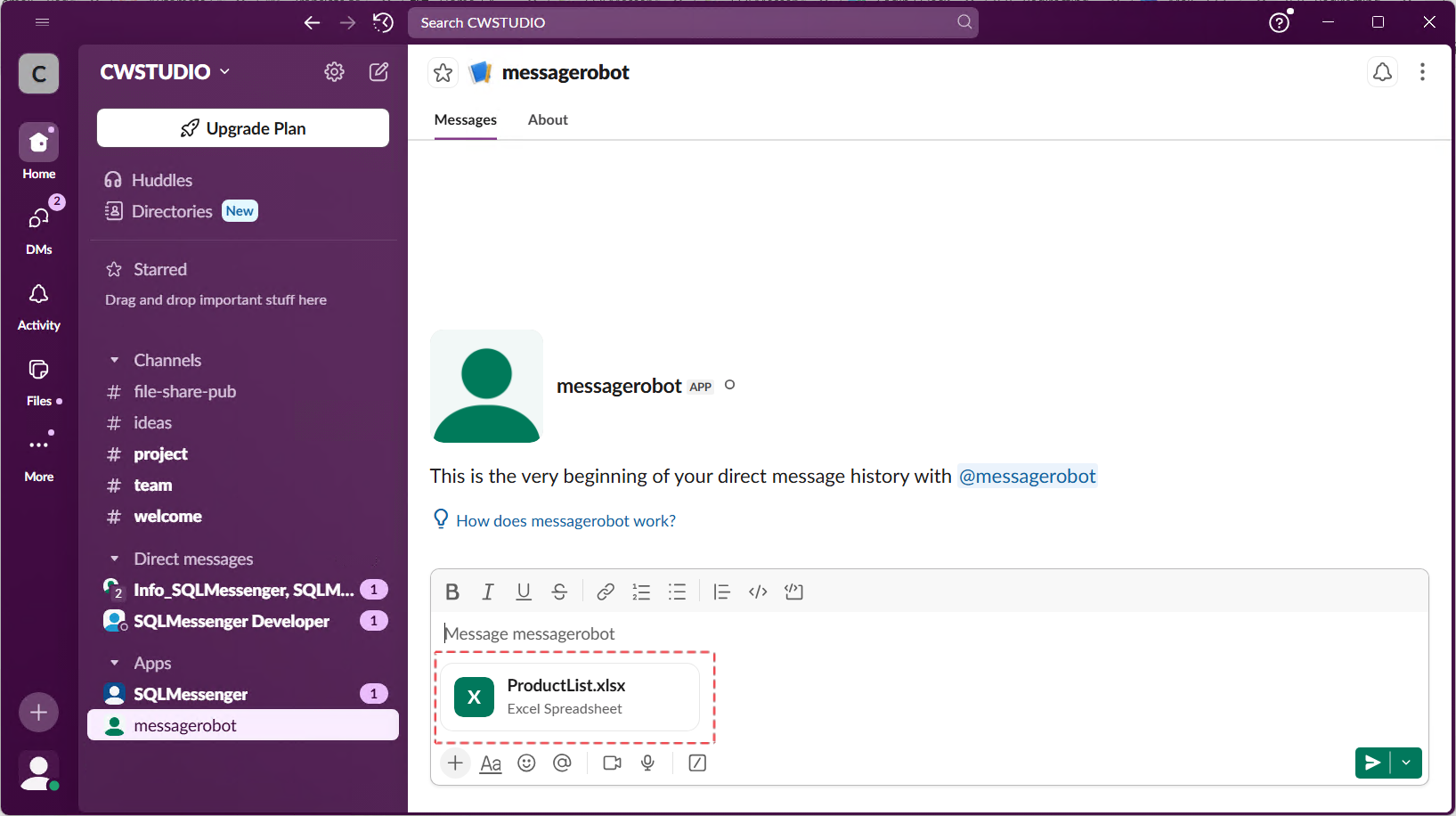
Send a file from Slack to the Slack App configured in SQLMessenger
SQLMessenger automatically processes the file, performs the query, and replies to the sender with the results.
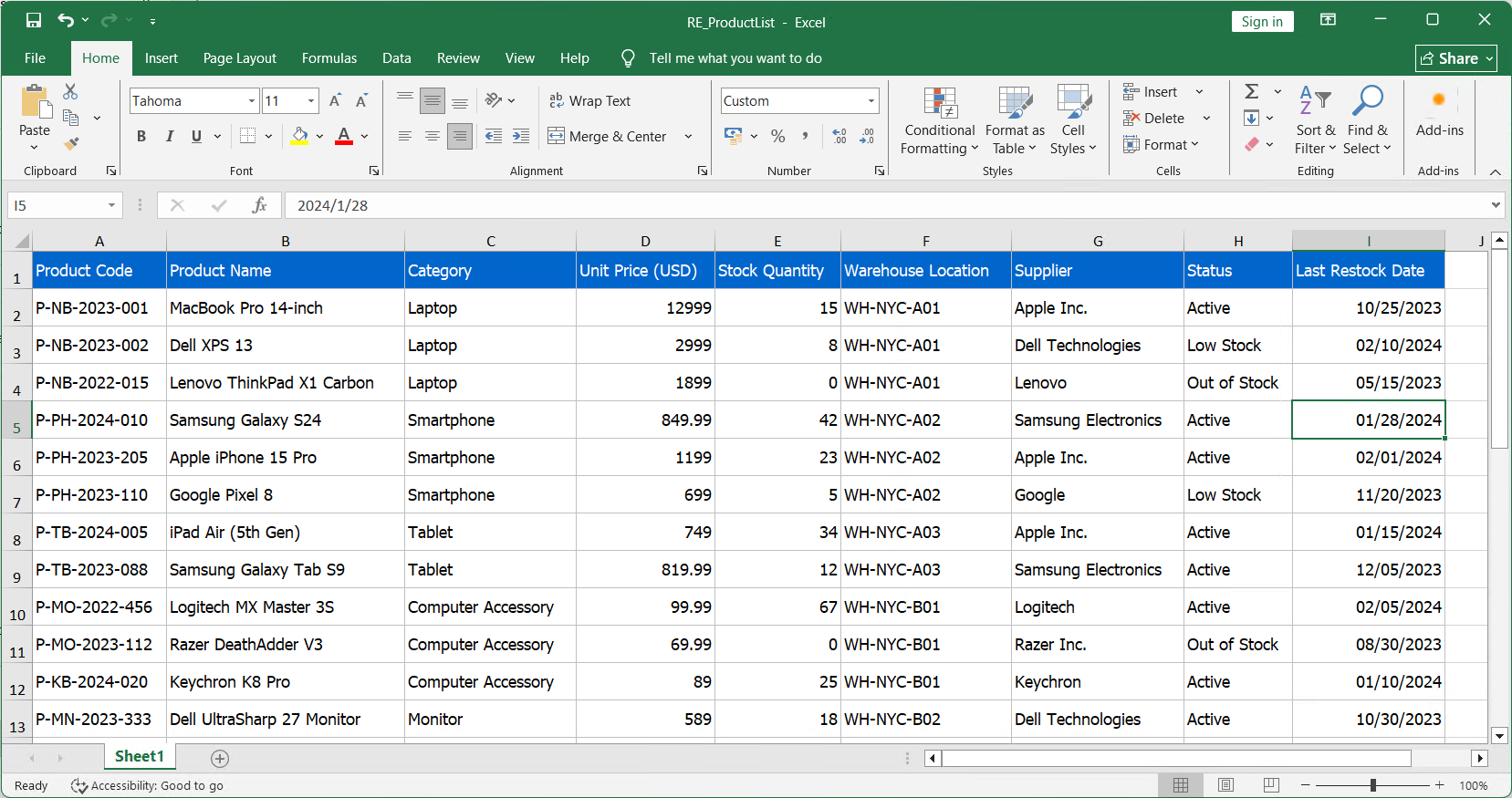
SQLMessenger automatically converts the query results into an Excel file
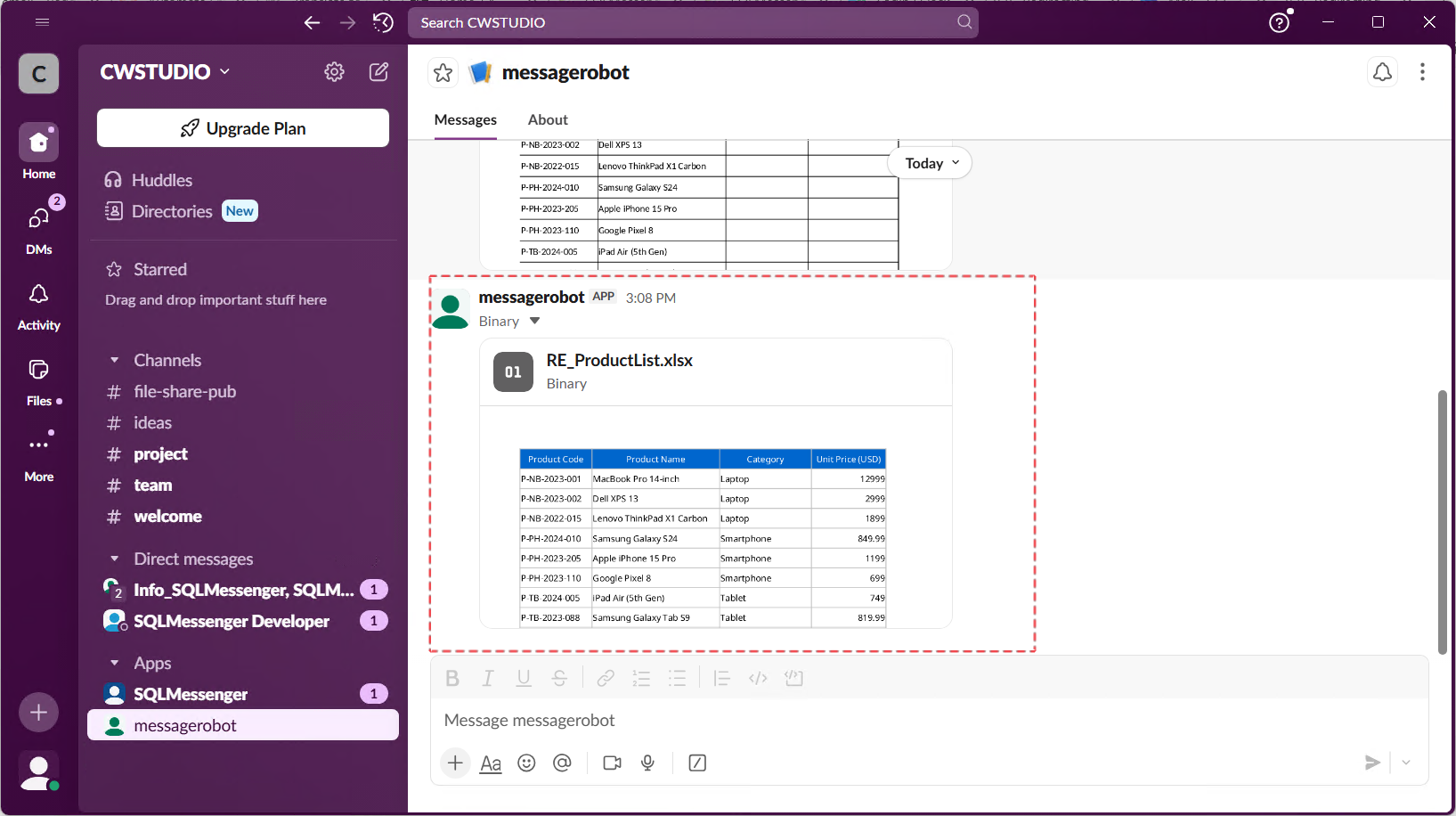
SQLMessenger sends the file to the sender
In addition to this scenario, SQLMessenger can execute different tasks based on the sender’s account and the content of the message, providing highly flexible message-driven automation.
5. If You Have Similar Requirements
SQLMessenger is a powerful, flexible, and fully configurable workflow system. It enables automated processing of messages from various channels—Email, Slack, Telegram, and more.
If you have similar requirements, feel free to reach out to our team. Tell us what challenges you’re facing, and we’ll take care of the rest. We’re here to help you build exactly the workflow you need.
Click here to view our contact information.
Additional Technical Resources
SQLMessenger User Manual: Sending Messages to Slack Workspace Members via Slack API
Configuring Tasks in SQLMessenger
More Use Cases
SQLMessenger can also be used to automate a variety of tasks. Here are some examples:
From Manual to Automated: Improving Report Workflow with SQLMessenger
From Hours of Manual Work to One-Click Reports
Automating Data Workflows with SQLMessenger
From 90 Minutes of Manual Work to One Click: How SQLMessenger Transformed Employee’s Workflow
Automated Email List Cleanup with SQLMessenger and Gemini AI
Transforming Manual Alert Management into an Automated Workflow