1. About the Email Forwarding Feature
2. Configuring Email Forwarding Rules
3. Setting the Priority for Email Forwarding Rules
1. About the Email Forwarding Feature
SQLTelebot can automatically forward new emails to a specified chat, group, or channel via a Telegram Bot.
For example, suppose you configure SQLTelebot as follows: when an email from "user01@test.com" with a subject containing the keyword "Report" is received at "manager@sqlmessenger.com", it will be automatically forwarded via the bot "MySalesReport_bot" to the Telegram contact "manager1220".
The email forwarding feature in SQLTelebot requires three configurations:
1. Set up forwarding rules.
2. Set the priority for email forwarding rules.
3. Enable the email forwarding switch.
The following section explains how to configure these settings.
2. Configuring Email Forwarding Rules
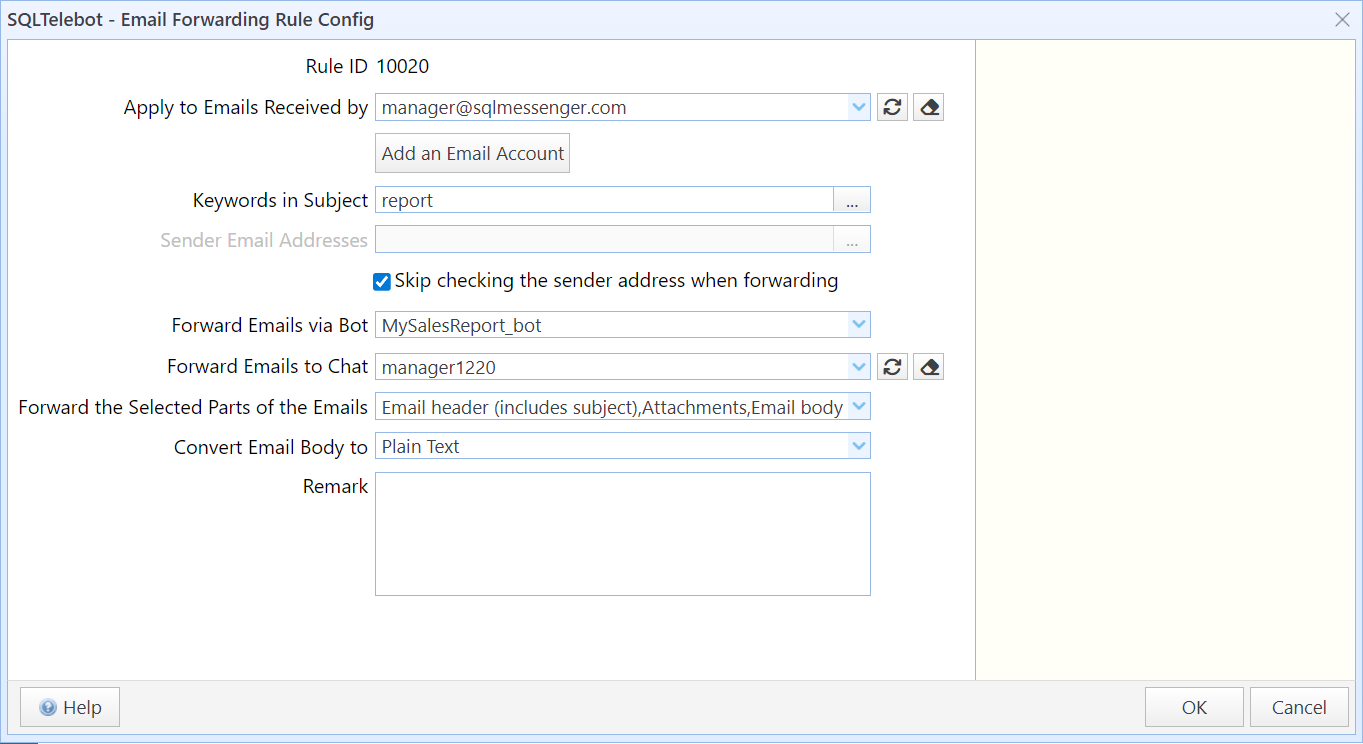
Step 1: In SQLTelebot, click the "Forward Emails to Telegram" menu, then click "Add Email Forwarding Rule".
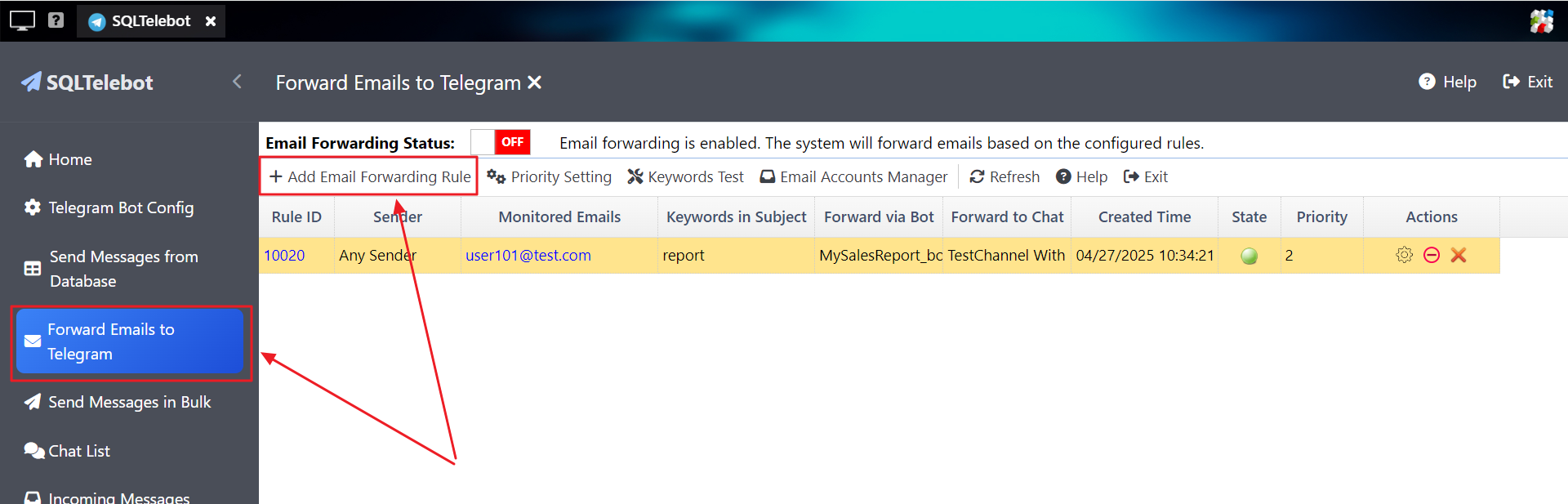
Step 2: In the "Email Forwarding Rule Config" dialog, set the options for email forwarding.
In this dialog box:
Apply to Emails Received by |
Select the email accounts to which this rule applies. SQLTelebot will process incoming emails for these accounts according to the rule. |
Add an Email Account |
You can click this button to add a new email account. The system will automatically process incoming emails for this account. For detailed account configuration, please refer to Email Account Management. |
Keywords in Subject |
Enter the keywords that may appear in the email subject. When an email is received, the system will check the subject for these keywords. If a match is found (and other conditions such as the sender’s address are also satisfied), this rule will be applied to process the email. The "Keywords in Subject" field uses the wildcard syntax of PostgreSQL’s LIKE operator (e.g., % matches any string, _ matches a single character) and is case-insensitive. For example: If the keywords is "%abc%" and the email subject contains "abc", it will be classified as this type of email. If the keywords is "abc%" and the email subject starts with "abc", it will be classified as this type of email. Visit https://www.sqlmessenger.com/manual/plugin-2-keyword-format.htm for detailed specifications of the keywords format. |
Sender Email Addresses |
Enter the email addresses of senders whose messages should be processed according to this rule. |
Skip checking the sender address when forwarding |
If this option is selected, the "Sender Email Addresses" field will be ignored. SQLTelebot will process emails from all senders (in combination with other conditions, such as the email subject). |
Forward Emails via Bot |
Select a bot. The system will automatically forward emails that match this rule to the designated chat or group via the selected bot. |
Forward Emails to Chat |
Select a chat. The system will automatically forward emails that match this rule to the chosen chat. Note: If the recipient contact, group, or channel is not listed, click here for troubleshooting solutions. |
Forward the Selected Parts of the Emails |
Select the parts of the email you want to forward to Telegram. You can choose from the following options: Email header (includes subject): Forward the sender information, email subject, and the time the email was received to Telegram. Email body: Forward the contents of the email to Telegram as plain text, a PNG image, or a PDF file. Attachments: Forward any attachments included in the email to Telegram. |
Convert Email Body to |
Choose the conversion method for the email body. SQLTelebot can forward the body as plain text, a PNG image, or a PDF file. By default, the body is sent as plain text. |
Step 3: After configuring the options, click "OK" to save the settings.
3. Setting the Priority for Email Forwarding Rules
When SQLTelebot evaluates email forwarding rules, it determines which rule to apply based on their priority.
For example, consider the following configuration:
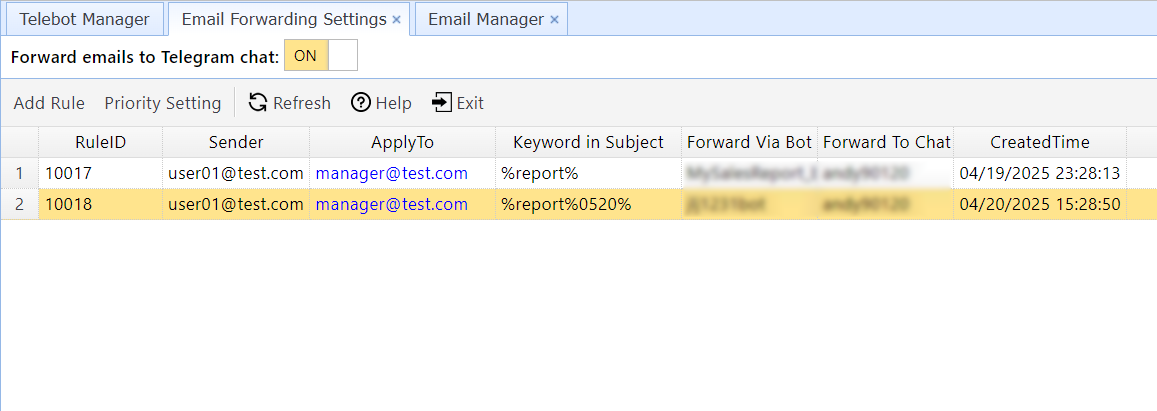
When an email with the subject "Report(0520)-by Andy" is received, both rules match. In this case, the system applies the rule with the higher priority—Rule 10017.
If you want the second rule to be applied instead, you can adjust the priority settings as follows:
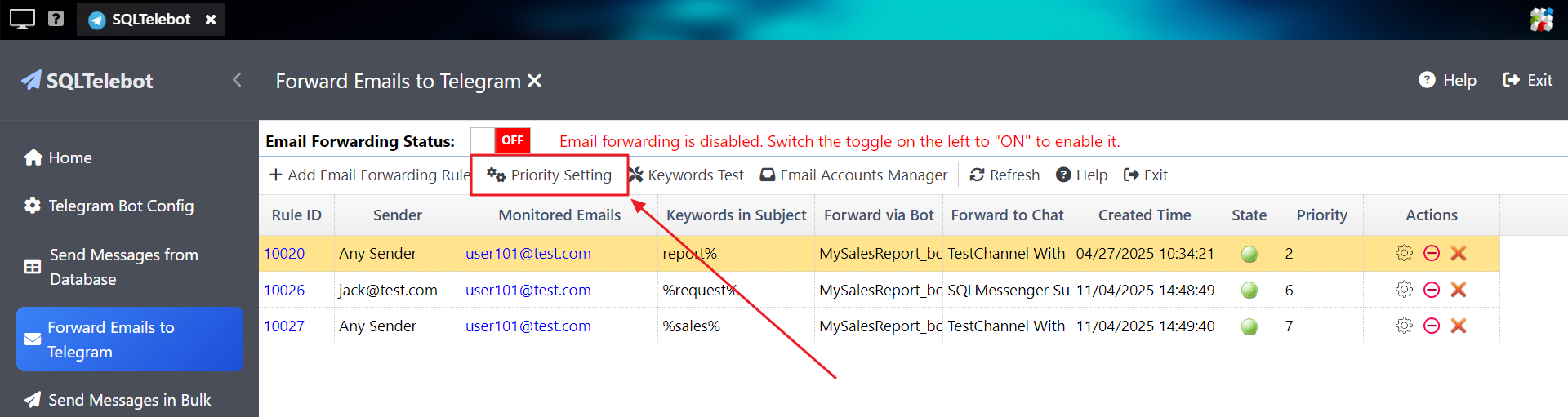
Step 1: Click the "Priority Setting" button.
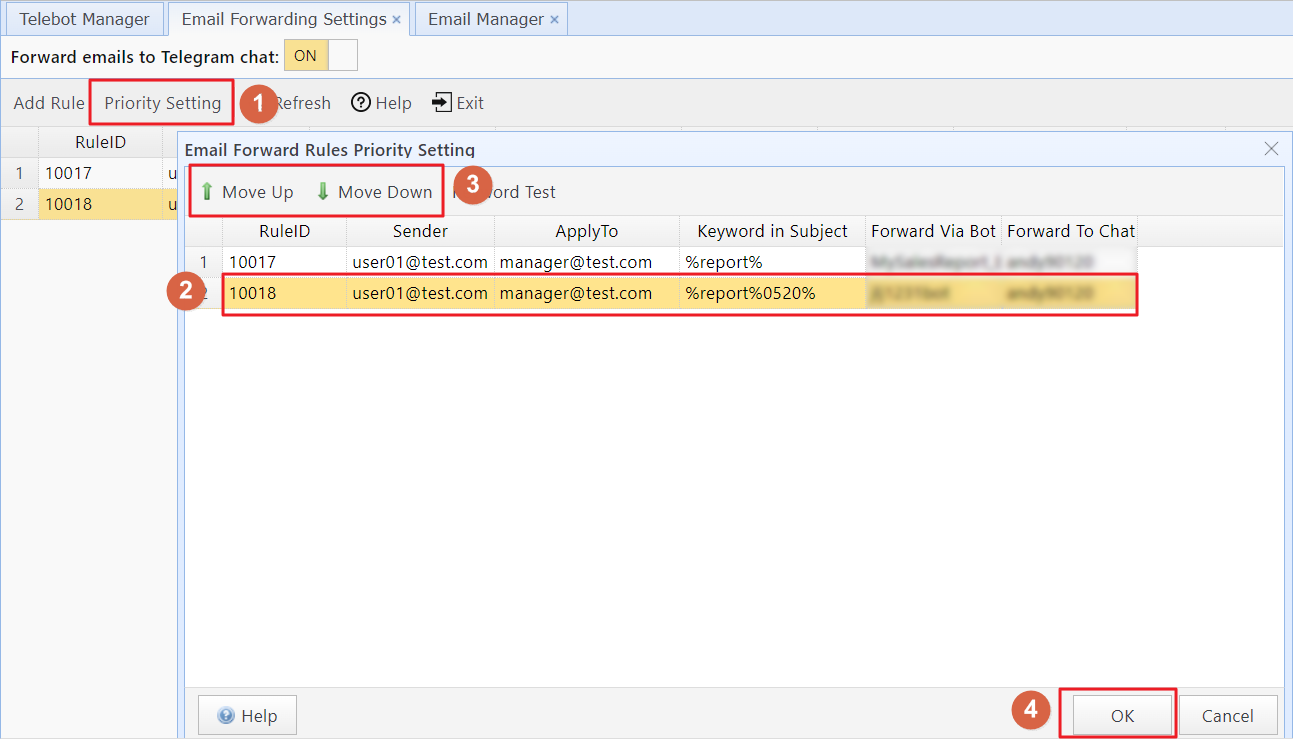
Step 2: Select the rule you want to adjust, click "Move Up" or "Move Down" to change its position, and then click "OK."
After adjusting the priorities, the rules will appear as follows:
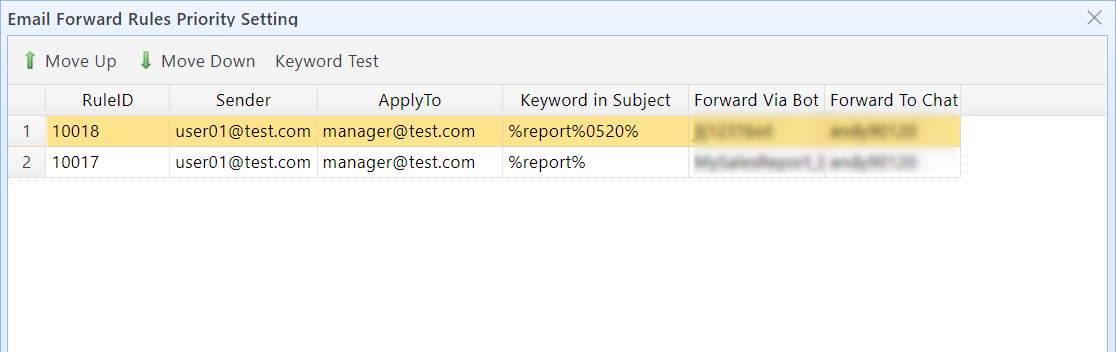
The next time emails are processed, the system will apply Rule 10018 to forward the email.
4. Enabling the Email Forwarding Switch
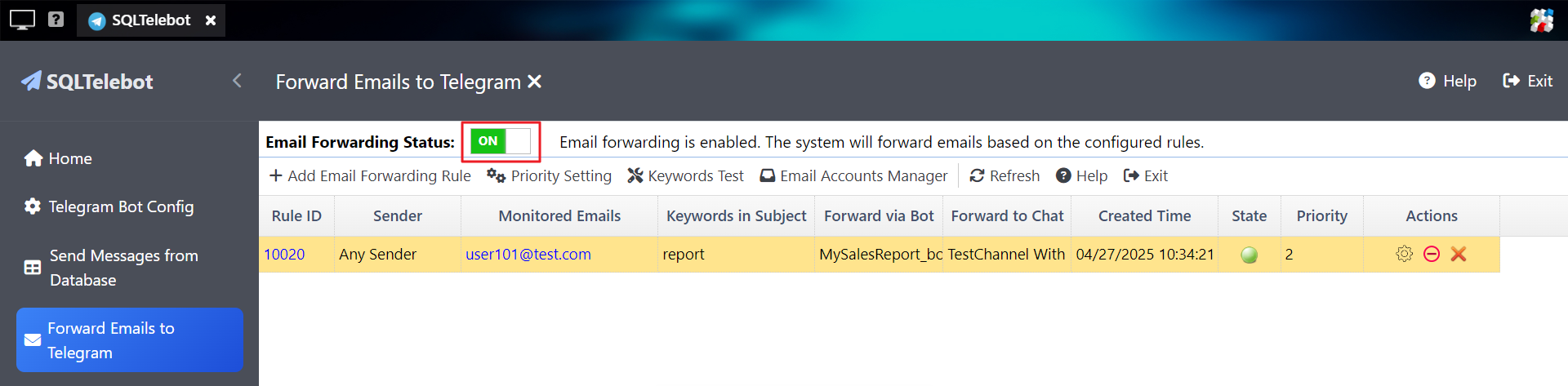
After configuring the forwarding rules and their priorities, turn on the Email Forwarding Switch in SQLTelebot. Once enabled, when the system receives a new email, it will check the email’s content according to your configured rules and take the appropriate action (forwarding it to the specified Telegram chat).
5 Query Processed Emails
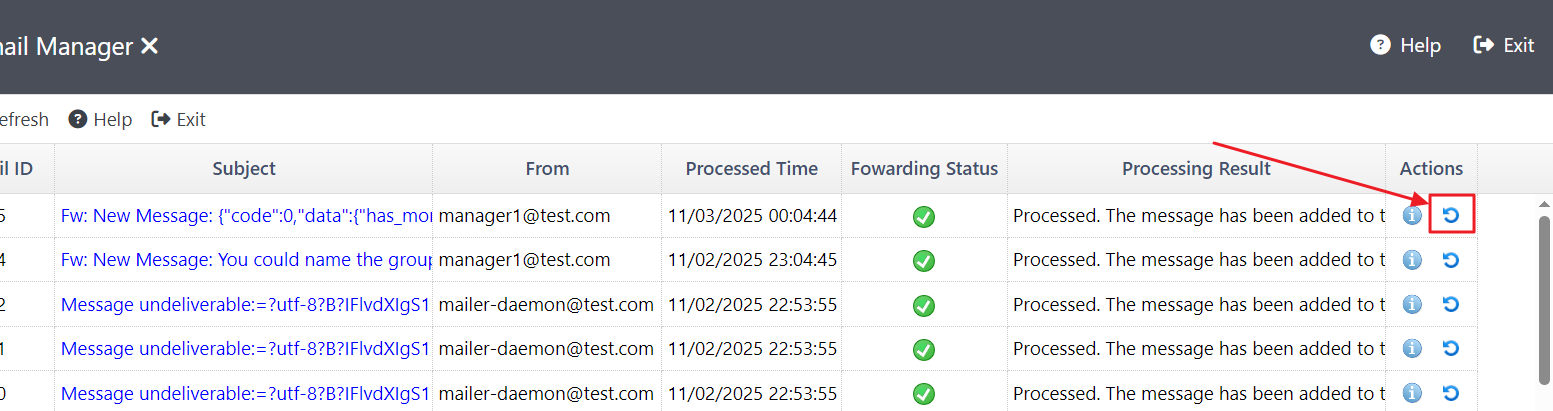
You can check the processed emails in "Email Forwarding Monitor" and reprocess any of them according to the currently configured email forwarding rules.
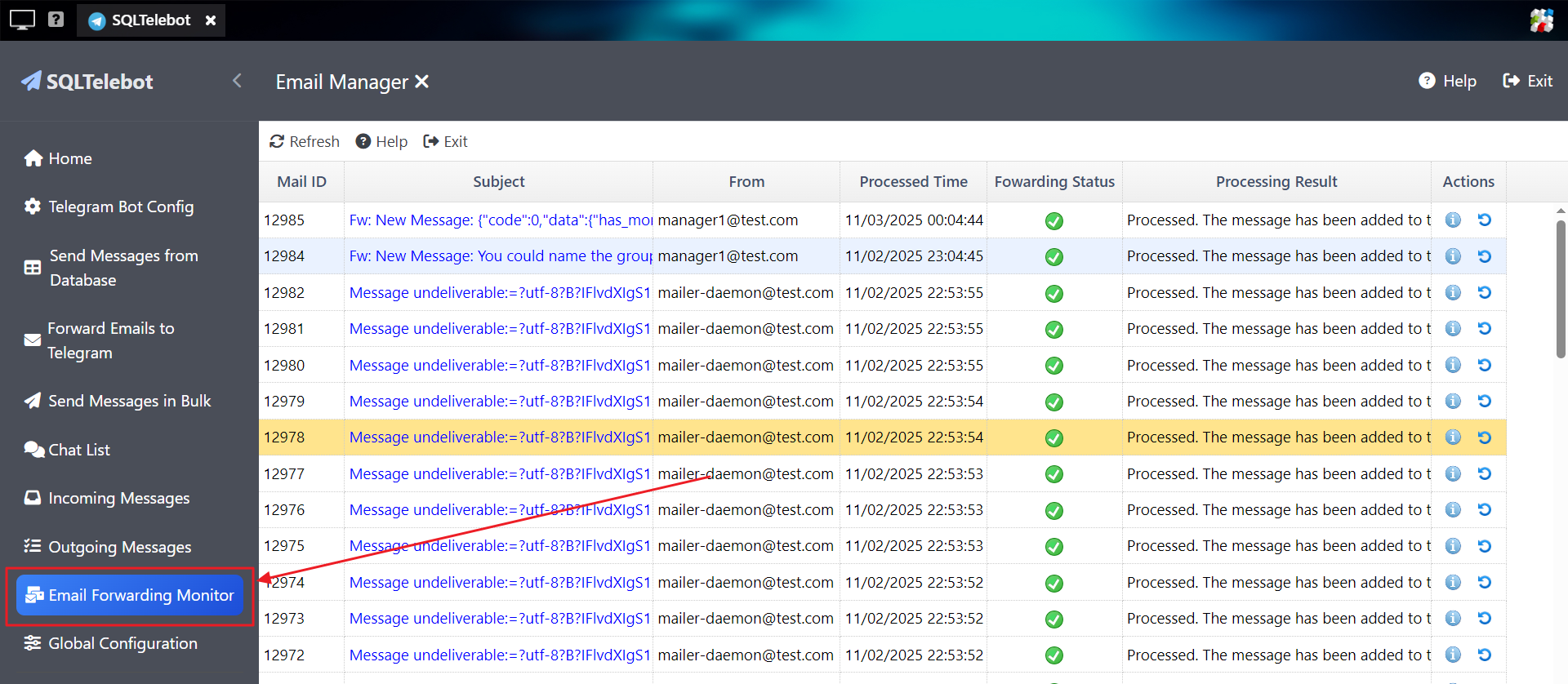
To resend an email according to the current forwarding rules, click the  icon located on the right side of the email.