SQLMessenger User Manual - Using Simple Tables
- 1. What is a Simple Table
- 2. The Structure of Simple Tables
- 3. Converting Query Results into Simple Table Spreadsheets
- 4. Converting Query Results to HTML Tables Displayed in the Email Body
- 5. Using the Simple Table Designer
1. What is a Simple Table
Within SQLMessenger, SQL query results may be converted into either a spreadsheet attachment or an HTML table embedded in email content. These table formats are collectively referred to as Simple Tables.
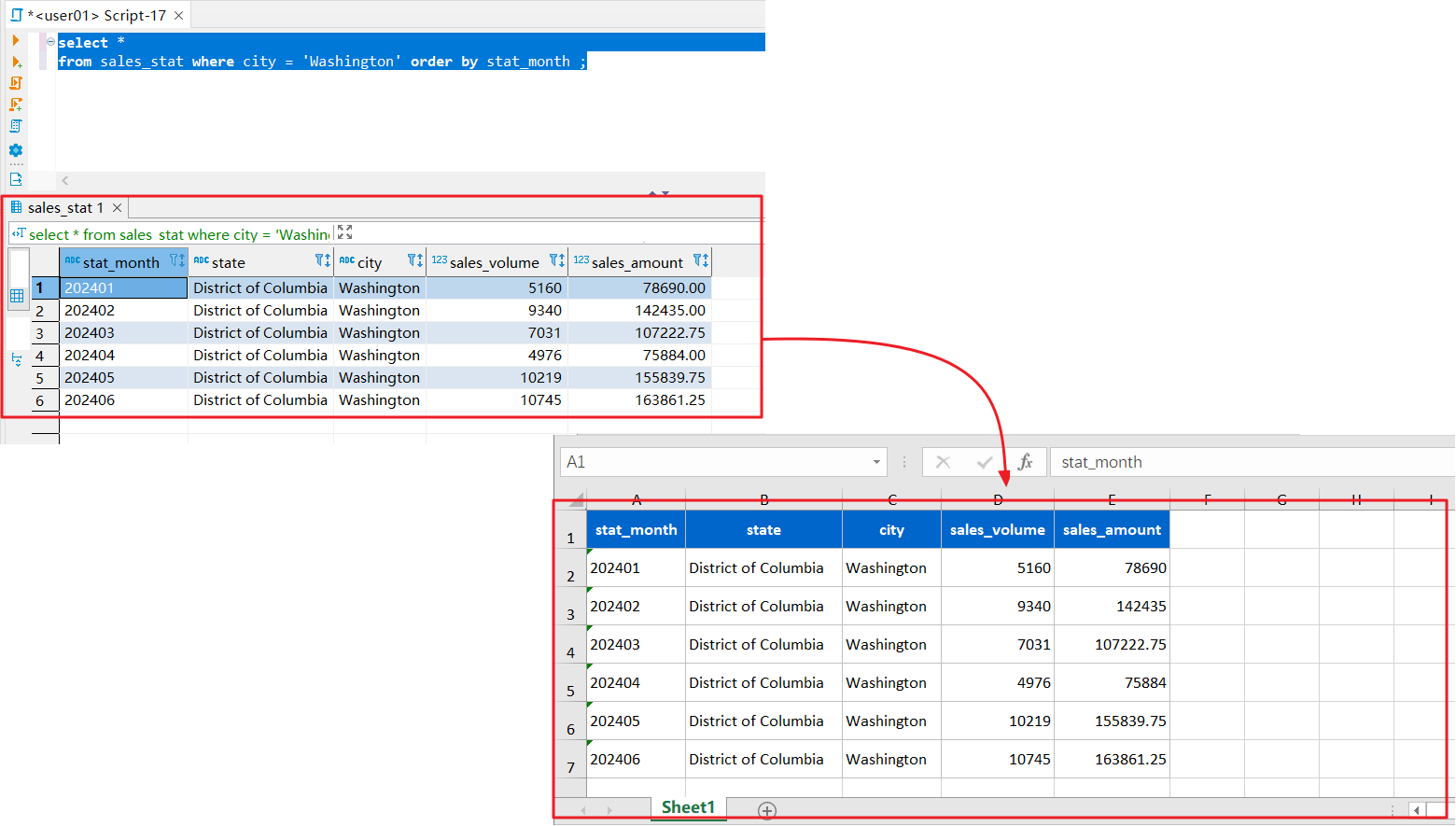
Convert the results of an SQL query into a simple table
2. The Structure of Simple Tables
In simple tables, the first row is the header; all following rows are data rows.
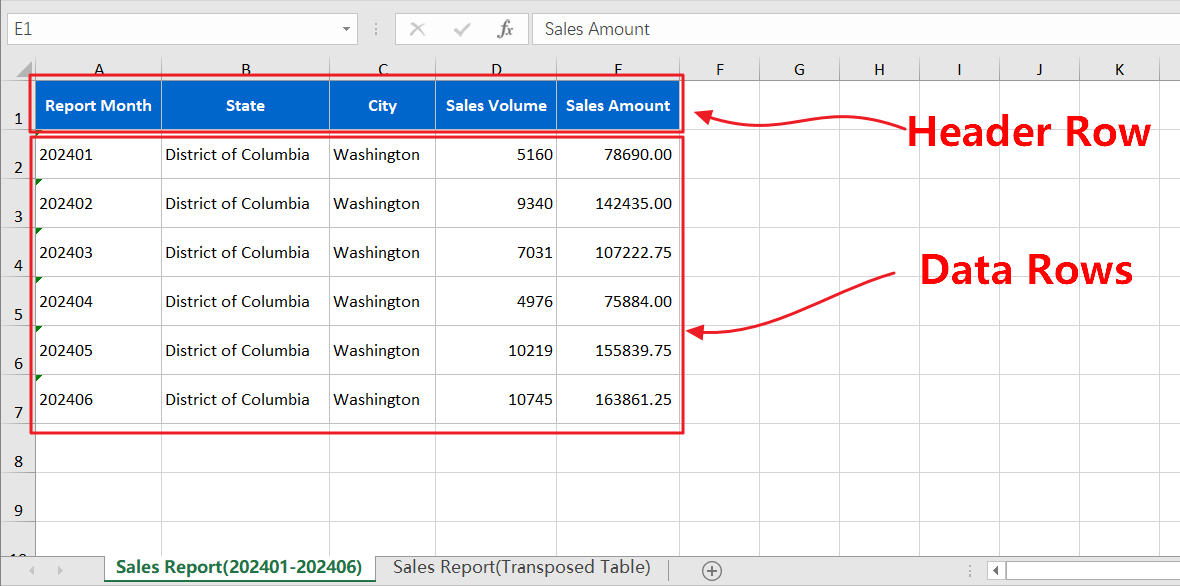
The structure of a simple table
3. Converting Query Results into Simple Table Spreadsheets
In SQLMessenger, SQL query results can be converted into Simple Tables.
You may add multiple SQL queries to a single attachment template. SQLMessenger will export the results of each query to a separate worksheet within the generated spreadsheet.
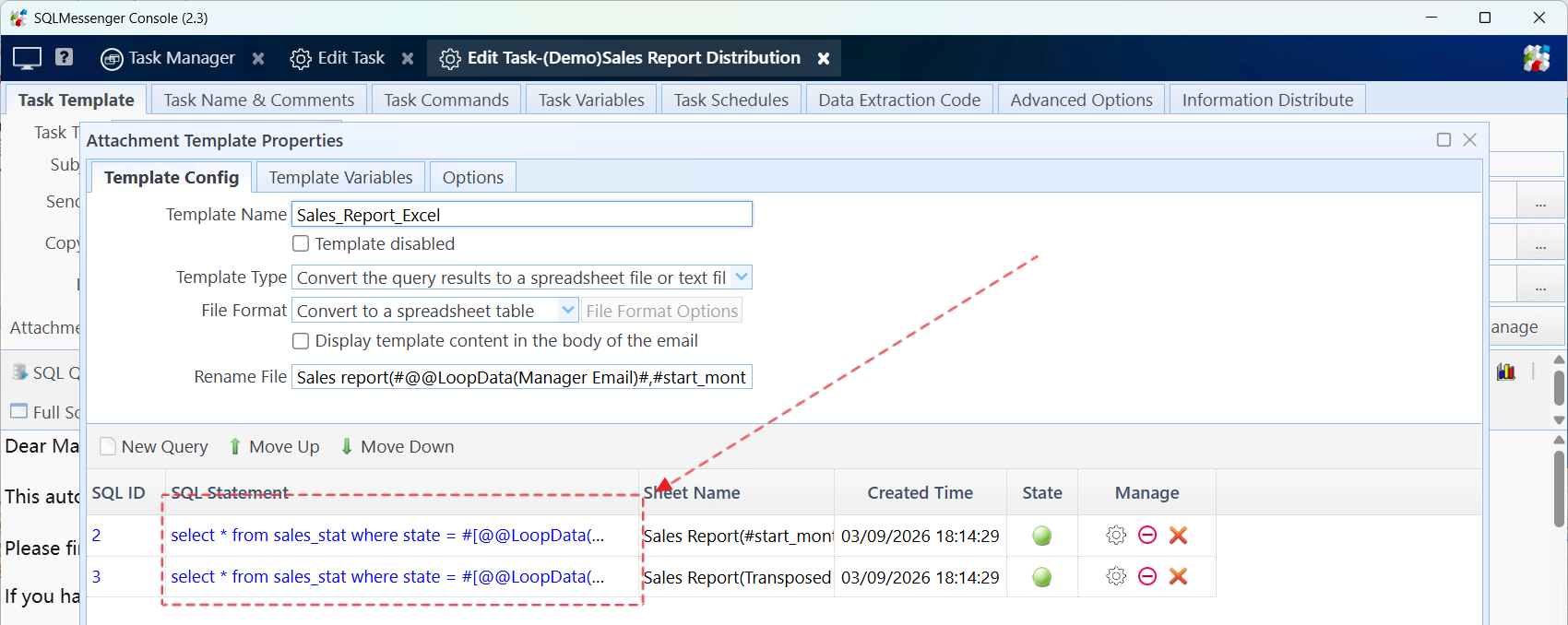
Add multiple queries to a single attachment template
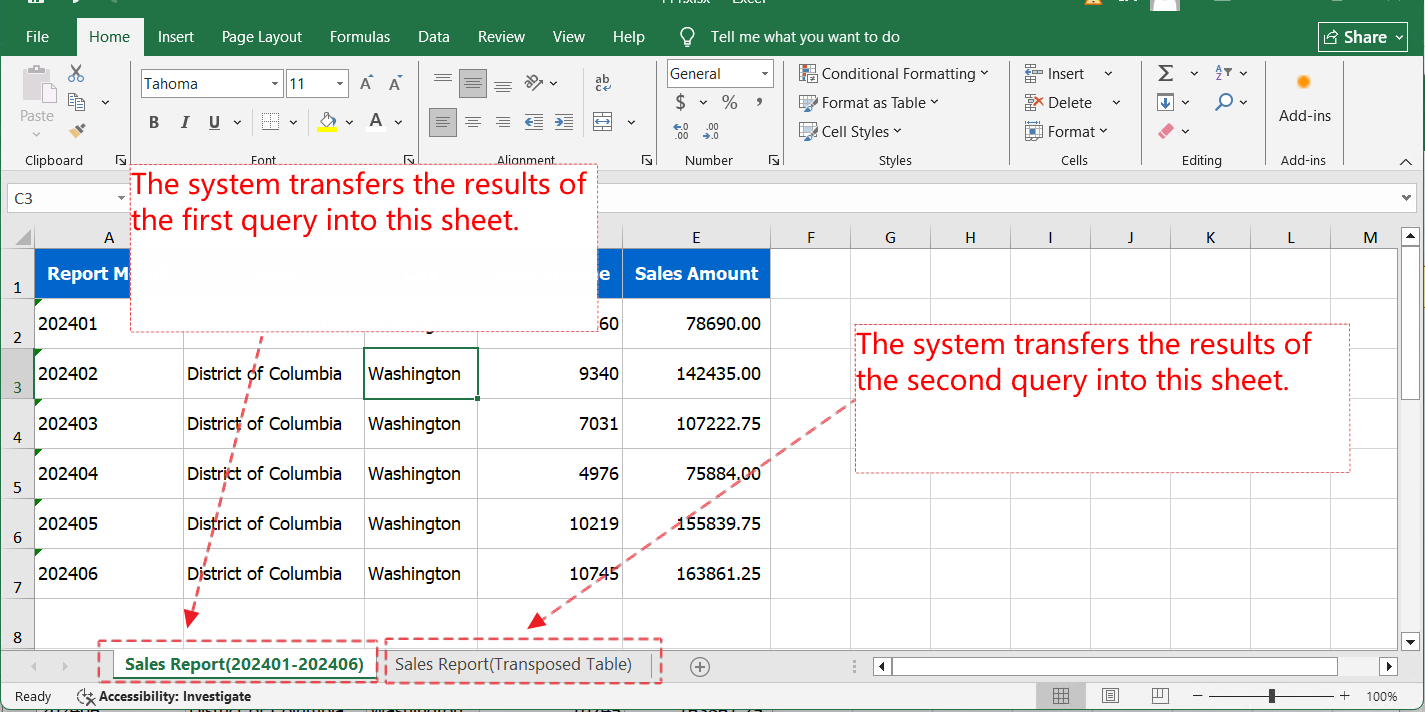
Spreadsheet generated after task execution
Below are the steps to create a Simple Table as an attachment:
Step 1: Create an attachment template within the task.
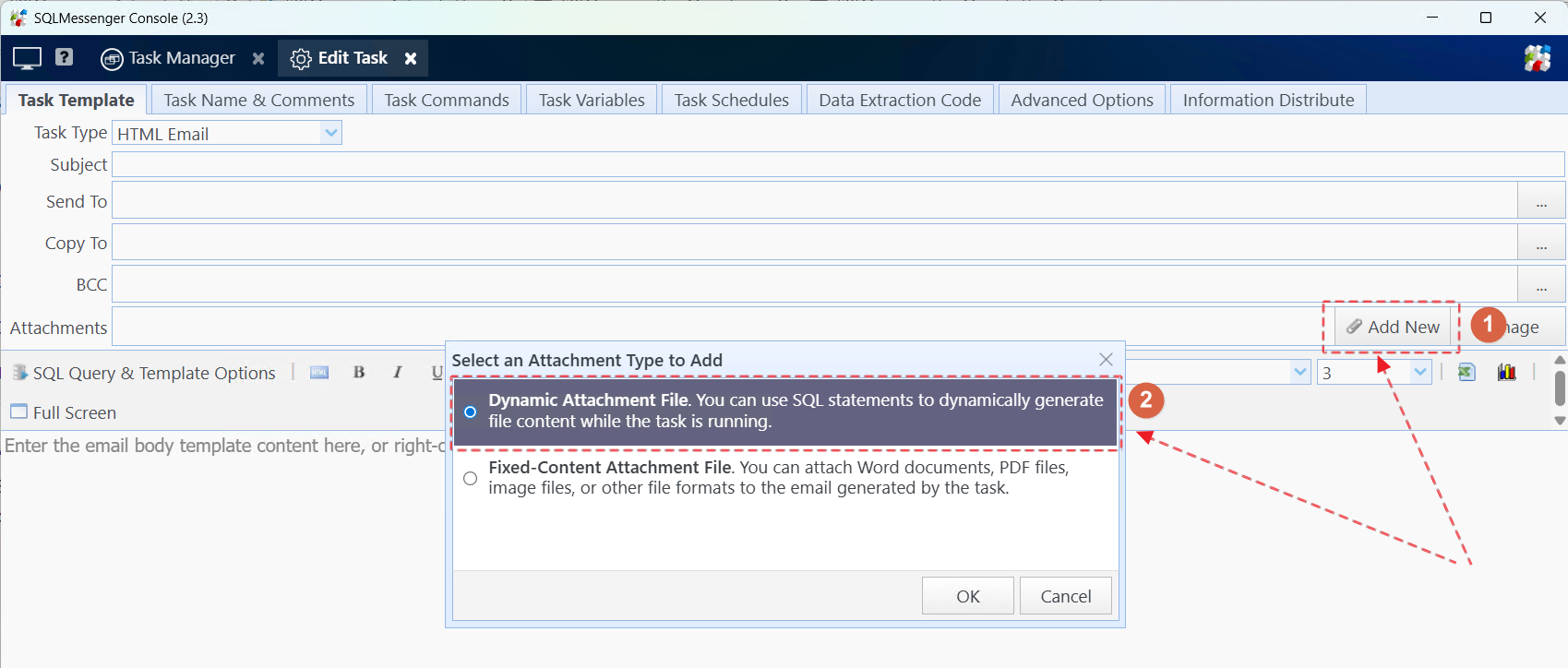
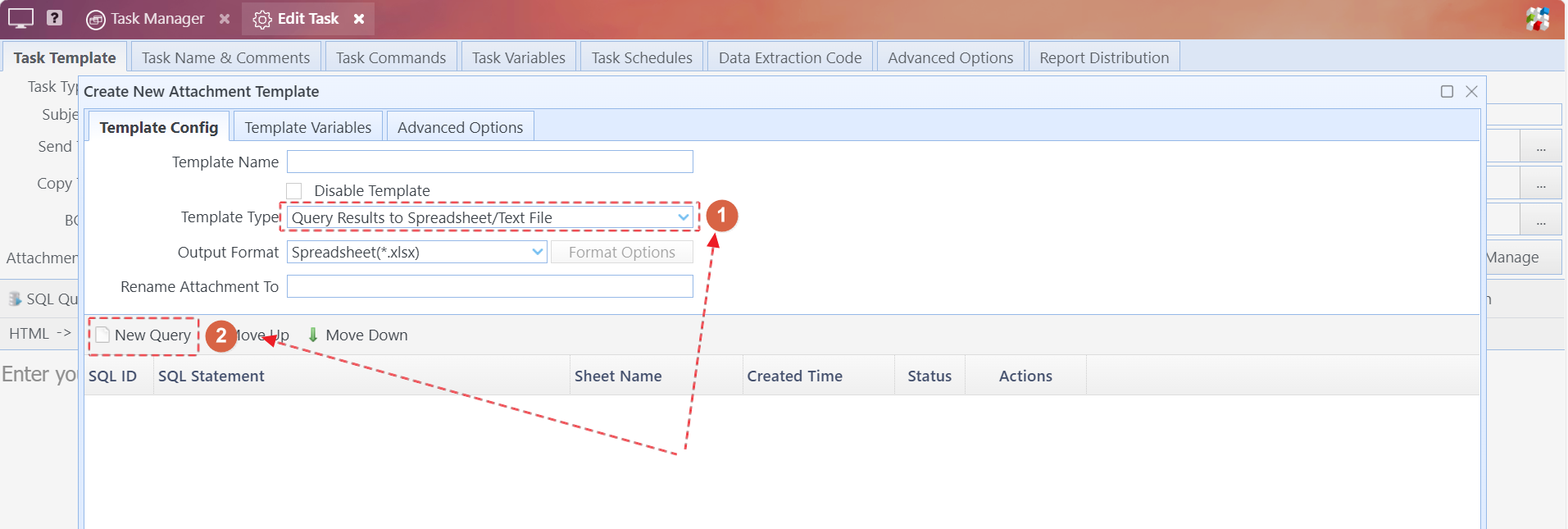
Step 2: Select the template type Query Results to Spreadsheet/Text File, then click New Query to add a SQL query.
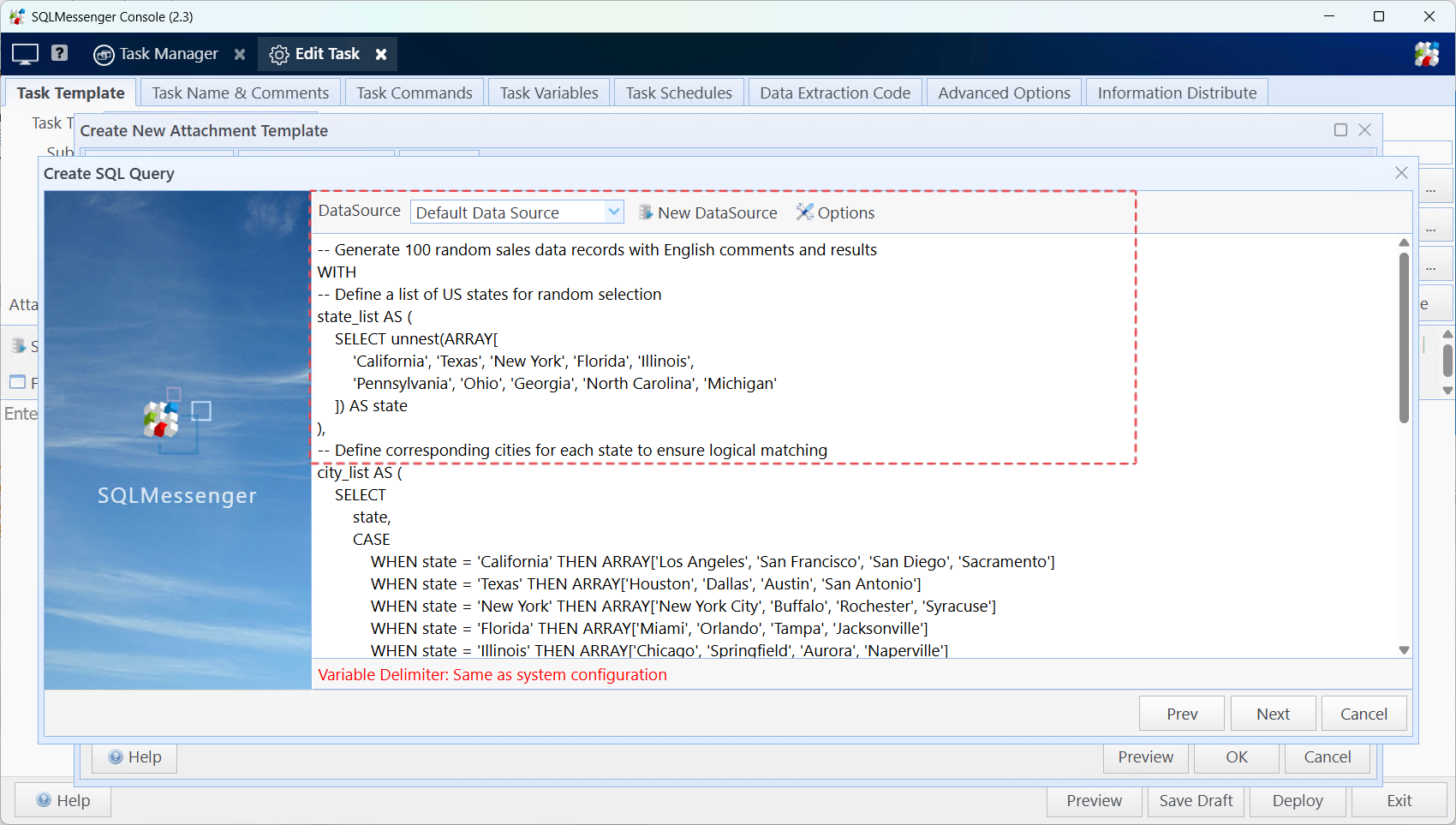
Step 3: Choose a data source and enter your SQL query.
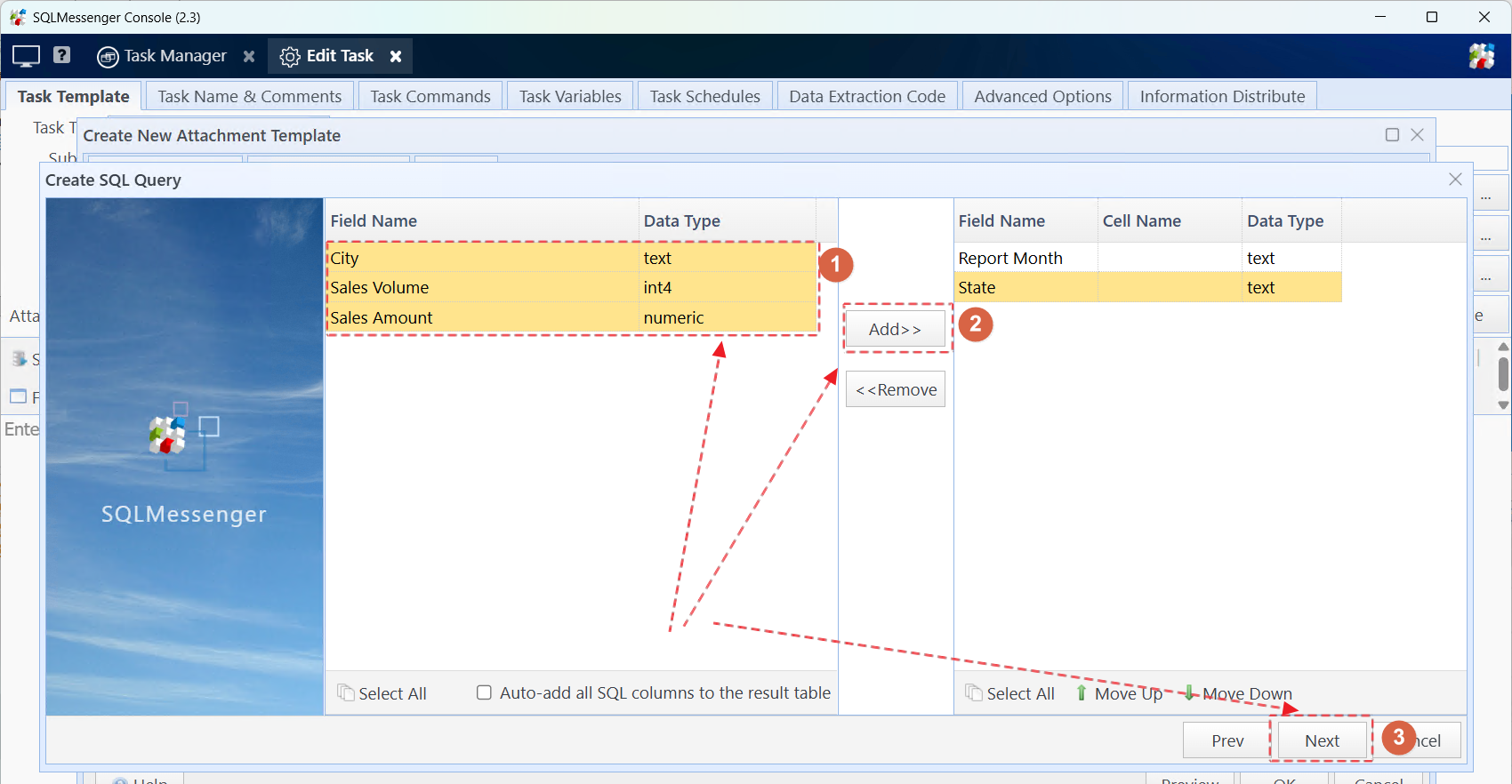
Step 4: Click Next. The system will run the SQL query and show all returned fields. Select required fields from the left pane and move them to the right pane, then click Next.
Step 5: Configure the data display style in the Table Designer, and click Next.
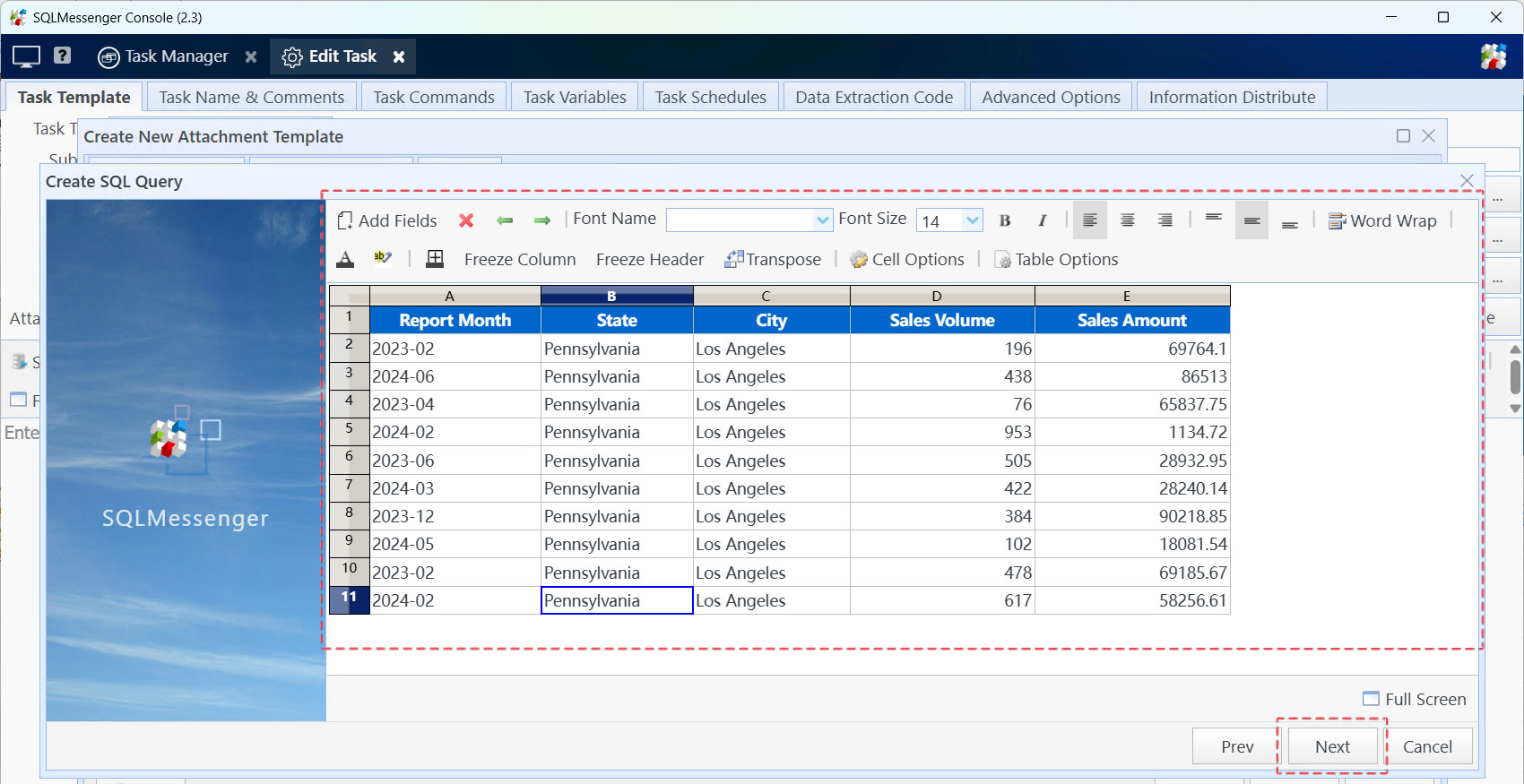
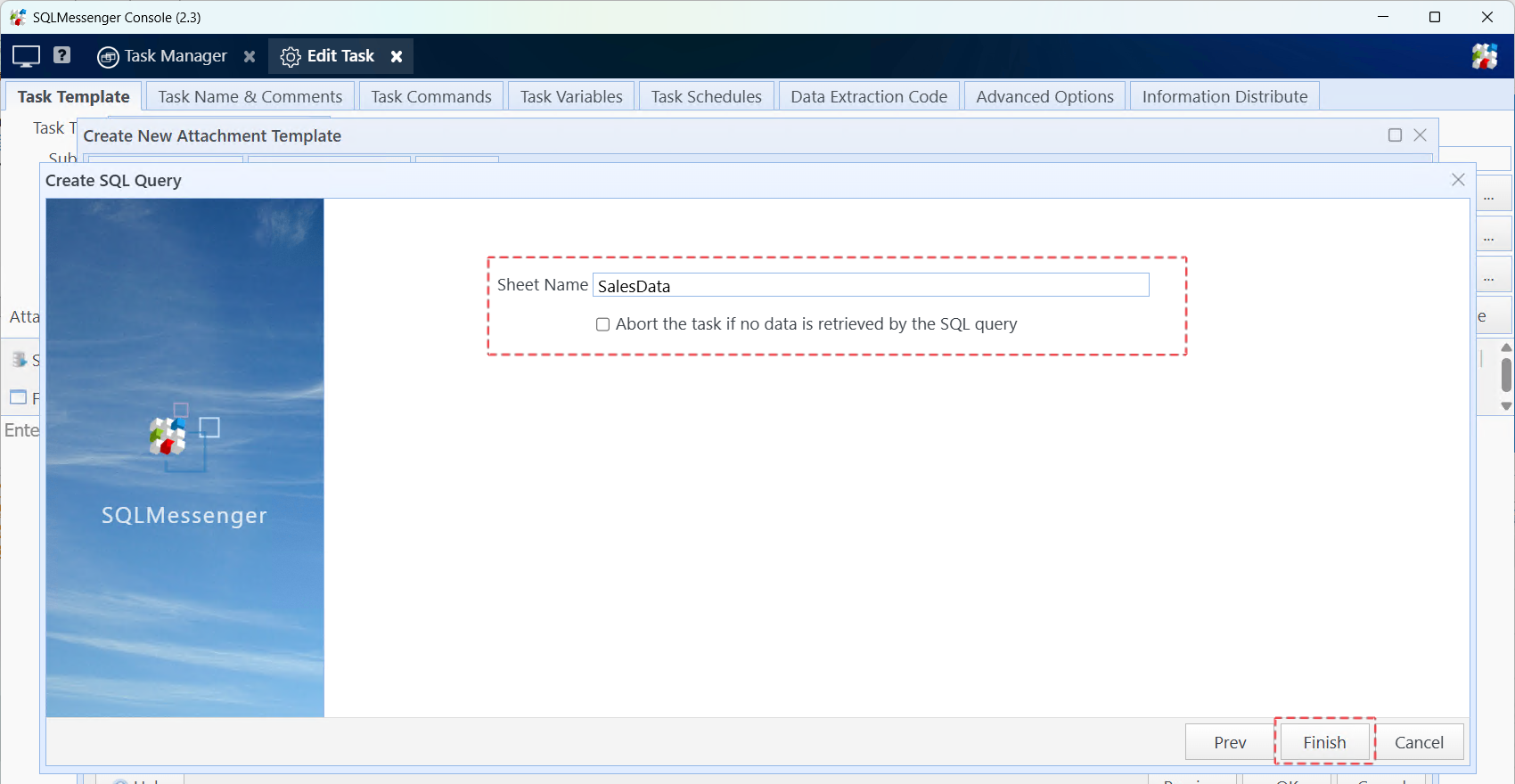
Step 6: (Optional) Specify a Sheet Name for the table, then click Finish.
4. Converting Query Results to HTML Tables Displayed in the Email Body
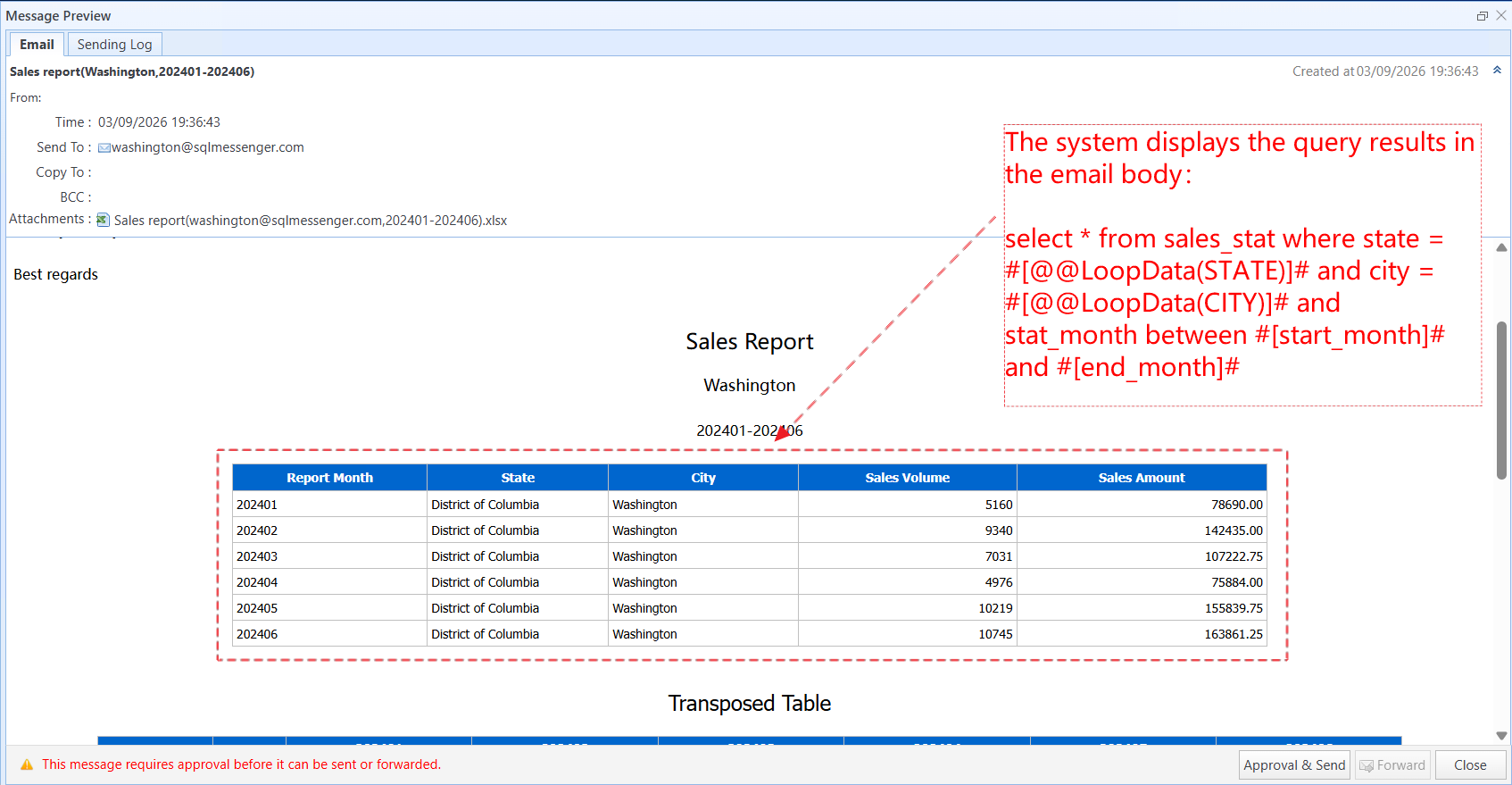
Within SQLMessenger, SQL query results can be converted into an HTML Simple Table embedded directly in the email body output by the task.
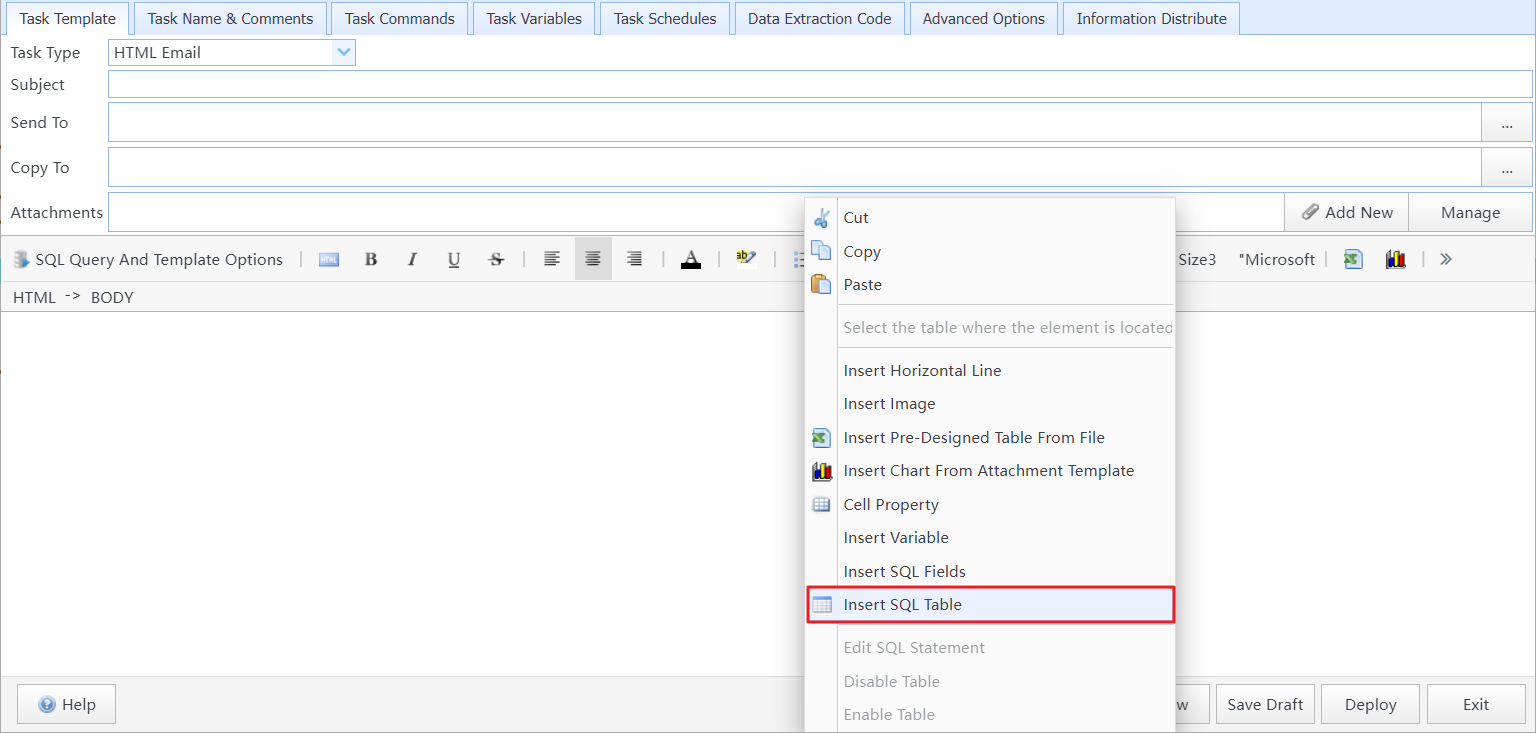
Below are the steps for creating a Simple Table within an email Body Template:
Step 1: Right-click the body template and select Insert SQL Table from the context menu.
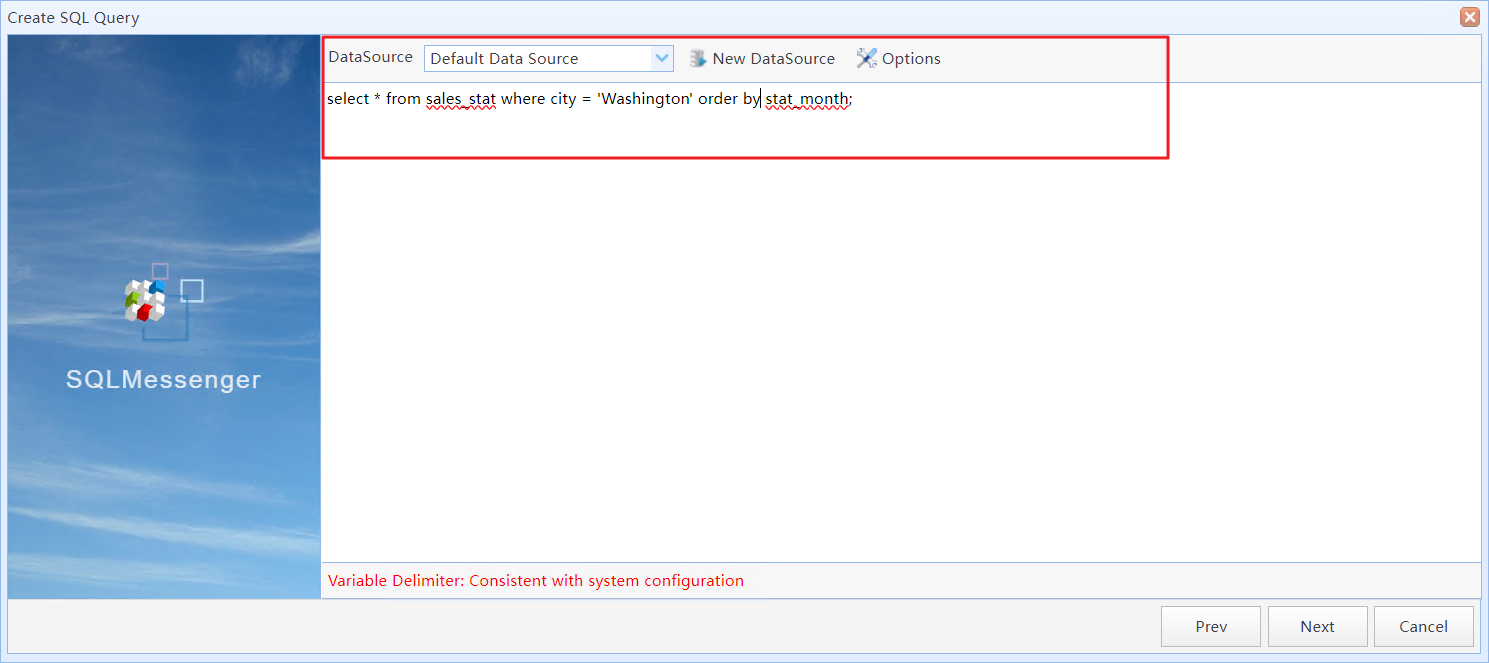
Step 2: Input your SQL query.
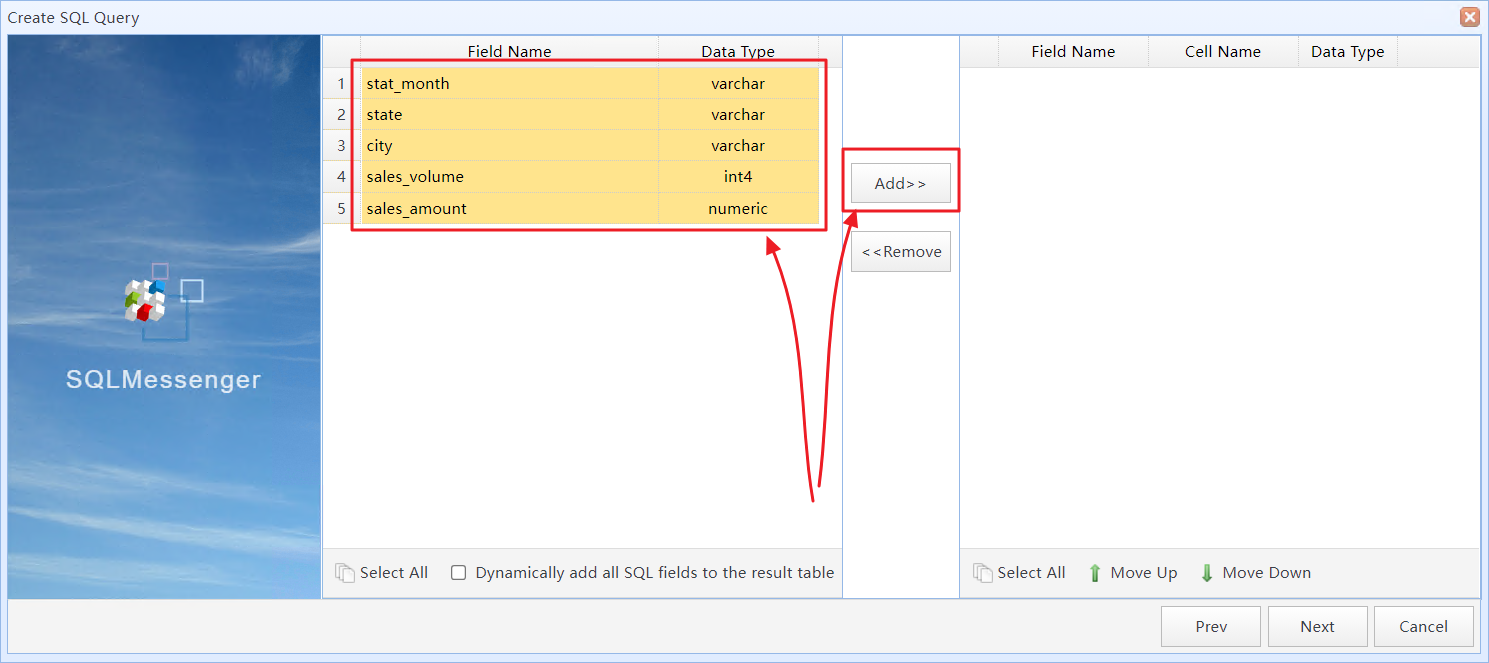
Step 3: Choose the fields to be rendered in the HTML table.
Step 4: Configure display formats for the table and individual fields.
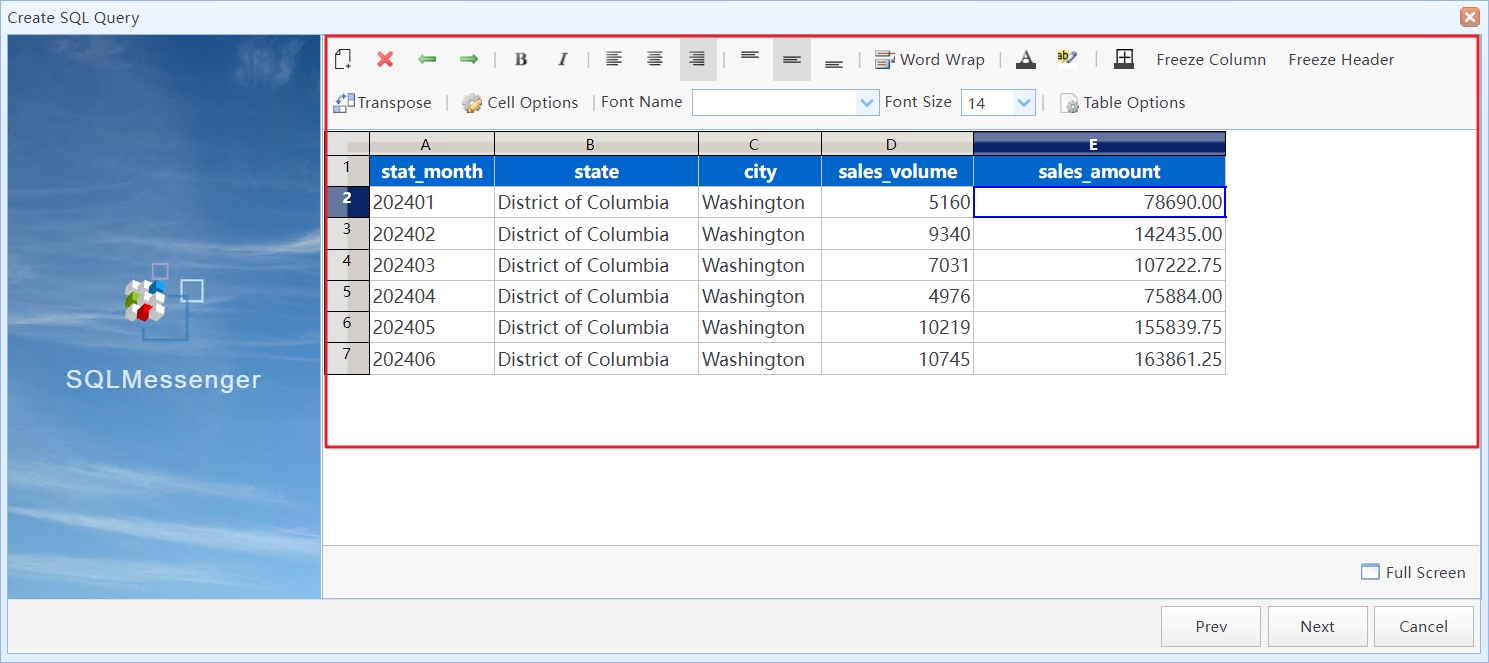
HTML Simple Table displayed in email body
5. Using the Simple Table Designer
The Table Style Designer allows you to configure visual attributes of Simple Tables, such as column widths, row heights, cell colors and fonts.
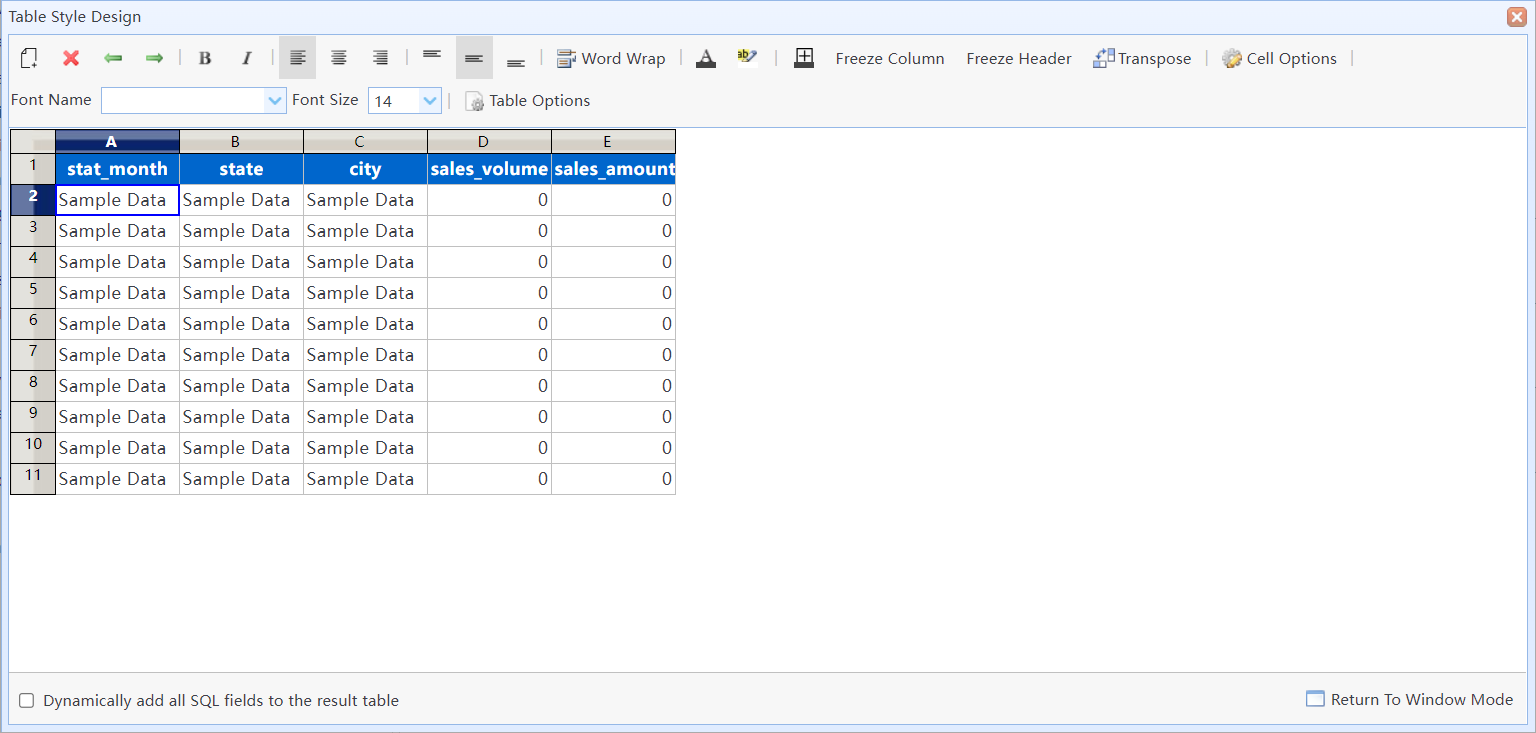
Simple Table Designer
In this dialog box:
|
Use this button to add or remove SQL result columns whenever you modify your underlying SQL query. Any new fields returned by the updated query can be added to or removed from the Simple Table via this control. |
|
Remove fields from the Simple Table. |
|
Move the selected field to the left or right. |
|
When converting the query results into an Excel table, you can click this button to freeze the selected columns. |
|
When converting the query results into an Excel table, you can click this button to freeze the header row. |
|
Display the SQL query results in transposed format. |
|
Set the format for the selected cells. |
|
Set the table width (HTML only), along with other options. |
Dynamically add all SQL fields to the result table |
If this option is selected, the system will add all fields returned by the SQL query to the Simple Table. You can use this feature to dynamically add all columns to the Simple Table. |