SQLMessenger User Manual - Using Task Schedules
- 1. What Is a Task Schedule
- 2. Managing Task Schedules
- 3. Task Schedule Configuration
- 4. Task Schedule Cases
- 4.1 Weekday 8 AM Execution Task Schedule
- 4.2 Monthly Schedule: 8 AM on the last three days of every month
- 4.3 Hourly Task Execution (9 AM–5 PM, 1st–8th of each month)
1. What Is a Task Schedule
Within SQLMessenger, Task Schedules let you set timetables for automatic task execution. One task can be bound to multiple Task Schedules to run on separate schedules. As an example, the below setup triggers the task at 8:00 AM on the 1st, 15th and 25th day of every month:
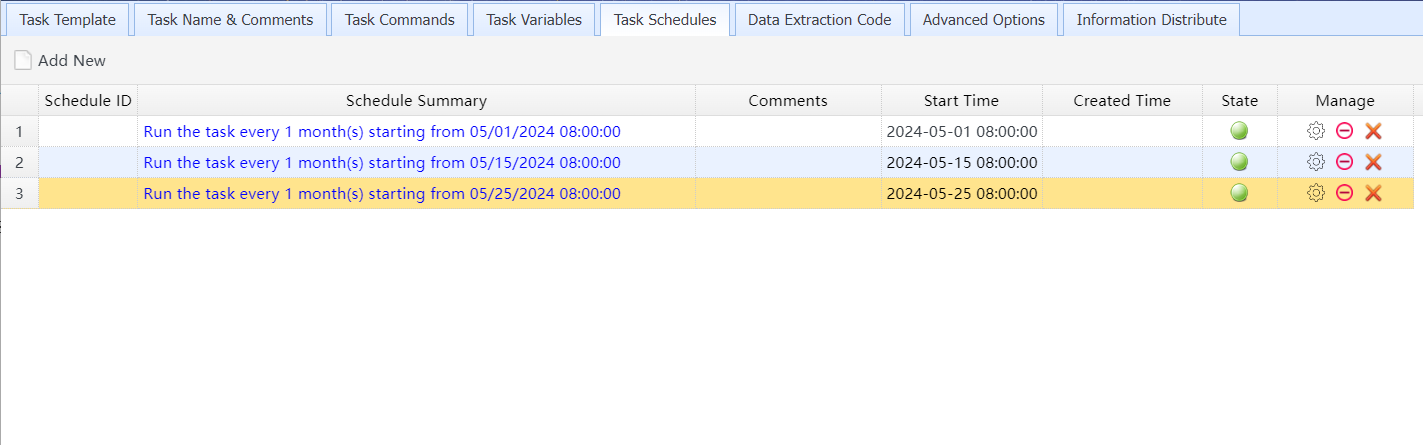
These Task Schedules run the task at 8 AM on the 1st, 15th, and 25th of each month
2. Managing Task Schedules
You can manage a task’s Task Schedules on the Task Schedules tab within the task editor.
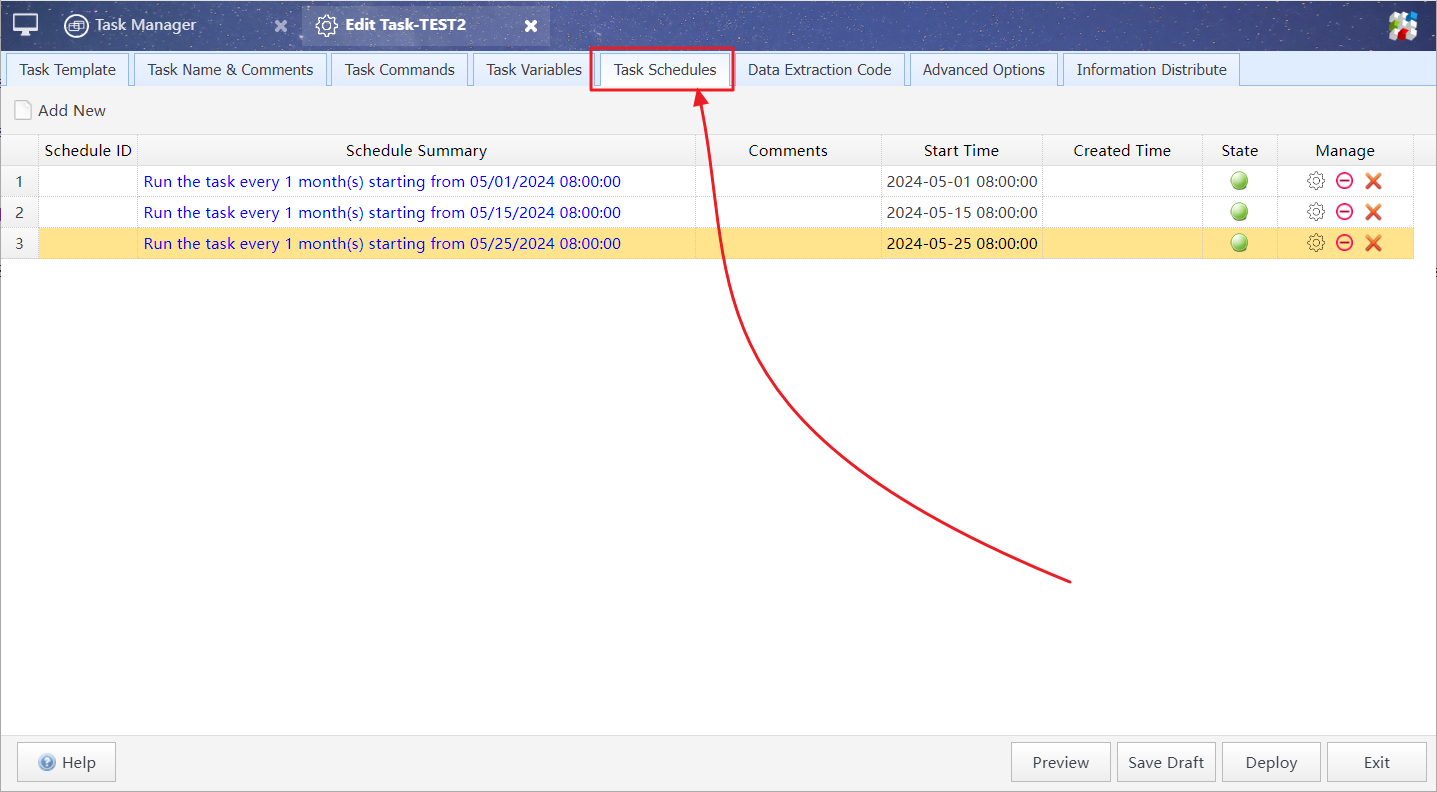
Manage a task’s Task Schedules on the Task Schedules tab
Within this manager, you may add, modify, enable or delete Task Schedules for a task.
 |
Click to open the Task Schedule Properties dialog and edit the Task Schedule settings. |
 / / |
Click to enable or disable the Task Schedule. When a Task Schedule is disabled, the system will not trigger the task per its configuration until the schedule is re-enabled. |
 |
Click to delete the Task Schedule. |
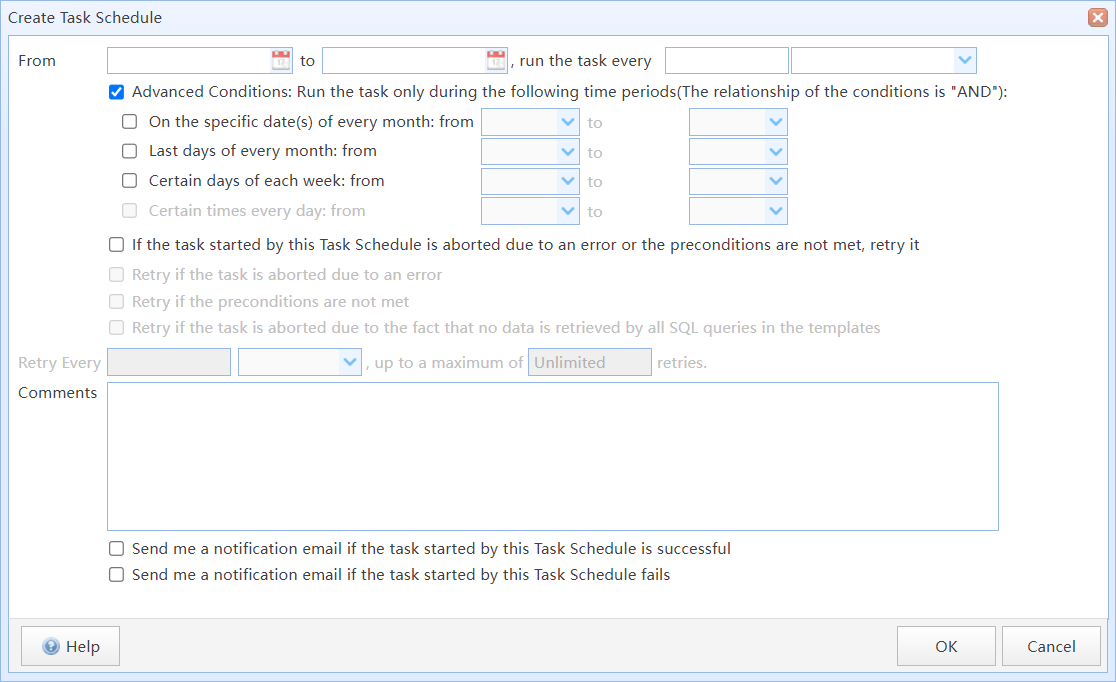
The Task Schedule Configuration dialog
In this dialog box:
From xxx To xxx |
Configure the start time and end time for the Task Schedule. The system triggers the task starting from the start time and repeats it at the specified interval afterward. The start time is a required field. Once the end time elapses, this Task Schedule will be automatically disabled. You may leave the end time blank to make this Task Schedule permanently valid. |
run the task every |
Set the execution interval for this Task Schedule. Supported time units include seconds, minutes, hours, days, weeks, and months. |
Advanced Conditions |
If this option is checked, you may configure the execution time window for the Task Schedule. For example, you can set this Task Schedule to trigger the task only Monday through Friday each week. |
|
If a task instance triggered by this schedule is aborted due to an error or unmet preconditions, retry it |
If this option is enabled, the system will automatically retry task execution when instances triggered by this Task Schedule fail due to errors, unsatisfied preconditions, or missing data. Retries will cease once any of the following conditions occur: the maximum retry count is hit, the next scheduled run time arrives, or the task completes successfully during retries. |
|
Retry every xxx |
Configure the retry interval for this Task Schedule. |
|
up to xx retries |
Configure the maximum number of retry attempts for this Task Schedule. If retries hit this limit without successful execution, the system will stop retrying the task. If this value is left blank, the system will keep retrying until the next scheduled run time arrives or the task completes successfully during retries. |
|
Comments |
You may enter comments for this Task Schedule. |
|
Send me a notification email if the task triggered by this schedule succeeds |
If this option is checked, the system will send a notification email to your designated email address once a task instance triggered by this Task Schedule completes successfully. You may configure recipient emails in two ways: Set a global email address under the System Settings section in the Main Menu; Specify a dedicated recipient in the Send Task Run Report To field on the Advanced Options tab of the task editor. |
|
Send me a notification email if the task triggered by this schedule fails |
If this option is checked, the system will send a failure notification email to your designated email address whenever a task instance triggered by this Task Schedule fails to execute. You may configure recipient emails in two ways: Set a global email address under the System Settings section in the Main Menu; Specify a dedicated recipient in the Send Task Run Report To field on the Advanced Options tab of the task editor. |
4. Task Schedule Cases
4.1 Weekday 8 AM Execution Task Schedule
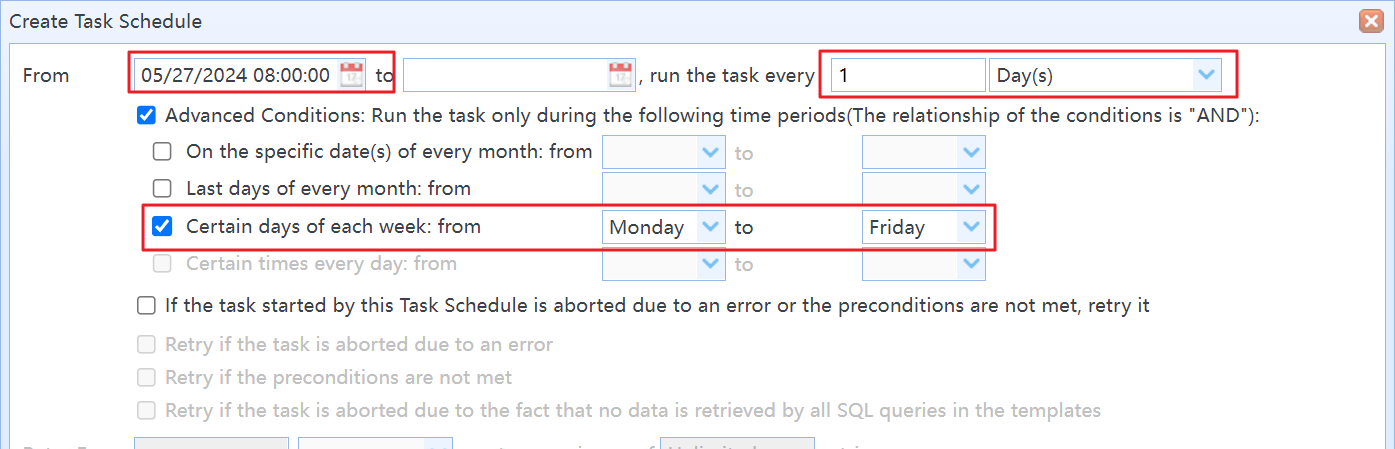
Weekday 8 AM Execution Task Schedule
4.2 Monthly Schedule: 8 AM on the last three days of every month
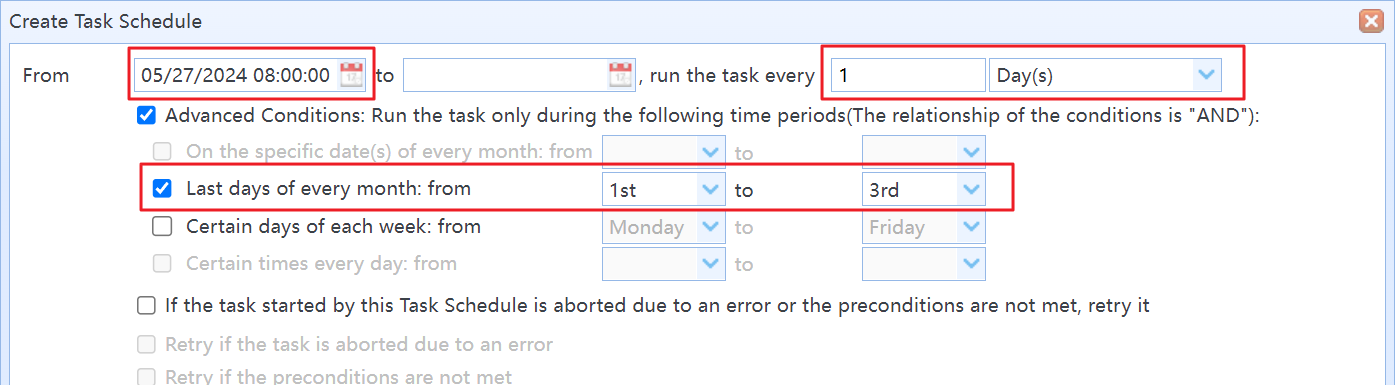
Monthly Schedule: 8 AM on the last three days of every month
4.3 Hourly Task Execution (9 AM–5 PM, 1st–8th of each month)
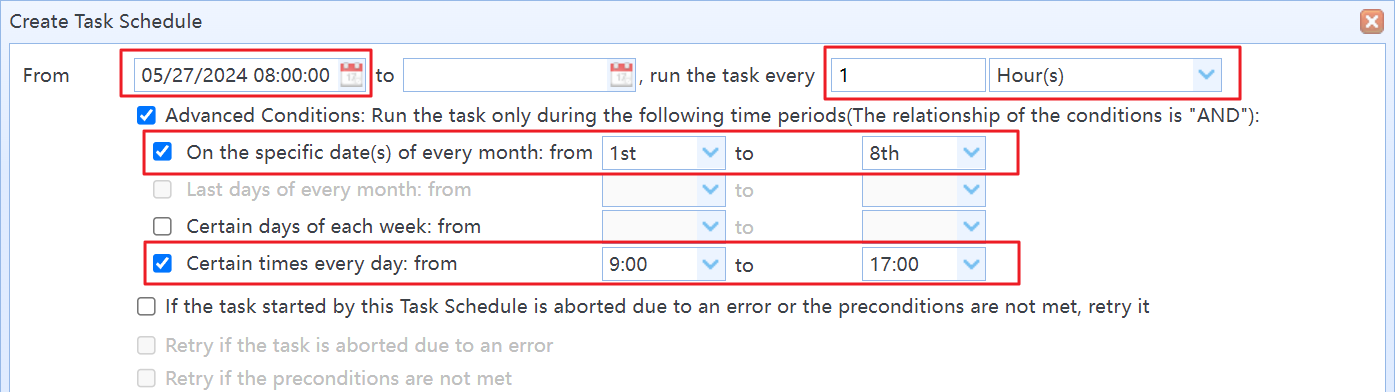
Hourly Task Execution (9 AM–5 PM, 1st–8th of each month)