Installation & Uninstallation
- 1. Hardware and OS Requirements
- 2. Installing SQLMessenger
- 2.1 Installation Options
- 2.2. Installing SQLMessenger in Silent Mode
- 2.3 Directory Structure
- 3. Uninstalling SQLMessenger
1. Hardware and OS Requirements
The following are the hardware and operating system requirements for SQLMessenger:
| Operating System | Hardware | |
|---|---|---|
| Minimum | Windows 7 (64-bit) or later Windows Server 2008 (64-bit) or later |
4 GB RAM or more At least 5 GB free disk space |
| Recommended | Windows 10 (64-bit) or later Windows Server 2012 (64-bit) or later |
8 GB RAM or more 10 GB free disk space or more |
2. Installing SQLMessenger
You can obtain the SQLMessenger installation package at https://www.sqlmessenger.com/download.html.
After completing the download, execute the installer to proceed with the installation.
2.1 Installation Options
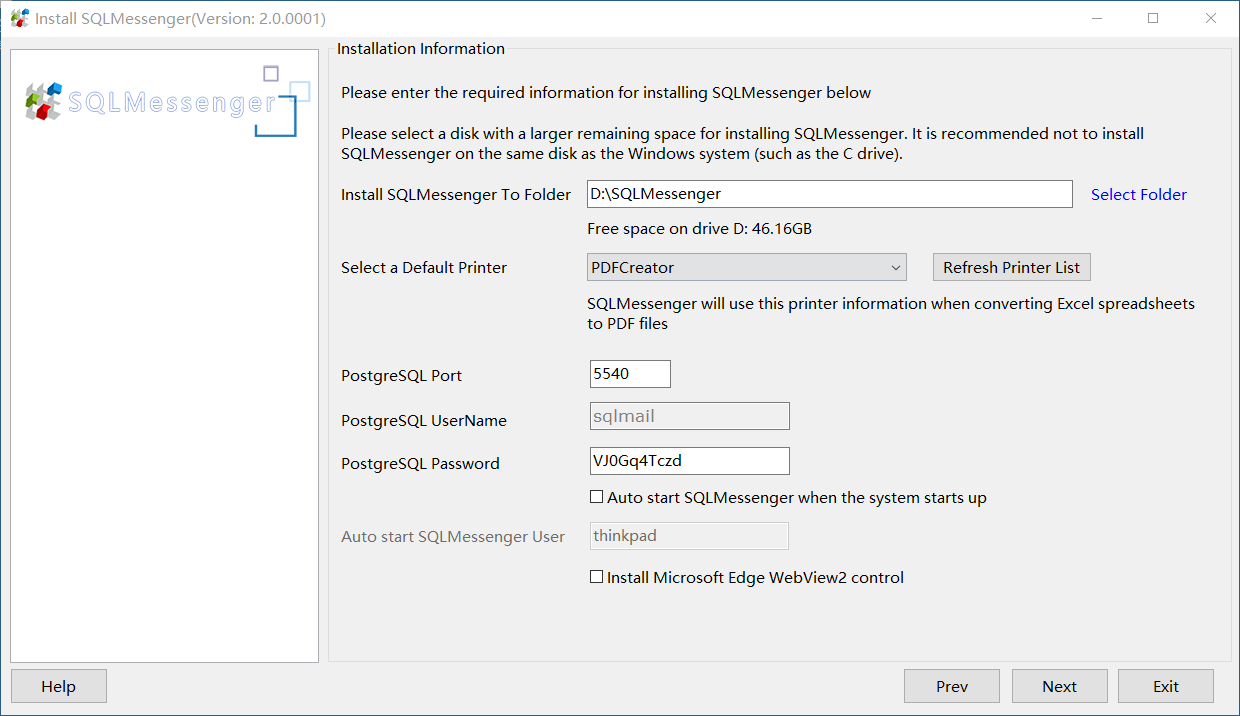
Installation Options
In this dialog box:
Installation Folder |
SQLMessenger will be installed in this folder. It is recommended to install SQLMessenger on a disk partition with sufficient free space. The installation folder must contain only alphanumeric characters and no spaces. |
Choose Default Printer |
Select a default printer for SQLMessenger. SQLMessenger uses this printer’s settings when converting Excel files to PDF. You may select a virtual printer (e.g., PDFCreator) as the default printer for SQLMessenger. Note: Only printers with English-only names are supported. |
PostgreSQL Port |
Set the port number for the PostgreSQL database used by SQLMessenger. |
PostgreSQL Password |
Set the password for the PostgreSQL database used by SQLMessenger. |
Automatically start SQLMessenger at Windows startup |
If selected, the installer creates a startup entry for SQLMessenger in Windows Task Scheduler, so the application launches automatically when Windows starts. |
Auto-Start Under User Account |
If the "Automatically start SQLMessenger at Windows startup" option is enabled, SQLMessenger will start automatically under the current user’s credentials when Windows starts. After clicking Next, enter this user’s Windows login password to create the startup entry. |
Install Microsoft Edge WebView2 Runtime |
The SQLMessenger console requires the Microsoft Edge WebView2 Runtime. Selecting this option automatically downloads and installs the WebView2 Runtime during installation. |
After finishing all installation settings, click Next to continue the installation. The installer will complete the following tasks during the process:
1. Extract required program files to the specified installation folder
2. Configure PostgreSQL database connection parameters for SQLMessenger
3. Generate the local license file for SQLMessenger
4. Create a startup entry for SQLMessenger if auto-start is enabled
2.2. Installing SQLMessenger in Silent Mode
You can run the installer with the /s parameter to perform silent installation of SQLMessenger.
In silent mode, the program is installed to [SystemDrive]\SQLMessenger in the root folder of the system drive. For example, if Windows is installed on drive C, the default path will be C:\SQLMessenger.
The following lists the return codes returned by the silent installer:
Code |
Meaning |
Resolution |
|---|---|---|
0 |
Installation completed successfully. |
No action required. |
1001 |
Another instance of the SQLMessenger installer is already running. |
Exit the current installer and wait for the existing installation process to finish. |
1002 |
SQLMessenger is already installed. |
Cancel the installation. To reinstall, uninstall the existing instance first. |
1003 |
Failed to read system registry during installation. |
Verify your Windows user account has registry read permission. Target registry key: HKEY_CURRENT_USER. |
1004 |
The Null service is not running. |
SQLMessenger requires the Windows Null service to be active for normal operation. net start null This command attempts to start the service. If it still fails to launch, repair your Windows system or consult your system administrator for assistance. |
1005 |
Insufficient disk free space. |
The installer requires a minimum of 1 GB free space on the target drive. Installation will abort automatically if available space is below this threshold. Ensure the target drive has over 1 GB free space; 10 GB or more is recommended for stable operation. |
1006 |
Target drive does not exist. |
The specified installation drive letter is invalid. Verify and correct your installation path. |
1007 |
Target database directory must be empty. |
Installation cannot continue if the existing db folder contains files. |
1008 |
Database port (TCP 5540) is already in use by another application. |
SQLMessenger requires TCP port 5540 for its PostgreSQL database. Please free up this port and retry the installation. |
1009 |
Failed to create installation directory. |
The installer cannot create the target folder. |
1010 |
Failed to extract files to installation directory. |
Confirm the target drive has enough free space, and verify the installer package is intact and uncorrupted. |
1011 |
Failed to create configuration file. |
Verify the installer package is intact, and confirm your account has write permission for the conf subdirectory. |
1012 |
Failed to start database service. |
Check whether TCP port 5540 on local host is occupied by other programs. |
1013 |
Failed to write configuration file. |
Ensure the installer is intact, and confirm your account has write access to the conf directory. |
1014 |
Installation path contains invalid characters. |
Remove special characters from the path. Only letters, numbers and standard symbols are permitted; spaces and tabs are not allowed. |
1015 |
Failed to generate license file. |
Check and ensure your network connection is available. |
2.3 Directory Structure
Below are explanations of the main folders in the SQLMessenger installation directory.
| arch | Stores email data generated by scheduled tasks. |
| bin | Stores SQLMessenger executable program files. |
| conf | Stores system configuration files. |
| db | Stores PostgreSQL database data files. |
| demo | Stores demo task configuration files. |
| log | Stores log files of all functional modules. |
| running | Stores runtime process files. |
| temp | Stores runtime temporary files. |
| template | Stores task template files. |
| web | Stores files and resources for SQLMessenger Console. |
To facilitate maintenance of SQLMessenger, common BAT command scripts are provided in the installation directory.
| querysn.bat | Queries software serial number. |
| shutdown.bat | Stops the SQLMessenger service. |
| startdb.bat | startdb.bat Start the PostgreSQL database used by SQLMessenger separately for troubleshooting purposes. Please refrain from using this command when the system is running normally. |
| startup.bat | Launches SQLMessenger via command line for troubleshooting. Do not use during normal operation. |
| stopdb.bat | Stops the PostgreSQL database launched by startdb.bat for troubleshooting. Do not use during normal operation. |
3. Uninstalling SQLMessenger
Please stop the SQLMessenger service before running the uninstaller.
After stopping SQLMessenger, you can run the uninstaller in Windows Control Panel to remove it.
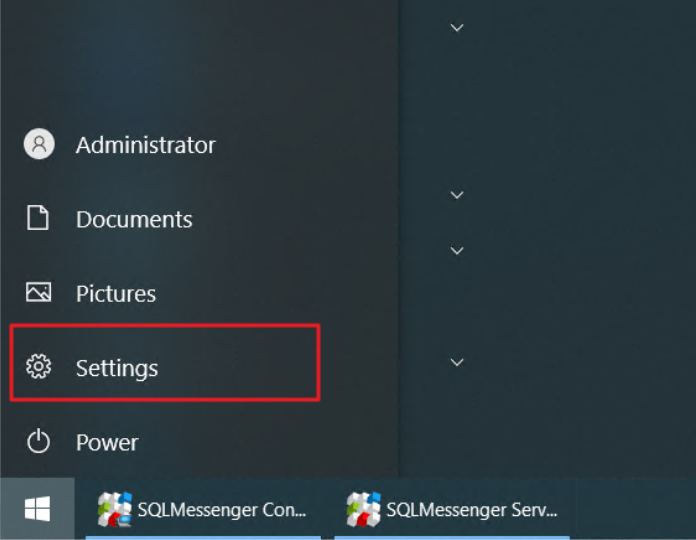
Open Windows Control Panel
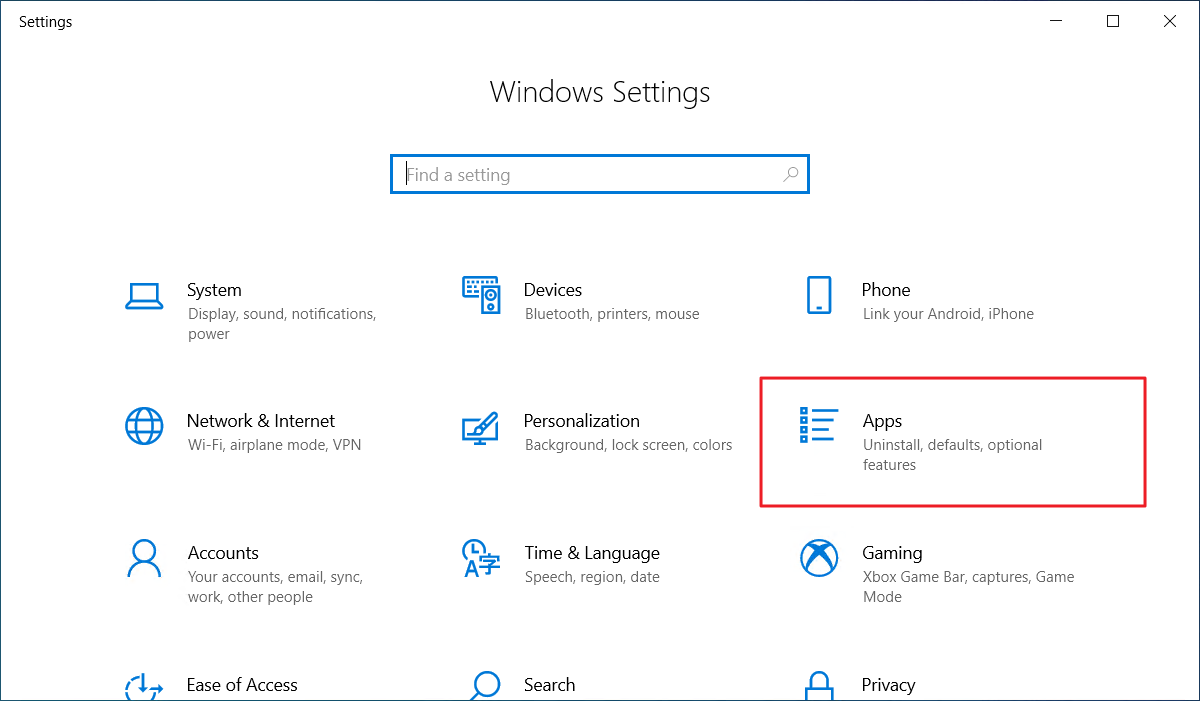
Open Windows App Manager
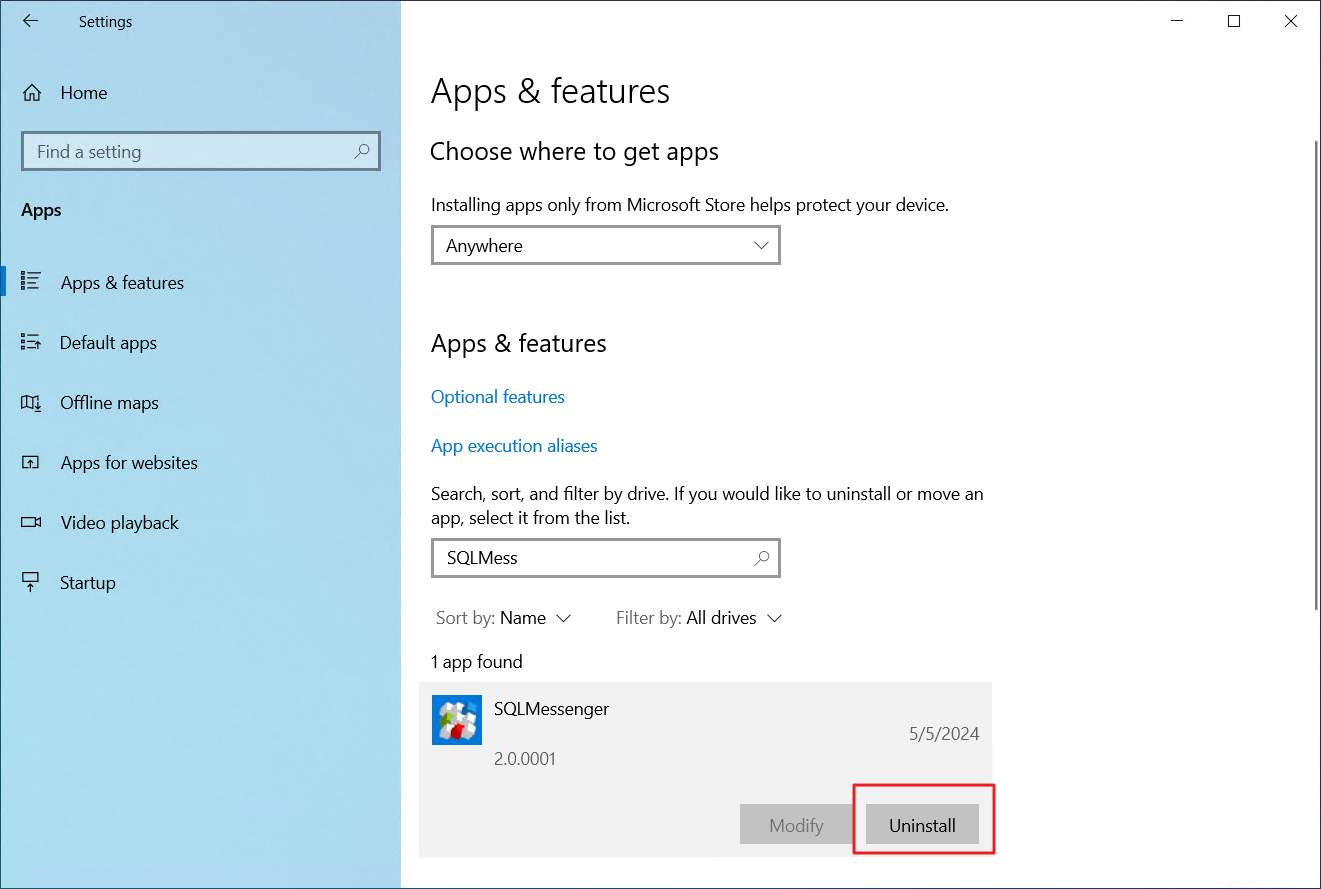
Locate SQLMessenger in the app list and click Uninstall
After clicking Uninstall, the built-in uninstaller will launch automatically to remove the software.
You may choose to retain configuration and email data before proceeding with uninstallation.
Configuration data covers the database folder, configuration folder and task template folder.
Email data is stored in the arch folder.
Retaining these files allows easy data restoration if you reinstall the software later.
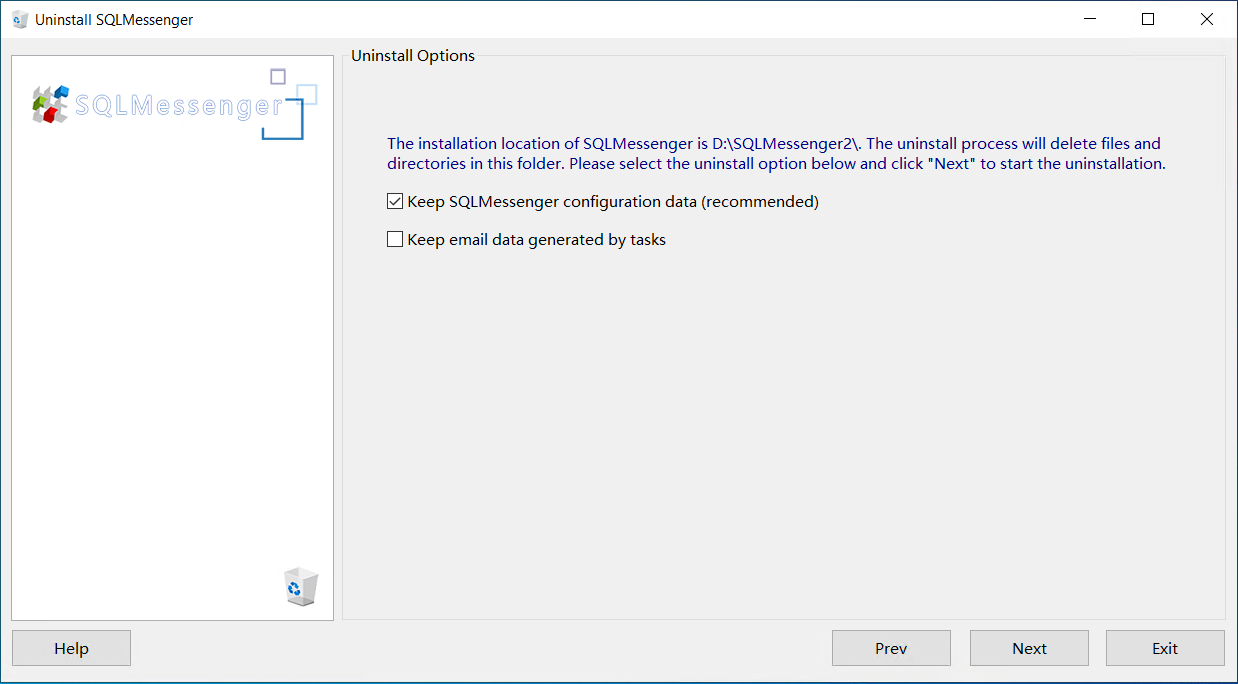
Uninstall Options
After confirming uninstall preferences and clicking Next, the uninstaller will remove SQLMessenger from your device.