1. Overview
Q: How do I convert Excel tables or PDF files to images and embed them in the email body?
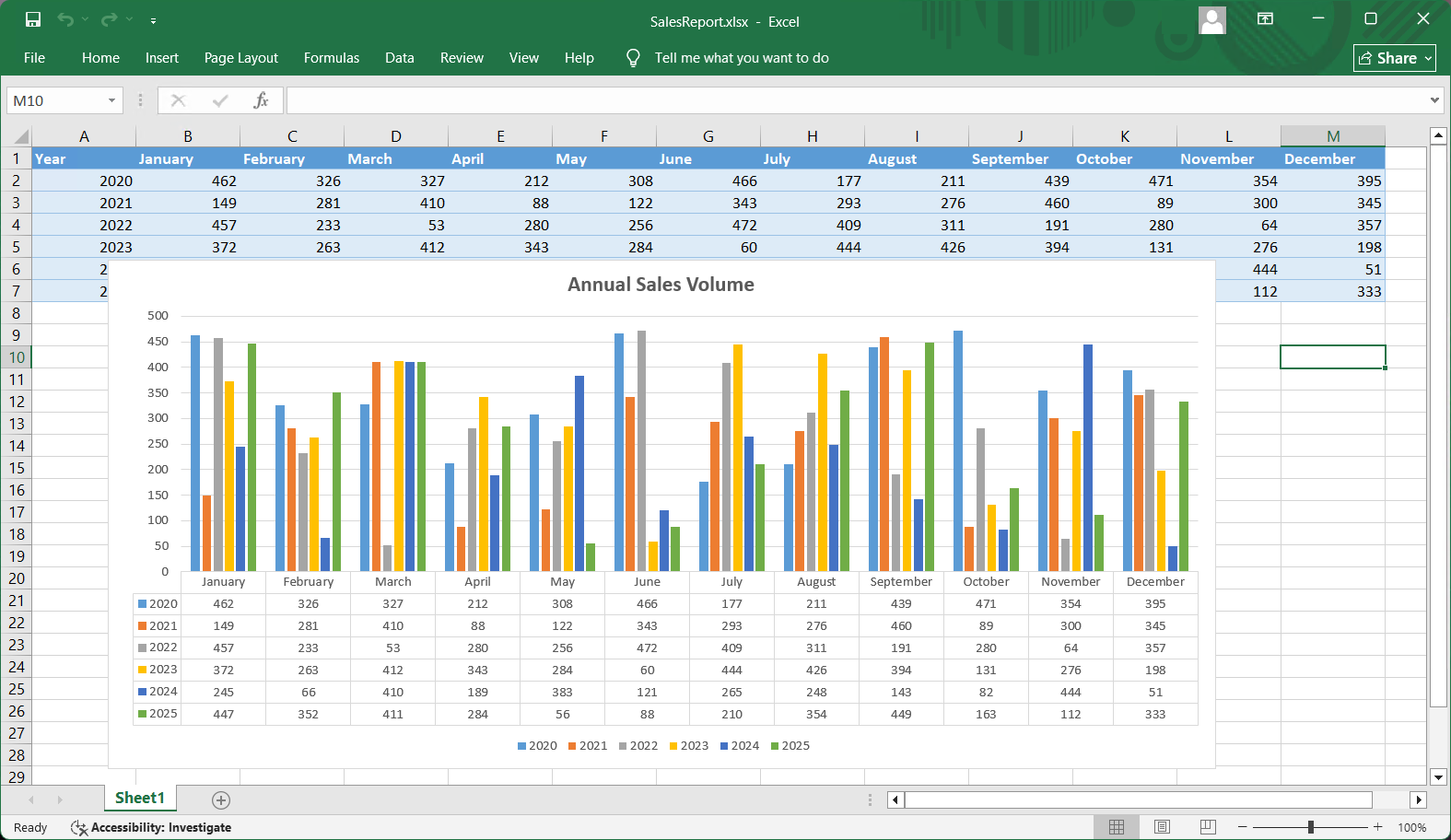
Target table for email display
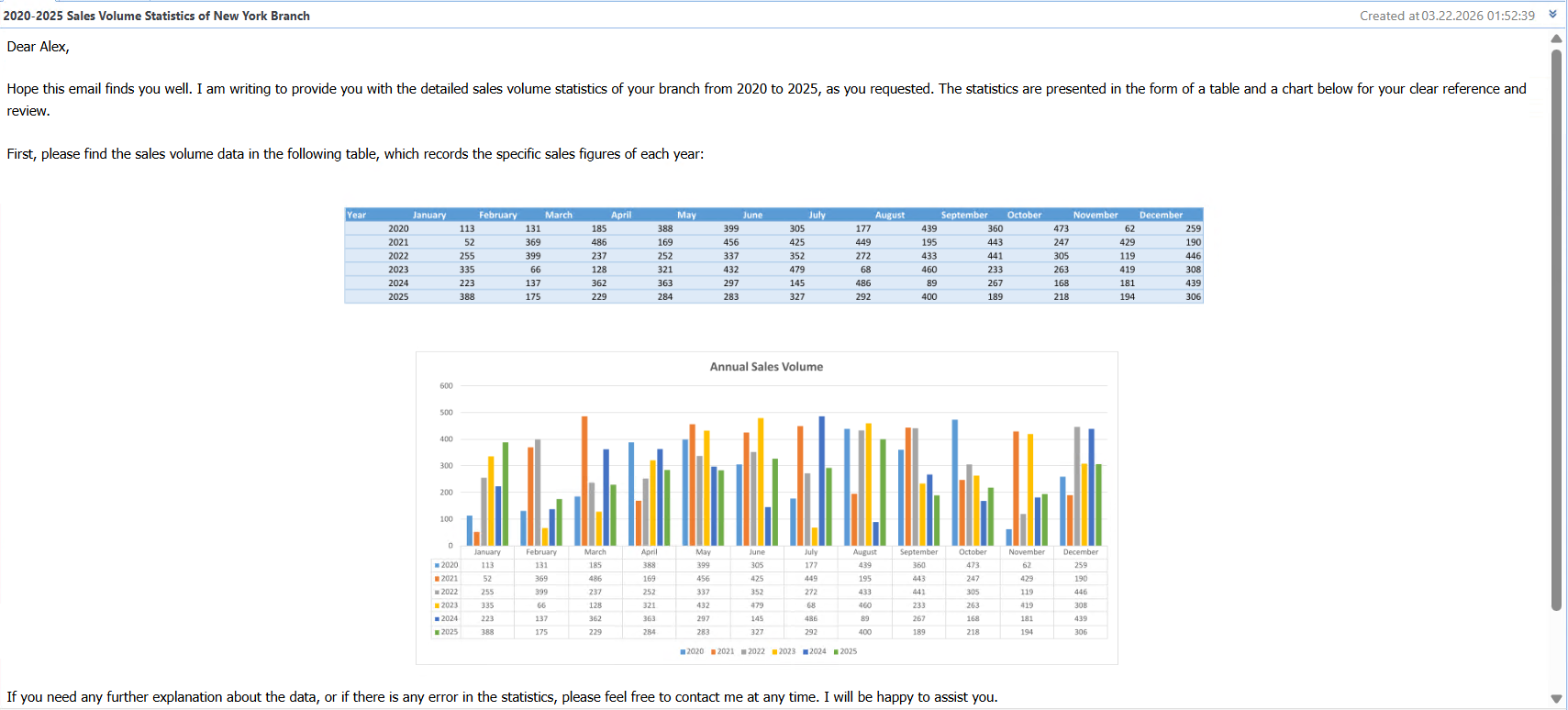
Convert the table above to an image for the email body
A: SQLMessenger version 2.4 includes a feature to convert Excel tables or PDF files into images for use in email bodies.
Tips:
(1) Microsoft Excel must be installed locally to convert Excel files to images.
(2) Only the content on the first worksheet will be converted when processing Excel files.
(3) Conversion will fail if the PDF file is password-protected.
2. Configuration Steps
First, add an Excel or PDF fixed attachment template to your task. For detailed instructions, refer to: SQLMessenger User Manual - Attachment Template Management.
Then set the email body according to the following steps:
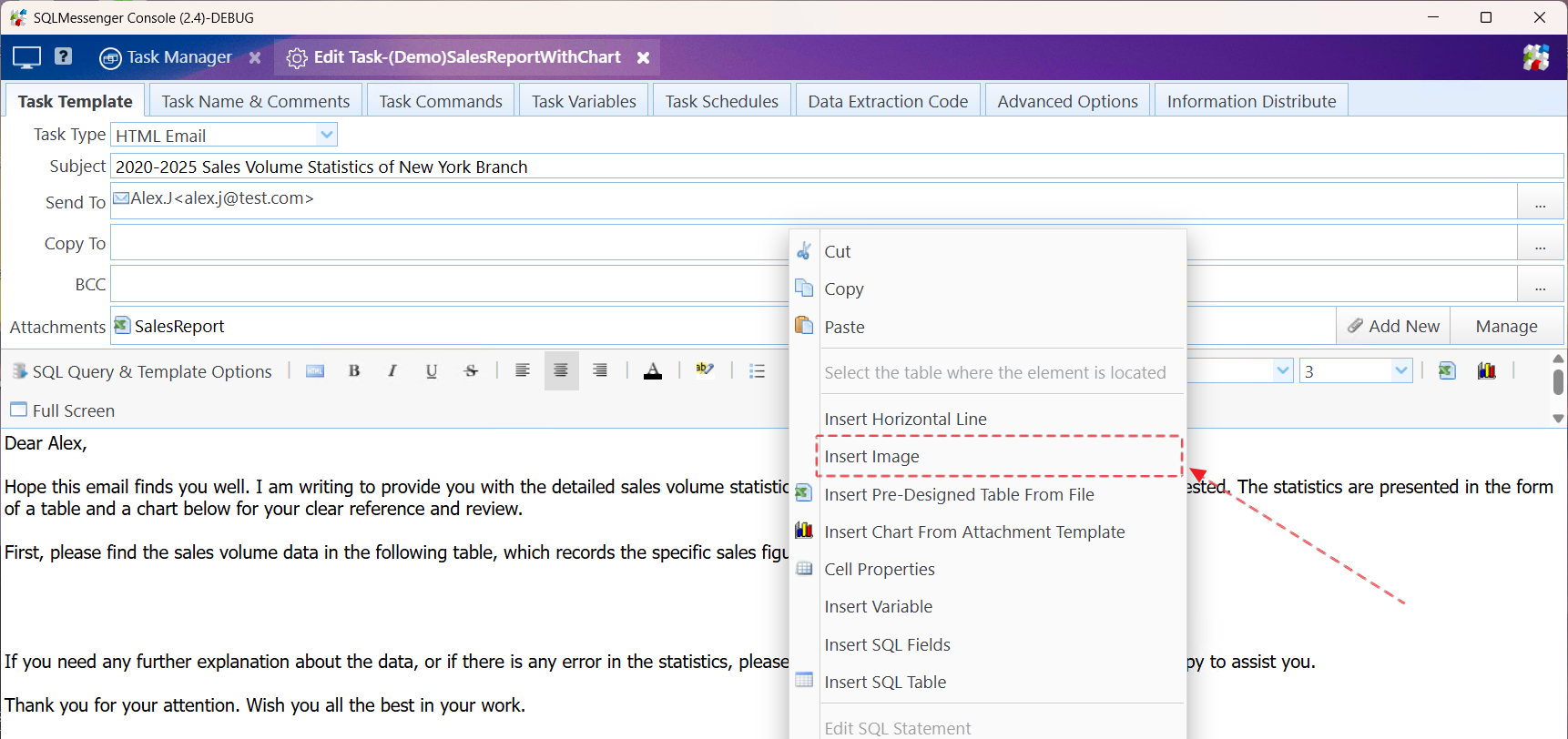
Step 1: In the body designer, right-click where you want to place the image, then select "Insert Image".
Step 2: Click the "Select Image" button.
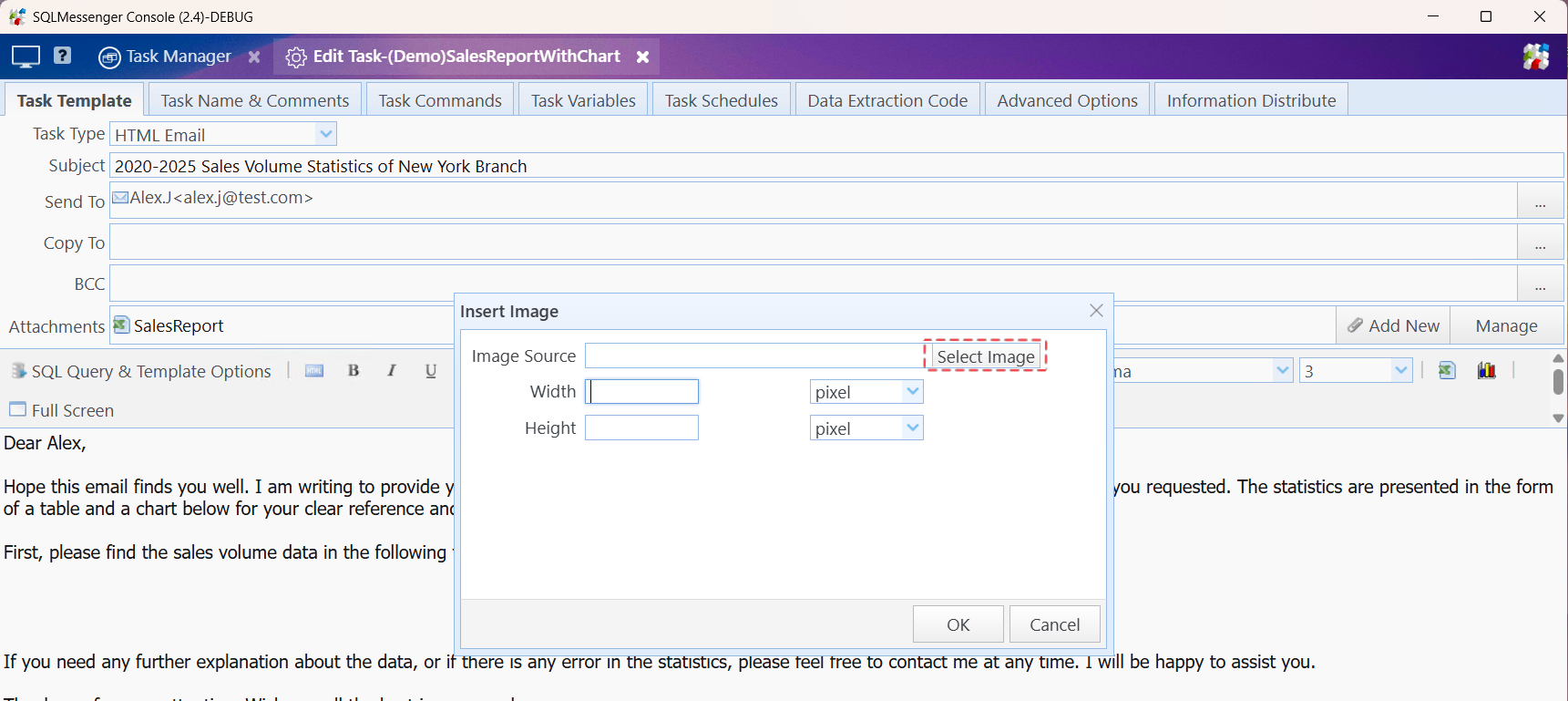
Step 3: Check "Convert attached file to an image", then select the attachment template to embed.
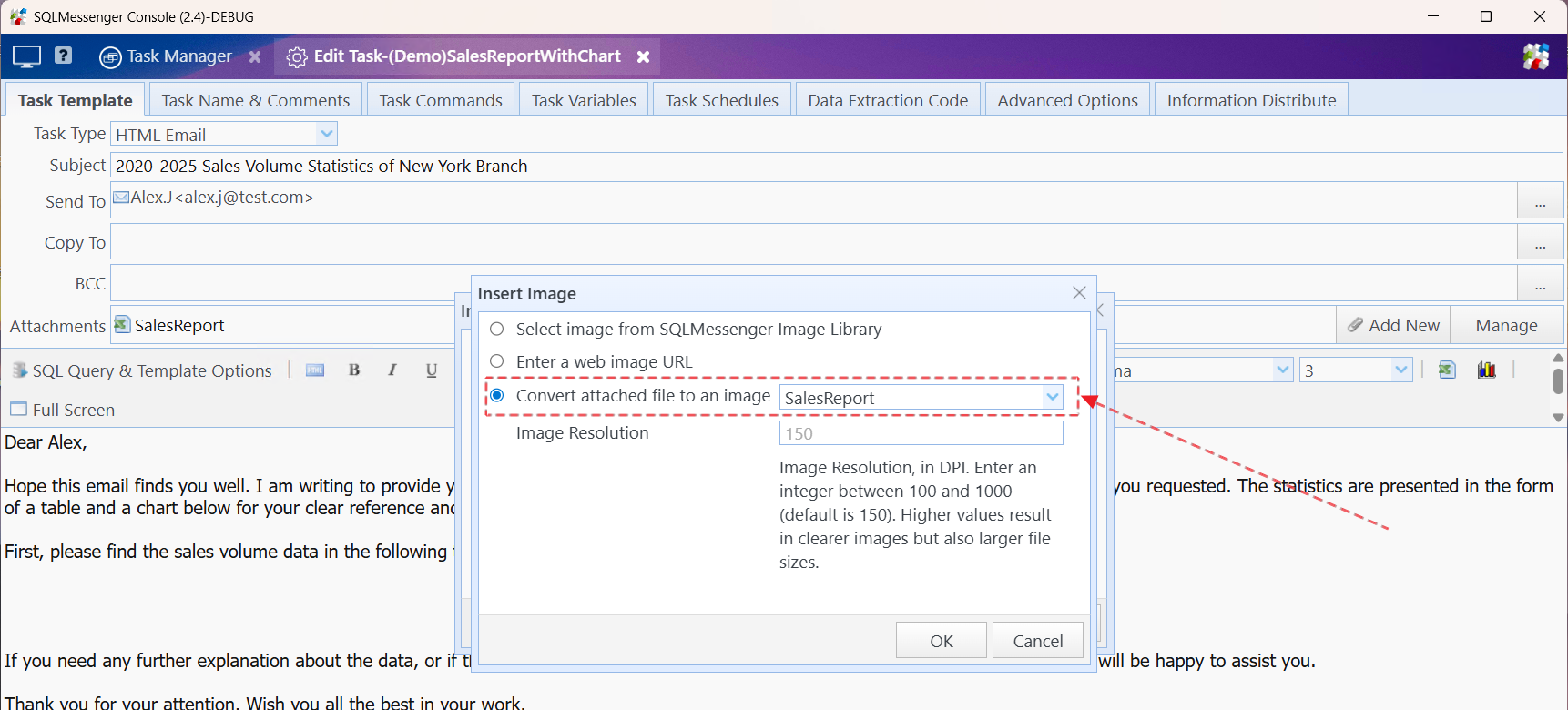
Step 4: Click "OK" to return, then adjust the image size in the "Insert Image" dialog box.
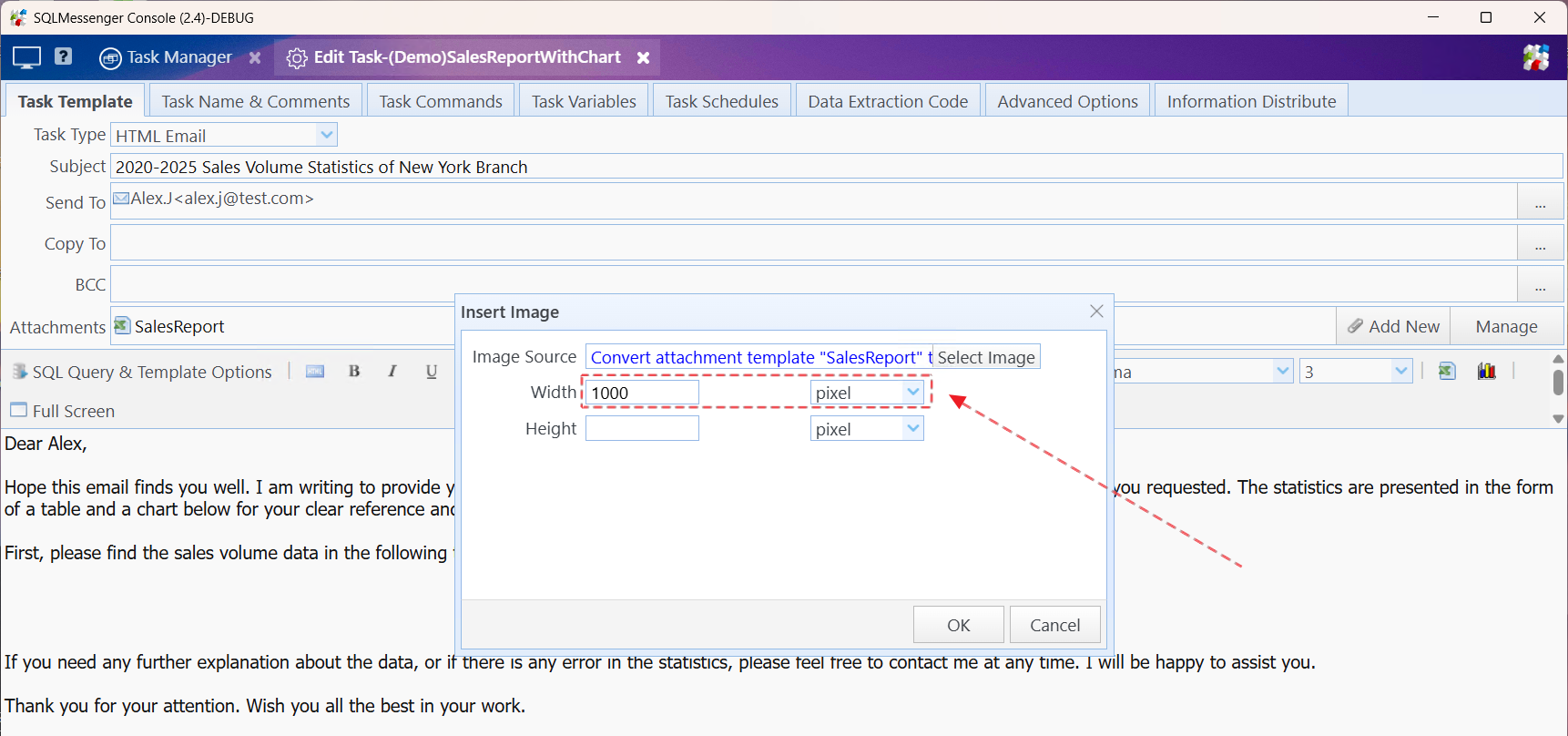
Once configured, an image icon will appear in the email body. Double-click the icon to edit the image source and styles.
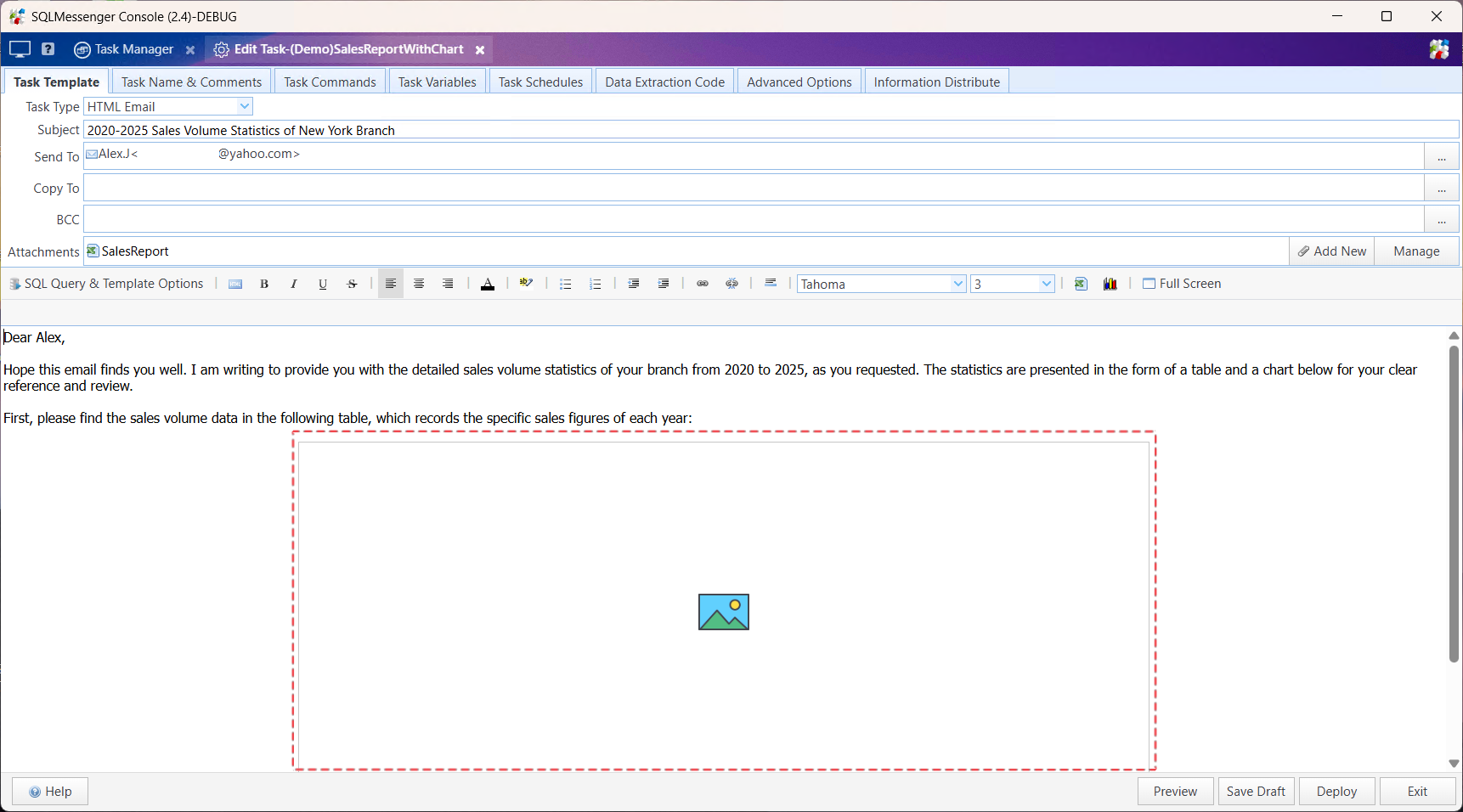
Image icon shown in the body template
When the task runs, the system will convert the selected attachment to an image and embed it in the email body.
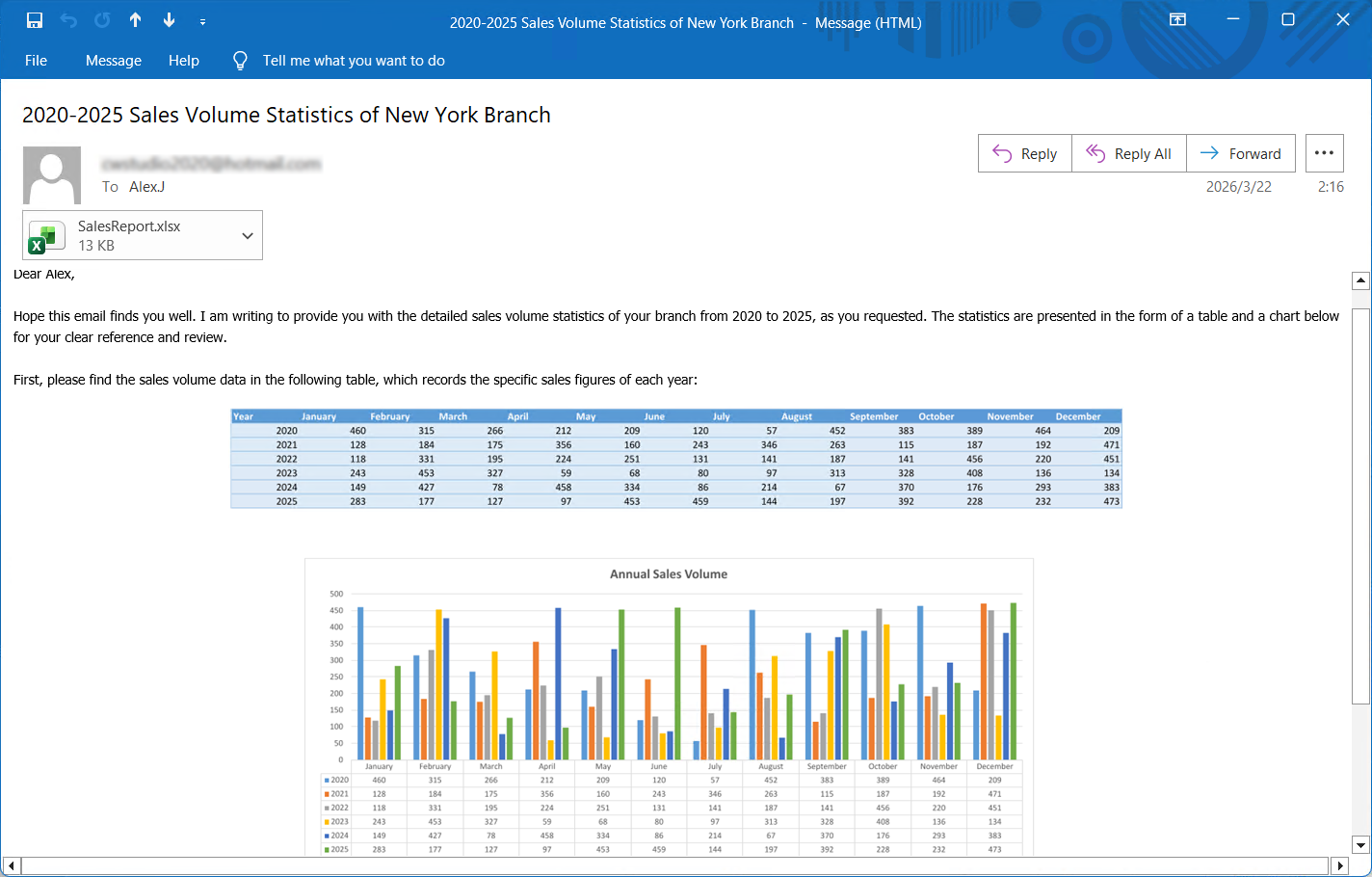
Converted Excel image displayed in the email body