- 1 About the SQLMessenger Customer Portal
- 2 Logging In to the SQLMessenger Customer Portal
- Method 1: Log in to the Customer Portal from the SQLMessenger Console
- Method 2: Log in to the Customer Portal from the official SQLMessenger website
- 3 Q&A
- How to change the login password for the Customer Portal?
- Why do I need to set an email address in the Customer Portal?
- How to set an email address in the Customer Portal?
- What should I do if I forgot my Customer Portal login password?
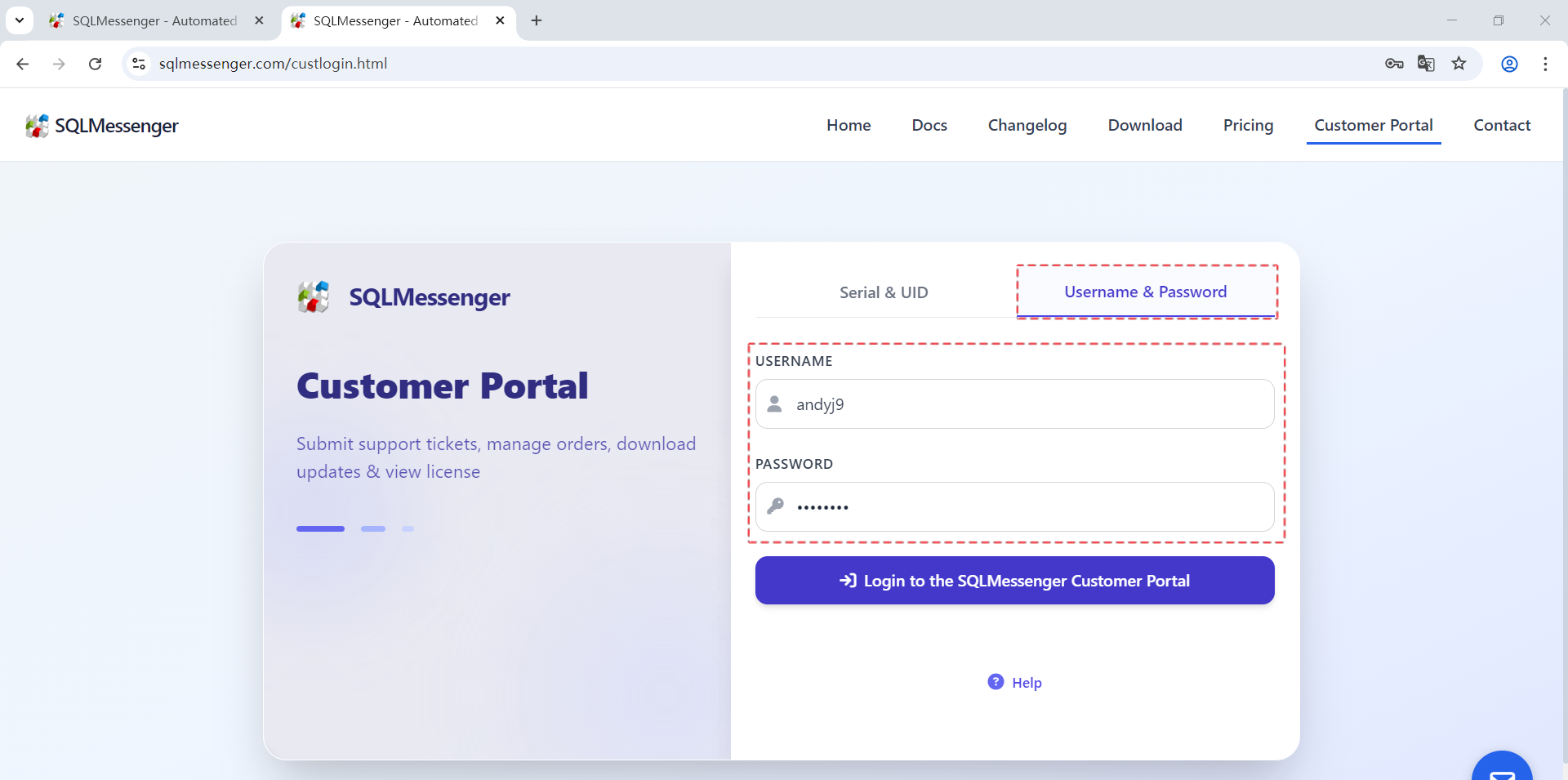
- Can I log in to the Customer Portal with a username and password?
1 About the SQLMessenger Customer Portal
To better serve you, we have added a Customer Portal to the SQLMessenger website, where you can manage your orders and download updates for SQLMessenger. You can also submit service tickets here, and our team will respond to your questions in a timely manner.
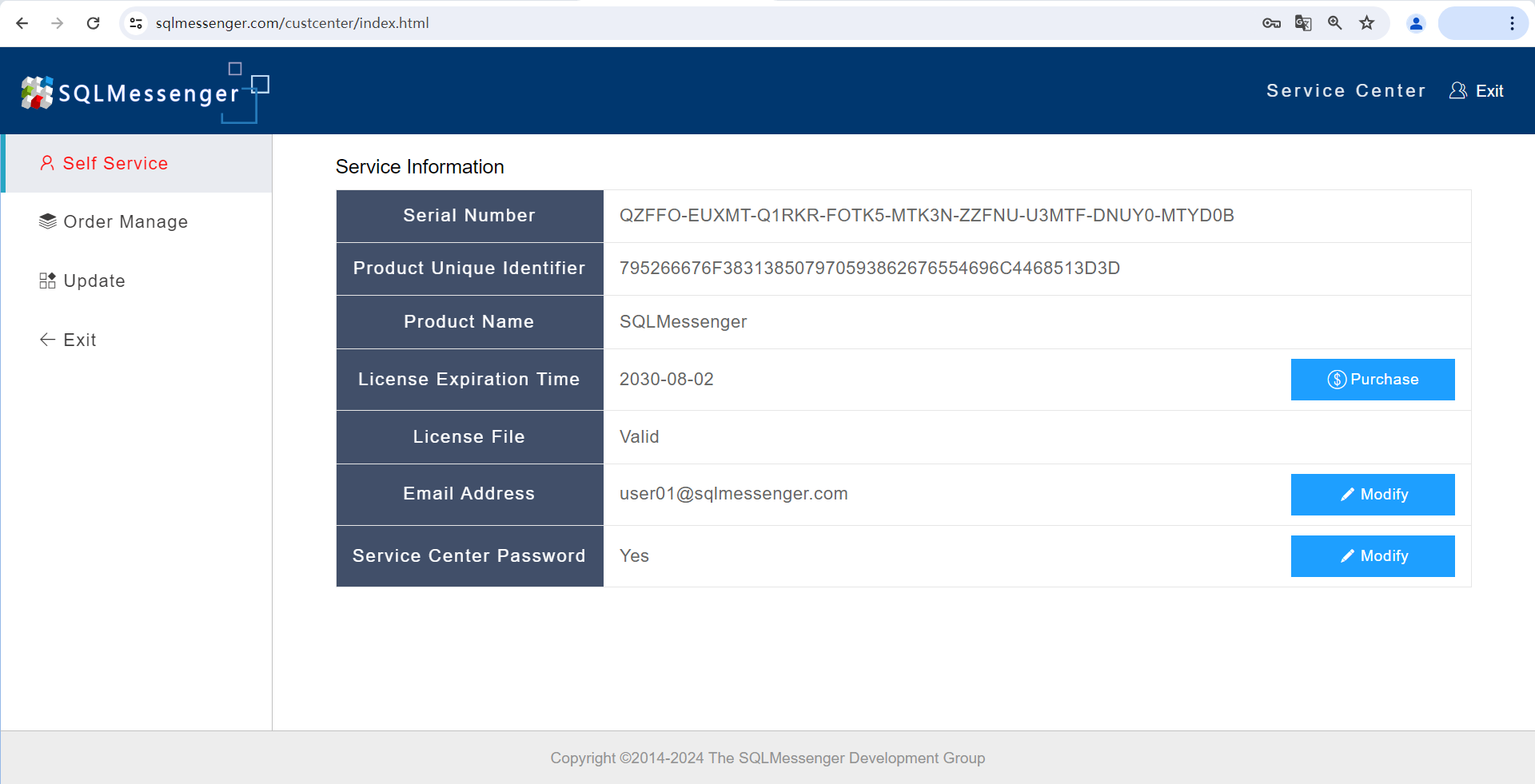
The SQLMessenger Customer Portal
2 Logging In to the SQLMessenger Customer Portal
Method 1: Log in to the Customer Portal from the SQLMessenger Console.
Open the "About SQLMessenger" dialog in your SQLMessenger console by clicking MainMenu -> Help -> About SQLMessenger.
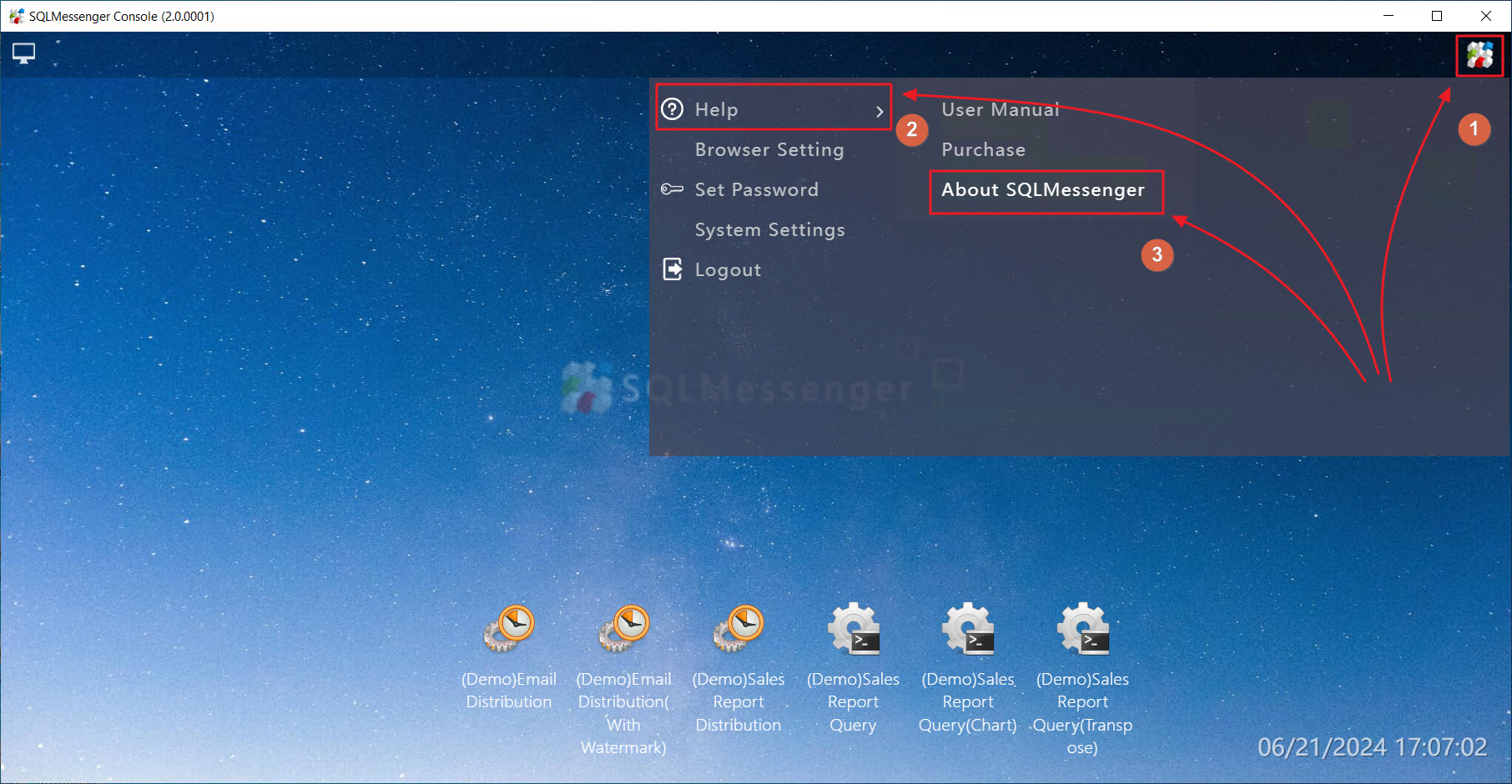
Open the "About SQLMessenger" dialog in the SQLMessenger Console
Then, click the "Login to the SQLMessenger Customer Portal" button in the dialog. The system will open the Customer Portal login page in your browser.
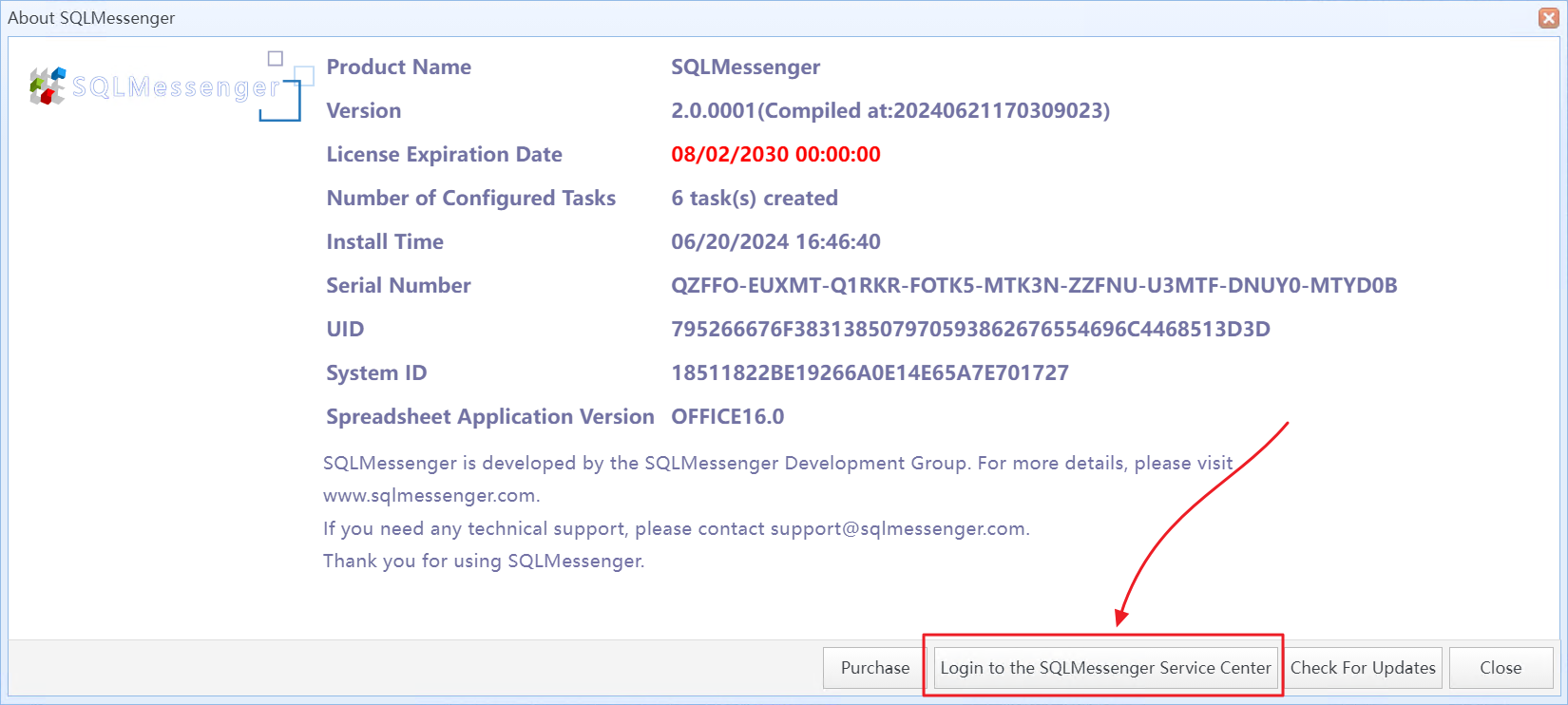
Click the "Login to the SQLMessenger Customer Portal" button in the dialog
Method 2: Log in to the Customer Portal from the official SQLMessenger website.
You can also click the "Customer Portal" button on the SQLMessenger website to open the Customer Portal login page.
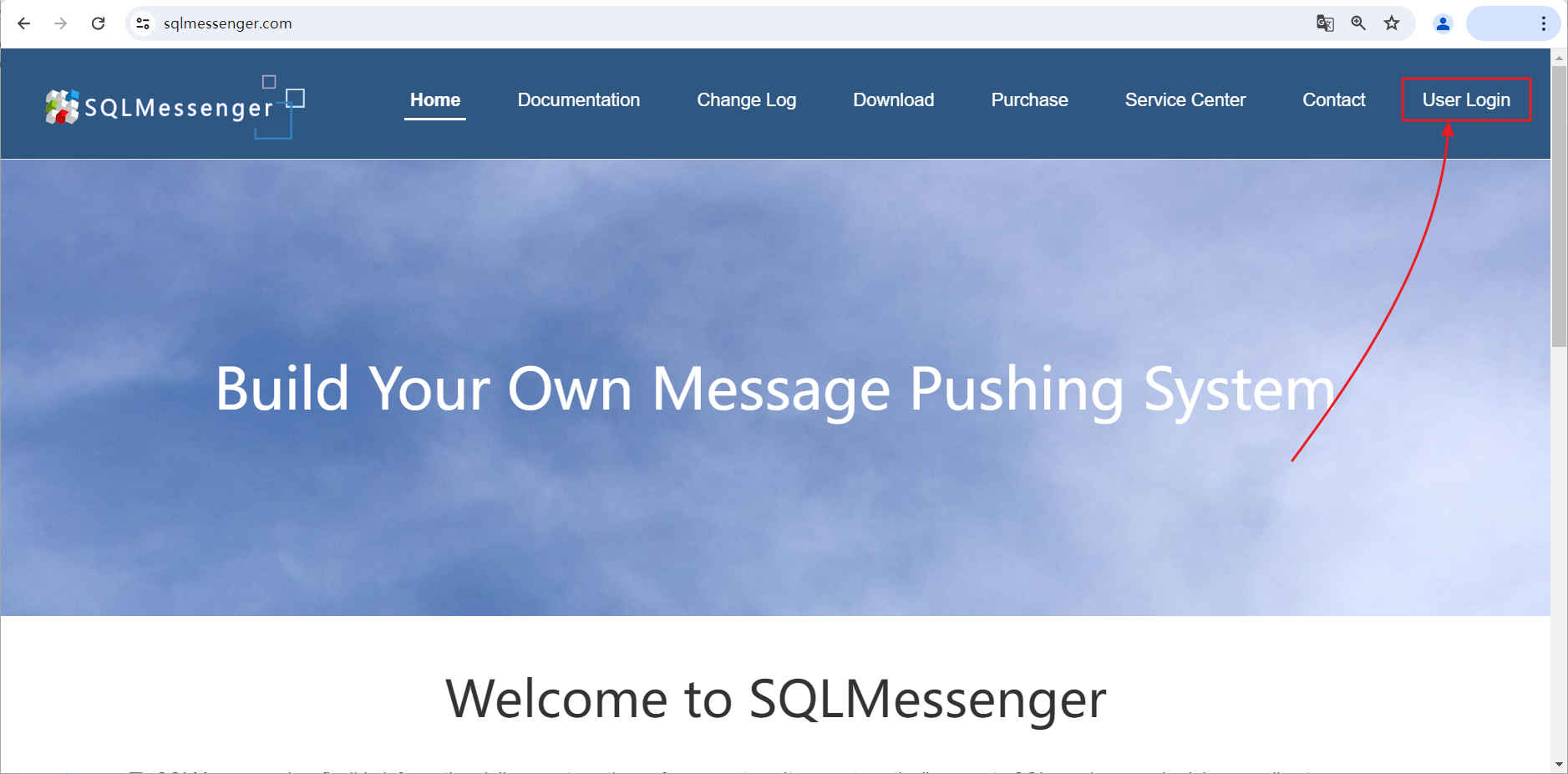
Click the "Customer Portal" button on the SQLMessenger website to open the Customer Portal login page
Enter your product serial number and UID on the login page. If you open the login page from the SQLMessenger console, the system will automatically fill in the product serial number and UID.
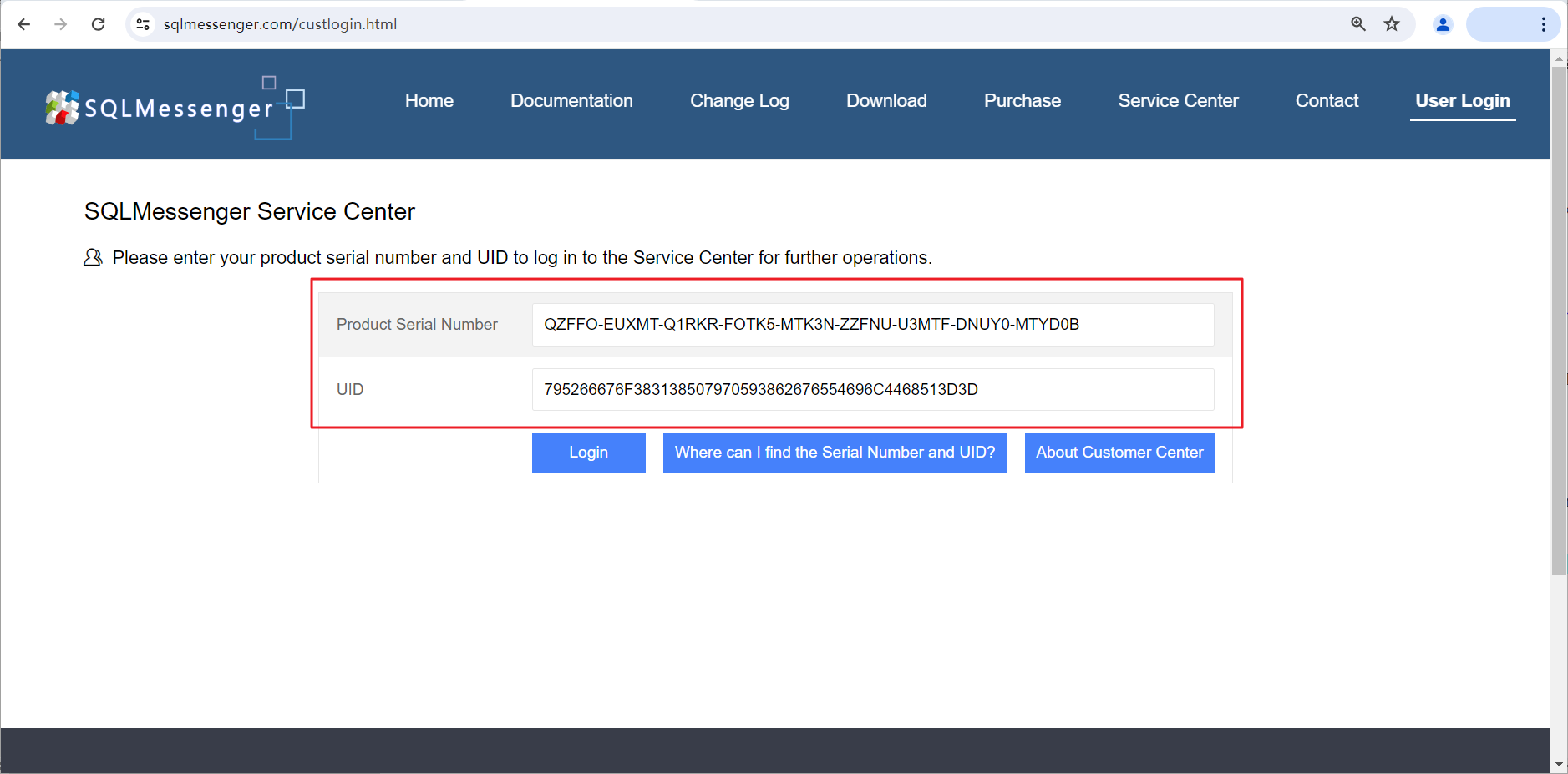
Enter your product serial number and UID on the login page
You can find your product serial number and UID in the "About SQLMessenger" dialog of the SQLMessenger console.
How to Find the Serial Number and UID
After clicking the "Login" button, the system will verify the product serial number and UID you entered. If this is your first time logging into the Customer Portal, the system will prompt you to set a login password for your account.
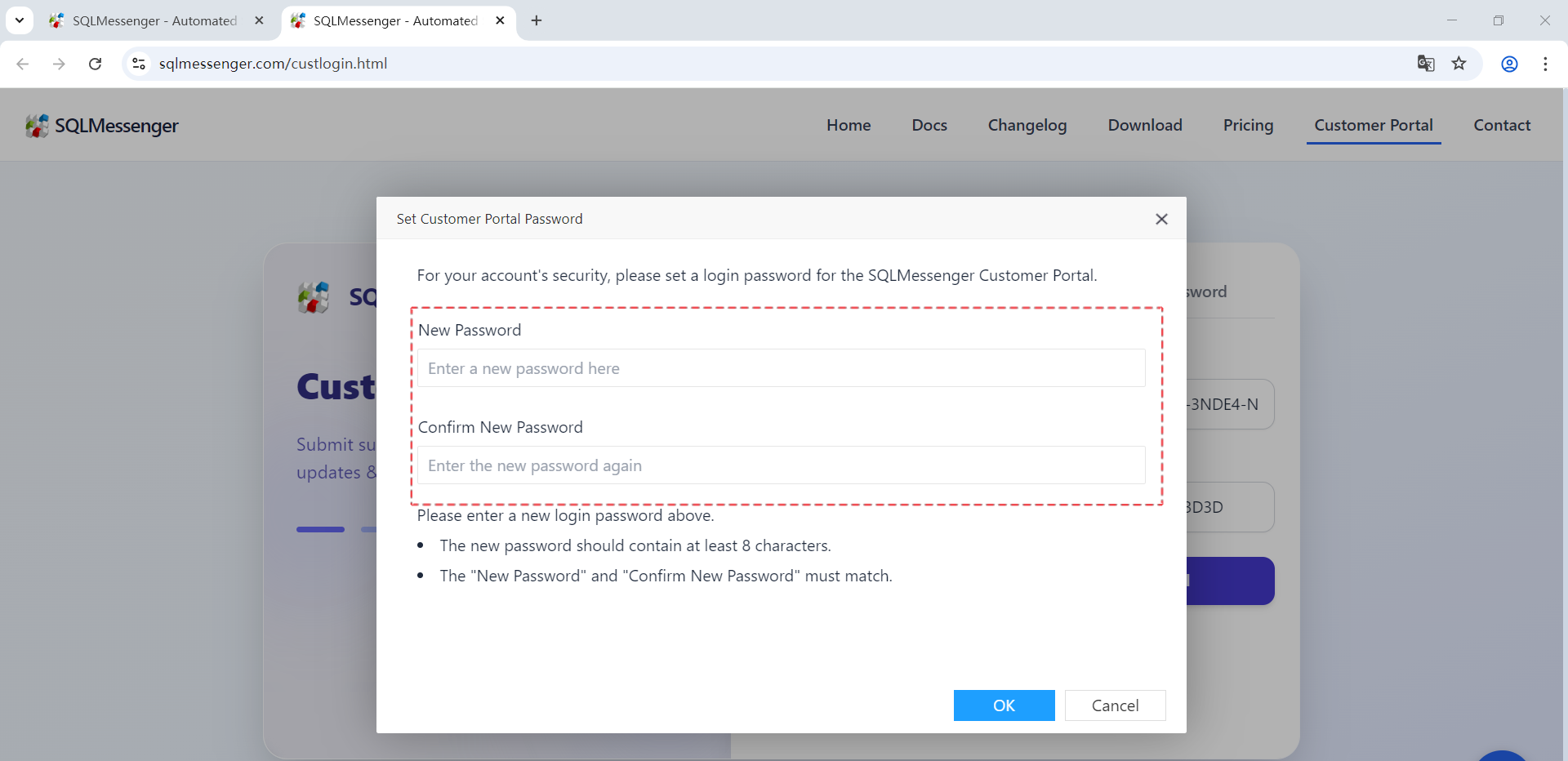
Set login password for your account
If you have already set a login password for the Customer Portal, please enter your password to continue logging in.
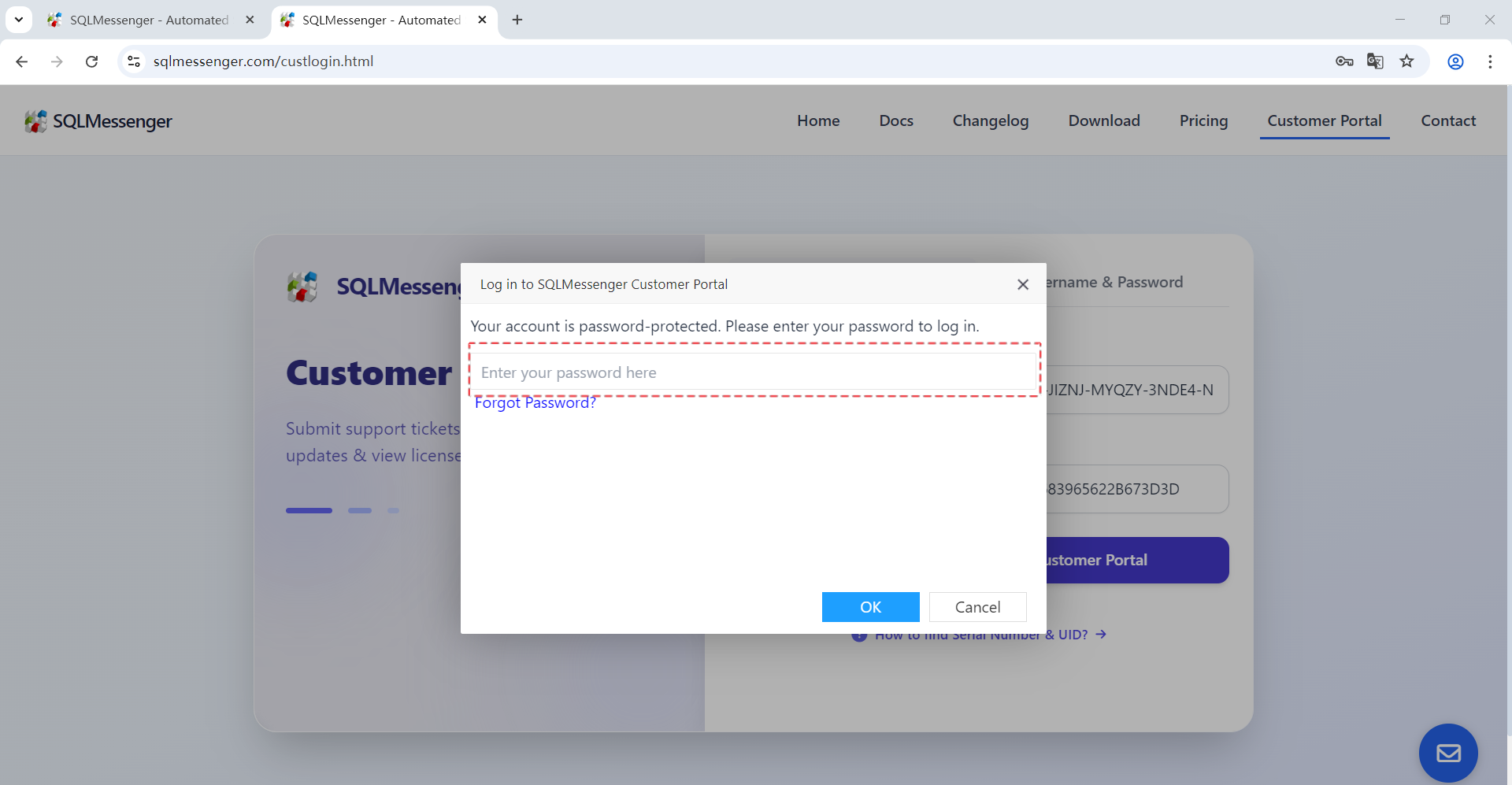
Enter your password to log in
3 Q&A
Q: How to change the login password for the Customer Portal?
A: You can log in to the Customer Portal and click on "Change Password" to change your login password.
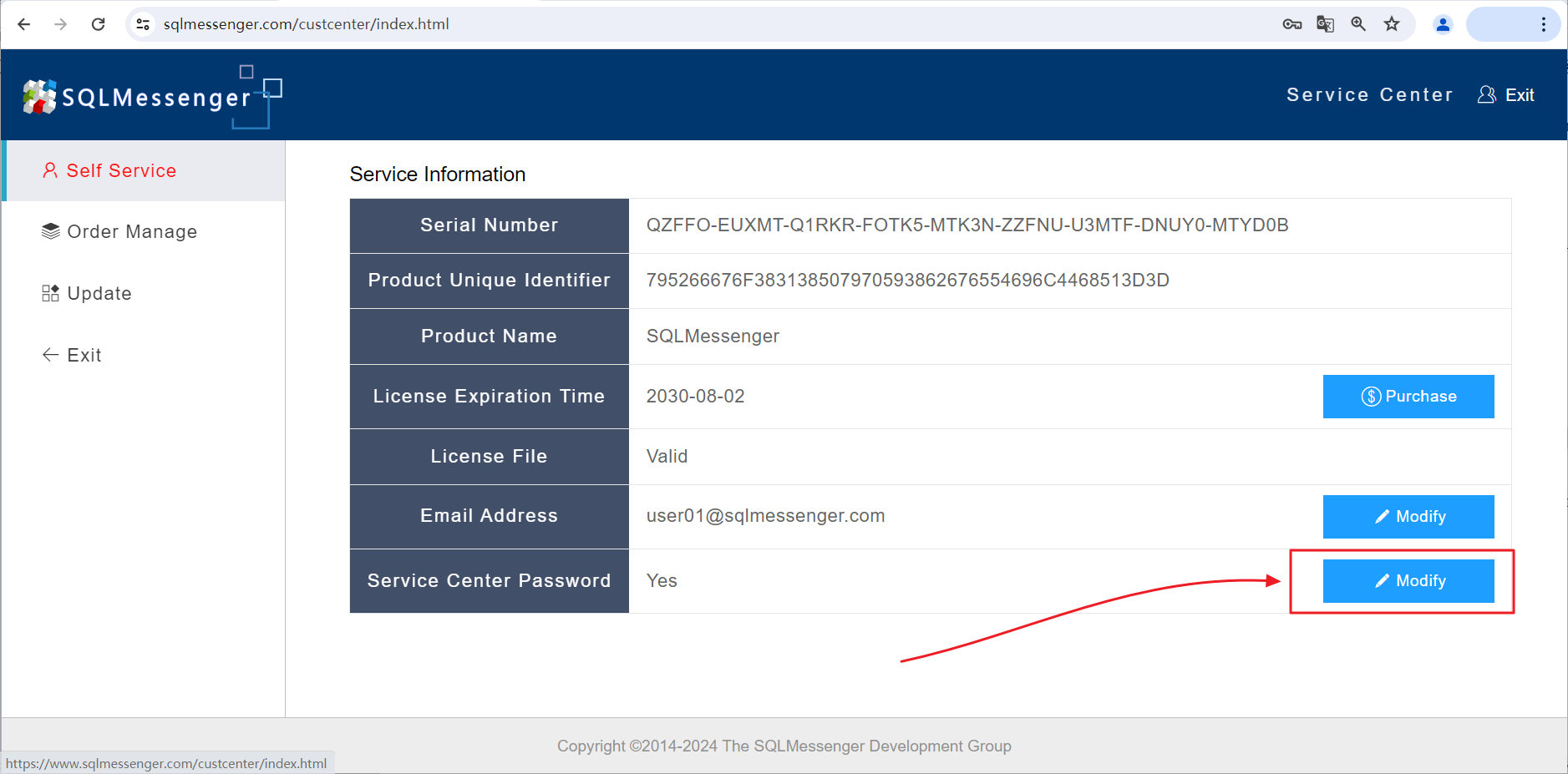
Change the Customer Portal password
Q: Why do I need to set an email address in the Customer Portal?
A: You can set your email address in the Customer Portal. We will send emails to the email address you set in the following situations:
(1) Resetting your Customer Portal password if you forget it.
(2) Sending you a verification code when you perform certain important actions to ensure security.
(3) Notifying you when there is a new reply to your support ticket.
In particular, when resetting your login password, if you have not set an email address, you will not be able to reset your Customer Portal login password.
Q: How to set an email address in the Customer Portal?
A: Please follow the steps below to set up your email address.
Step 1: After logging into the Customer Portal, click on the "Account Settings" menu item, then click the "Change" button to the right of Email Address.
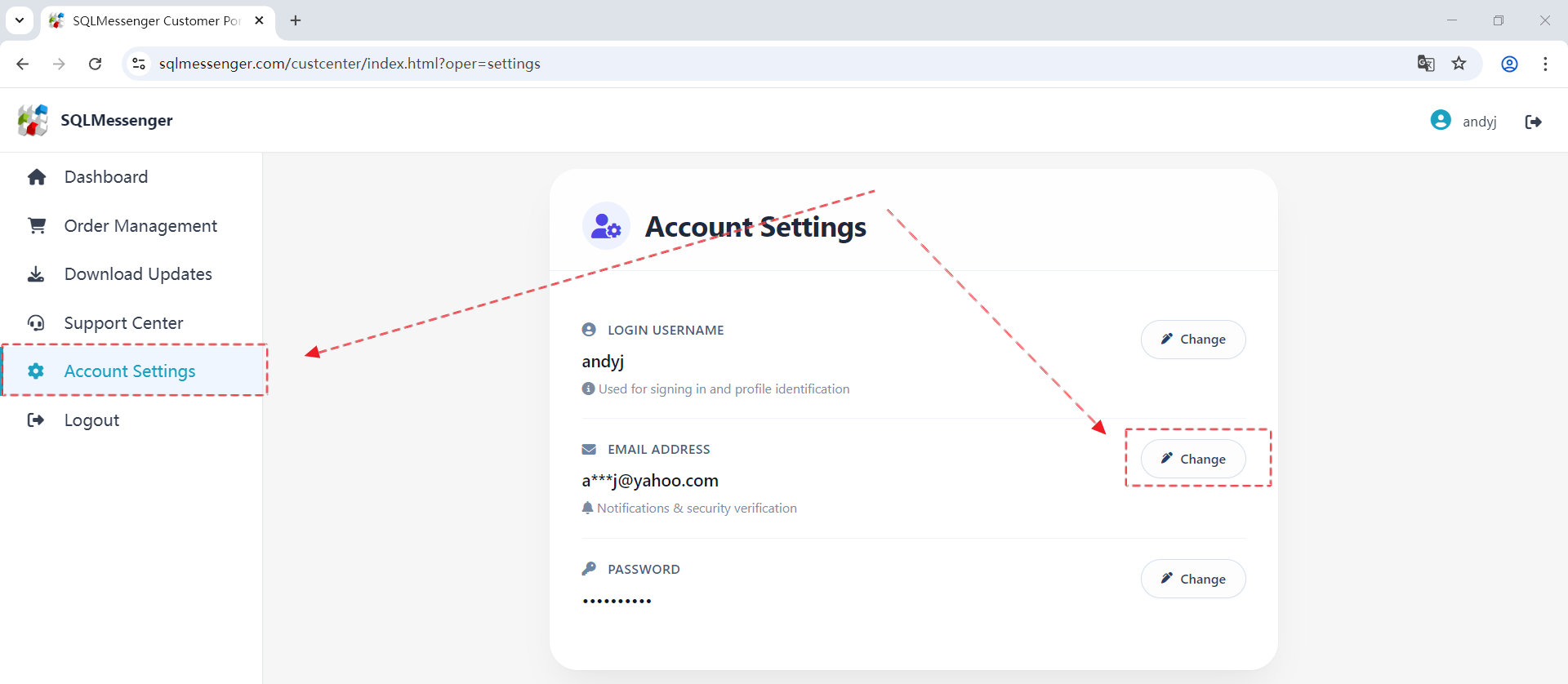
Step 2: Enter your email address and then click "OK".
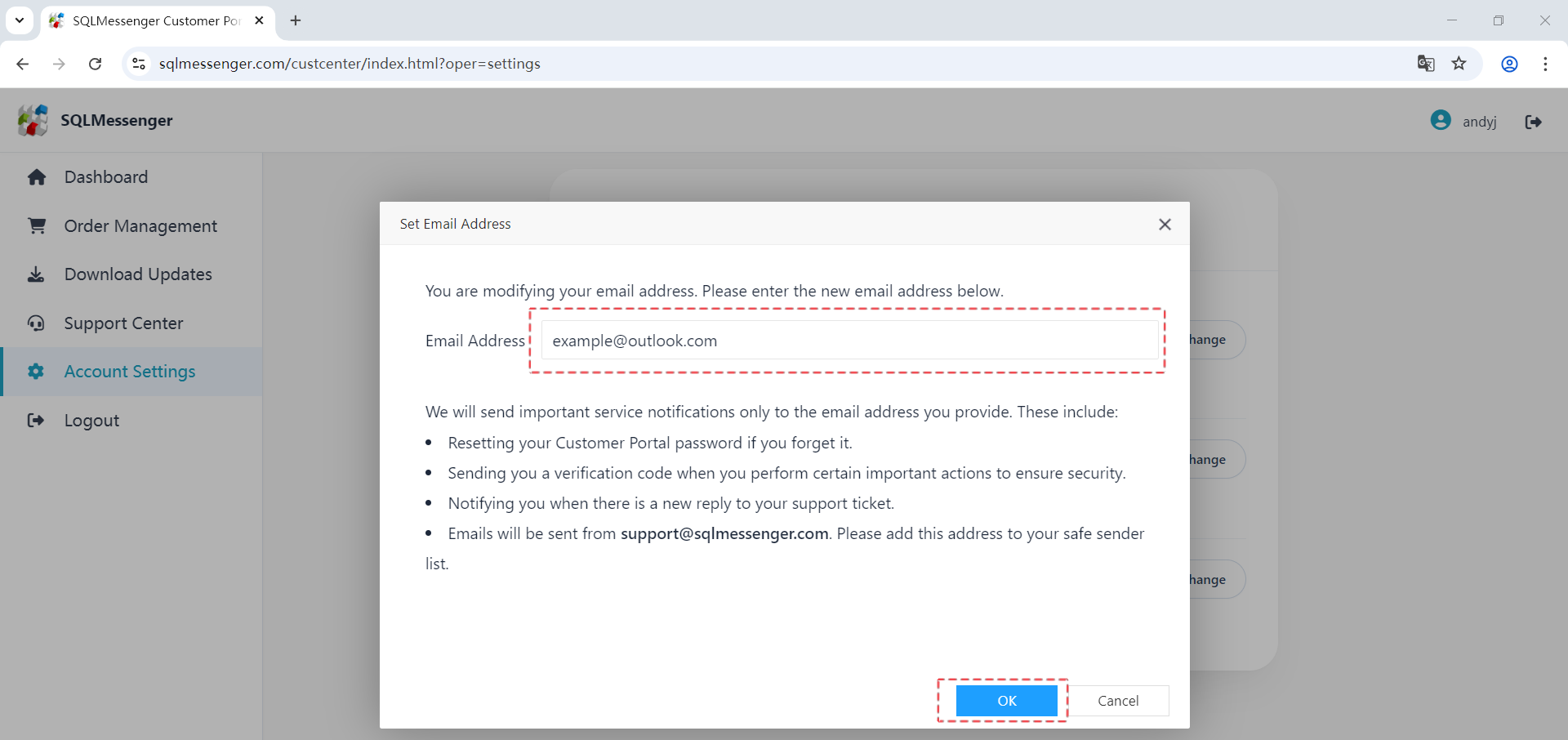
Q: What should I do if I forgot my Customer Portal login password?
A: If you have forgotten your Customer Portal login password, you can reset it by following the steps below.
Note: If you have not set up your email address in the Customer Portal, you will not be able to use this method to reset your login password.
Step 1: Enter your product serial number and UID on the login interface, then click "Login to the SQLMessenger Customer Portal".
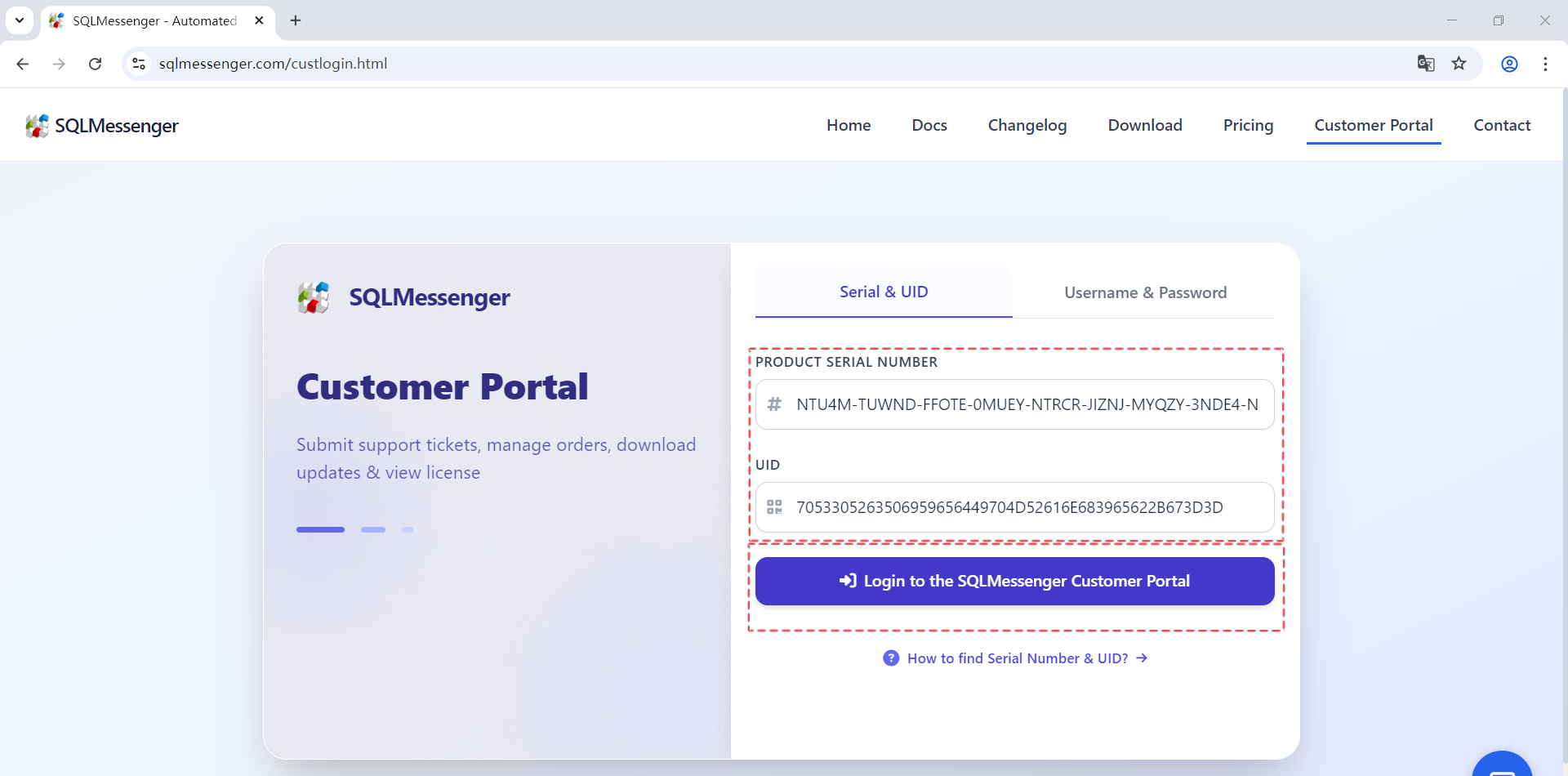
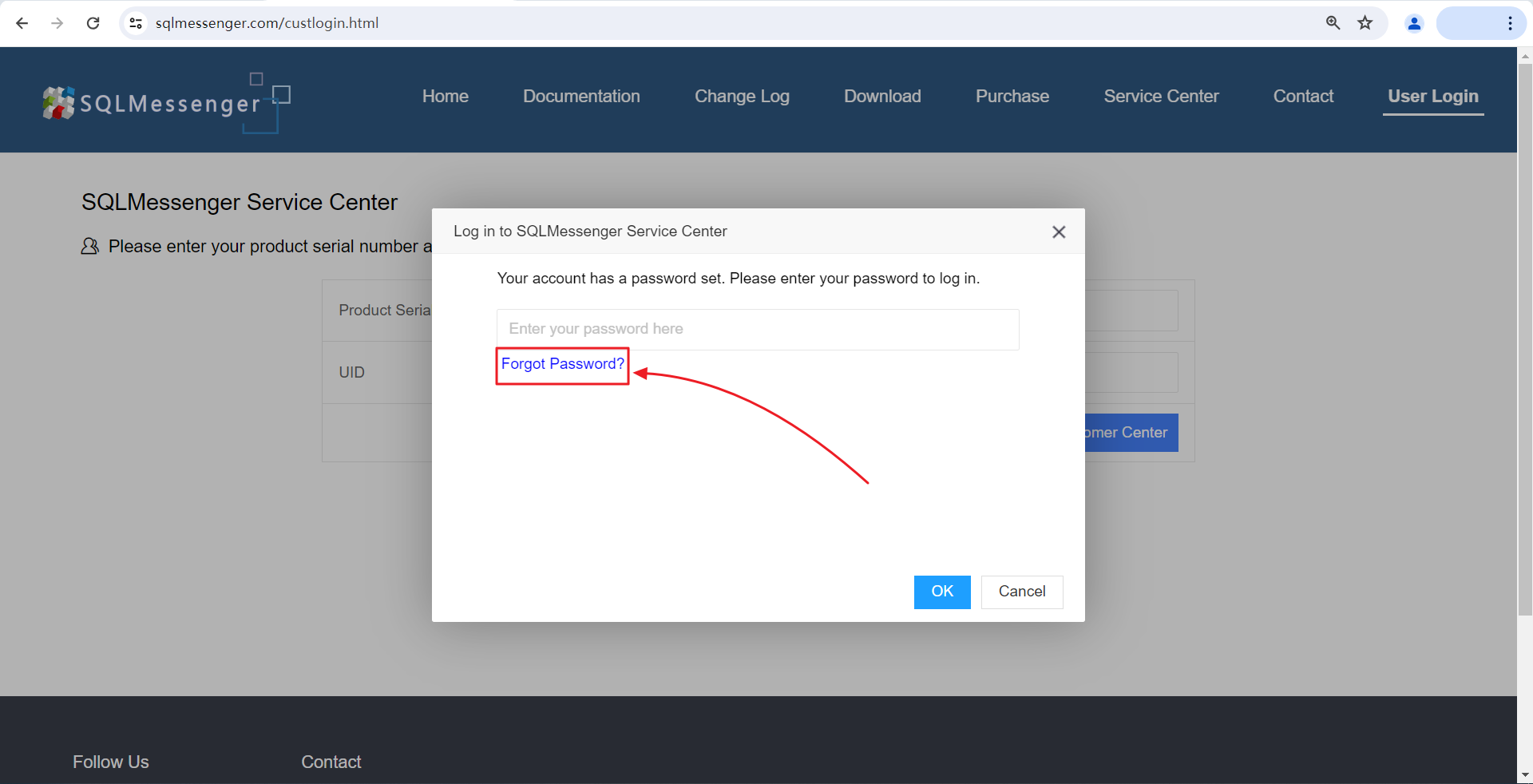
Step 2: Click "Forgot Password" in the password dialog box. The system will send a password reset email to the email address you set.
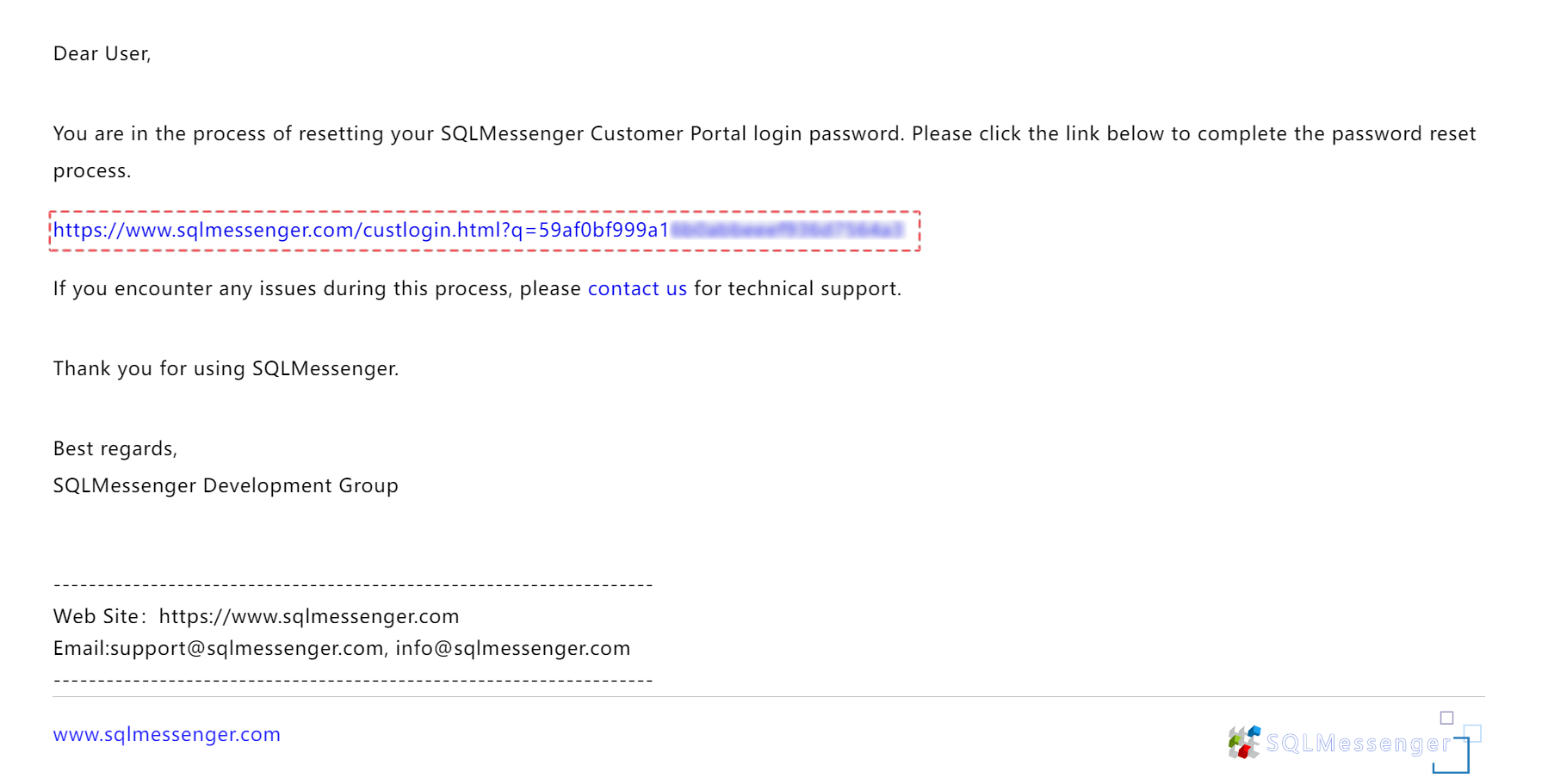
Step 3: Log in to your email account, find the email sent by the system in your inbox, and click the password reset link in the email.
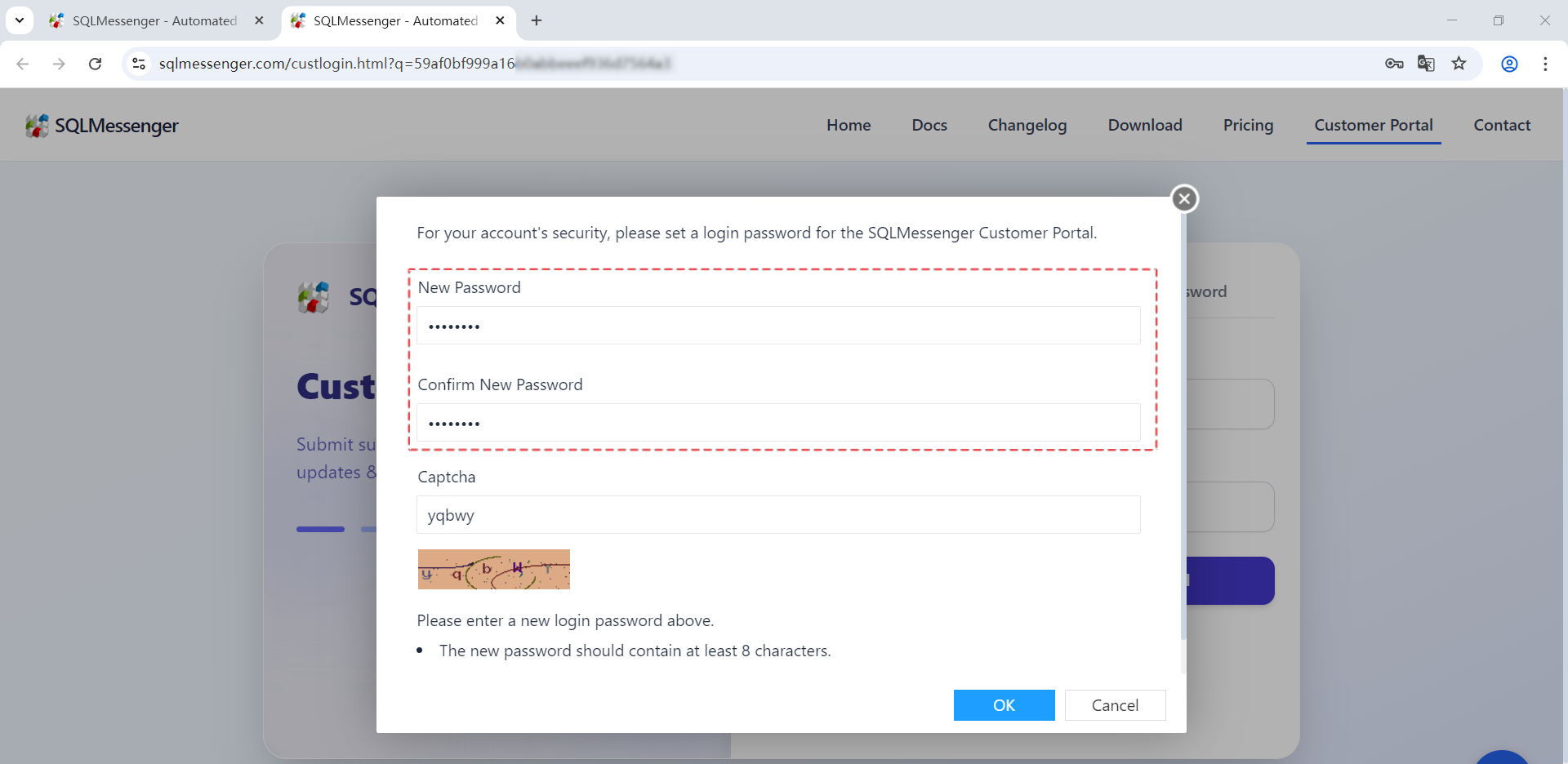
Step 4: Set your new password on the opened web page, then log in to the Customer Portal again.
Q: Can I log in to the Customer Portal with a username and password?
A: The Customer Portal supports login with username and password.
Step 1: Set your username. After logging into the Customer Portal, click the "Change" button to the right of "Username" in Account Settings.
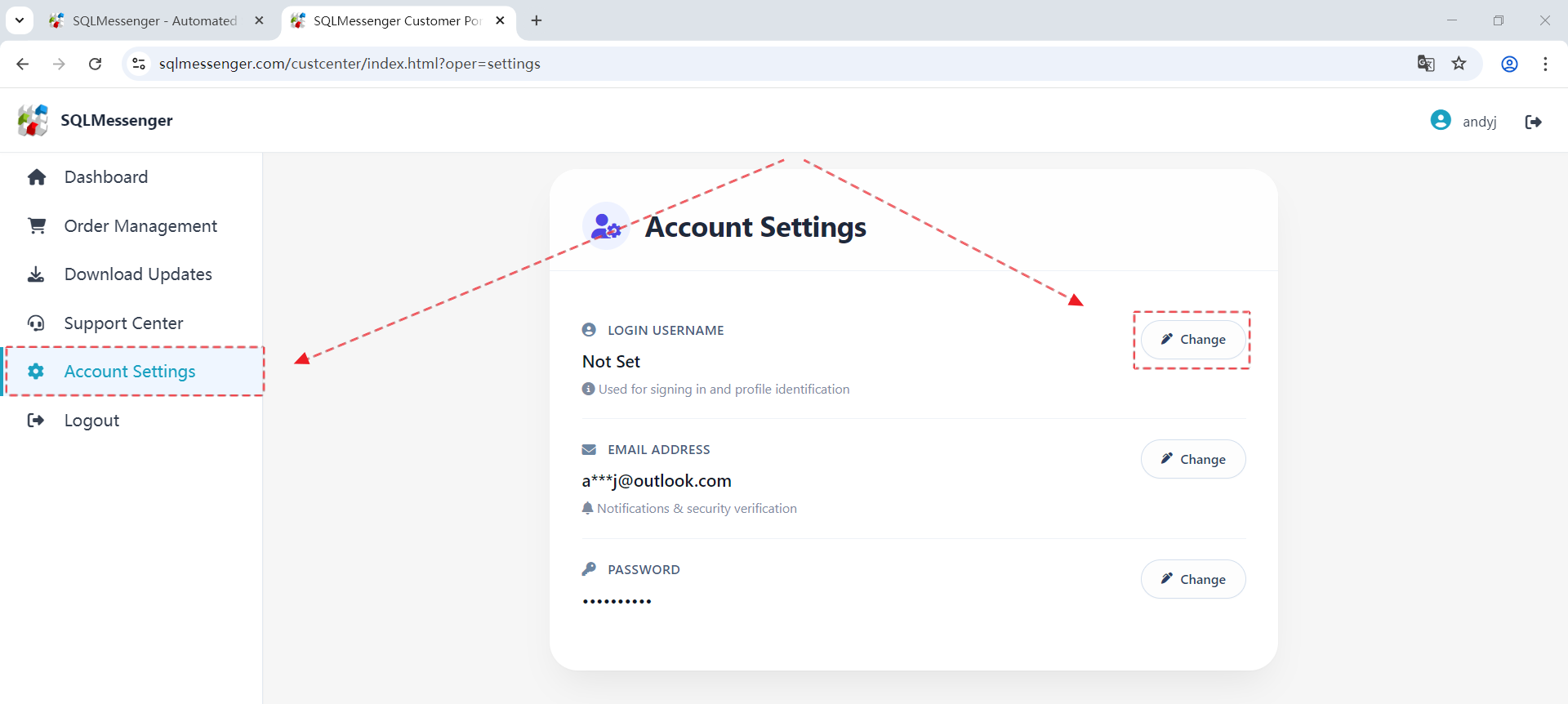
Step 2: Enter your username and then click "OK". The username cannot contain any characters other than English letters, numbers, and underscores, and is not case-sensitive.
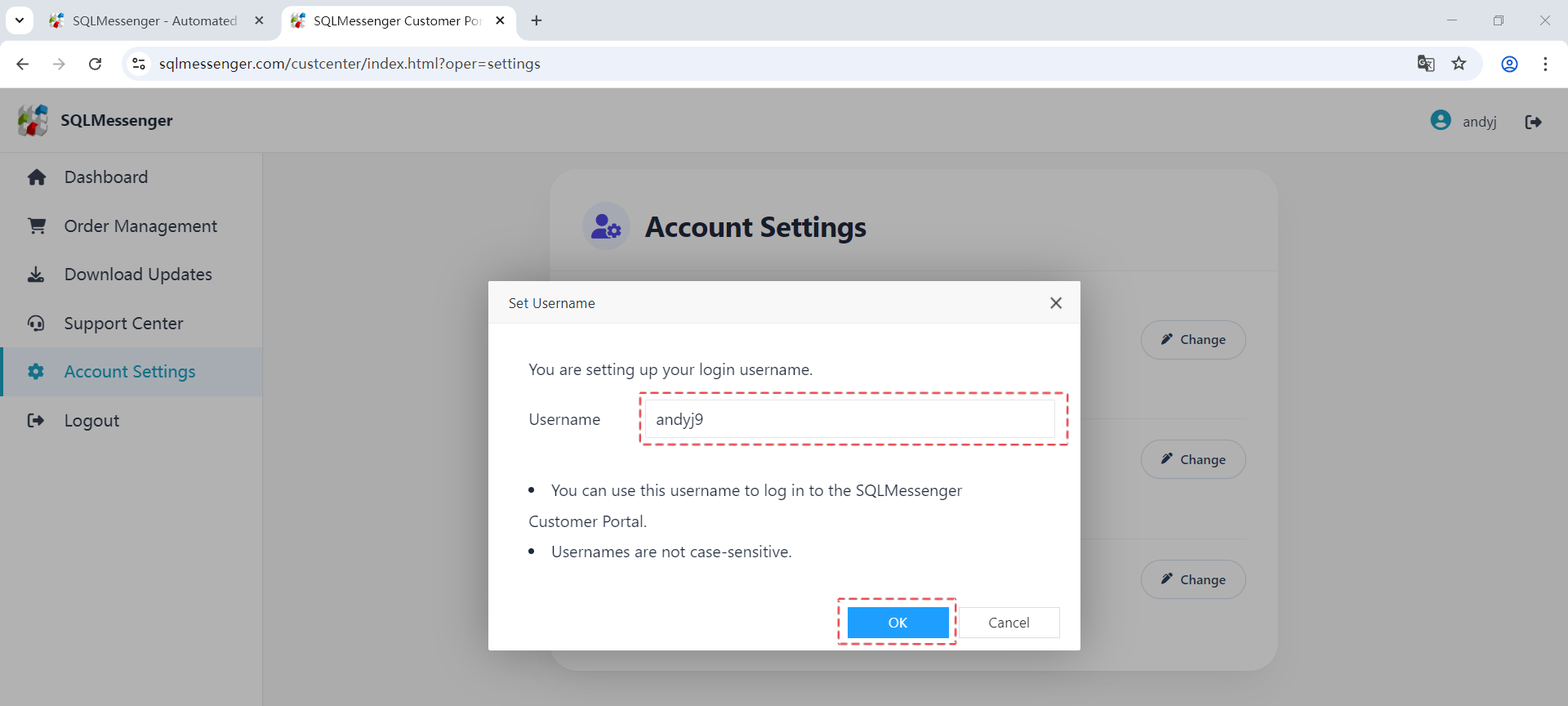
After setting the username, you can use this username to log in to the Customer Portal in the future.