- 1 License Types
- 2 In-App Purchase
- 3 Purchase from the SQLMessenger Website
- 4 Q&A
- I completed the payment, but the license file hasn't updated automatically. What should I do?
- My computer cannot access the Internet. How can I update the license file?
- I encountered an issue while using SQLMessenger. How can I get technical support?
1 License Types
SQLMessenger offers three license types: Free License, Professional License, and Perpetual License.
The Free License is available at no cost forever. It allows you to create up to 5 report tasks. Emails sent under this license include the SQLMessenger logo and a link to our website. Limited technical support is available through our community only.
The Professional License and Perpetual License are paid licenses. They offer unlimited tasks, remove SQLMessenger branding from emails, include comprehensive technical support via email and our ticket system, and provide access to advanced technical services.
If the Free License does not meet your needs, you can purchase a paid license. This document explains how to purchase and activate a paid SQLMessenger license.
Not sure which license is right for you? Compare SQLMessenger License Plans.
2 In-App Purchase
If the computer running SQLMessenger has Internet access, we recommend using this method. After your payment is completed, your license will be updated automatically.
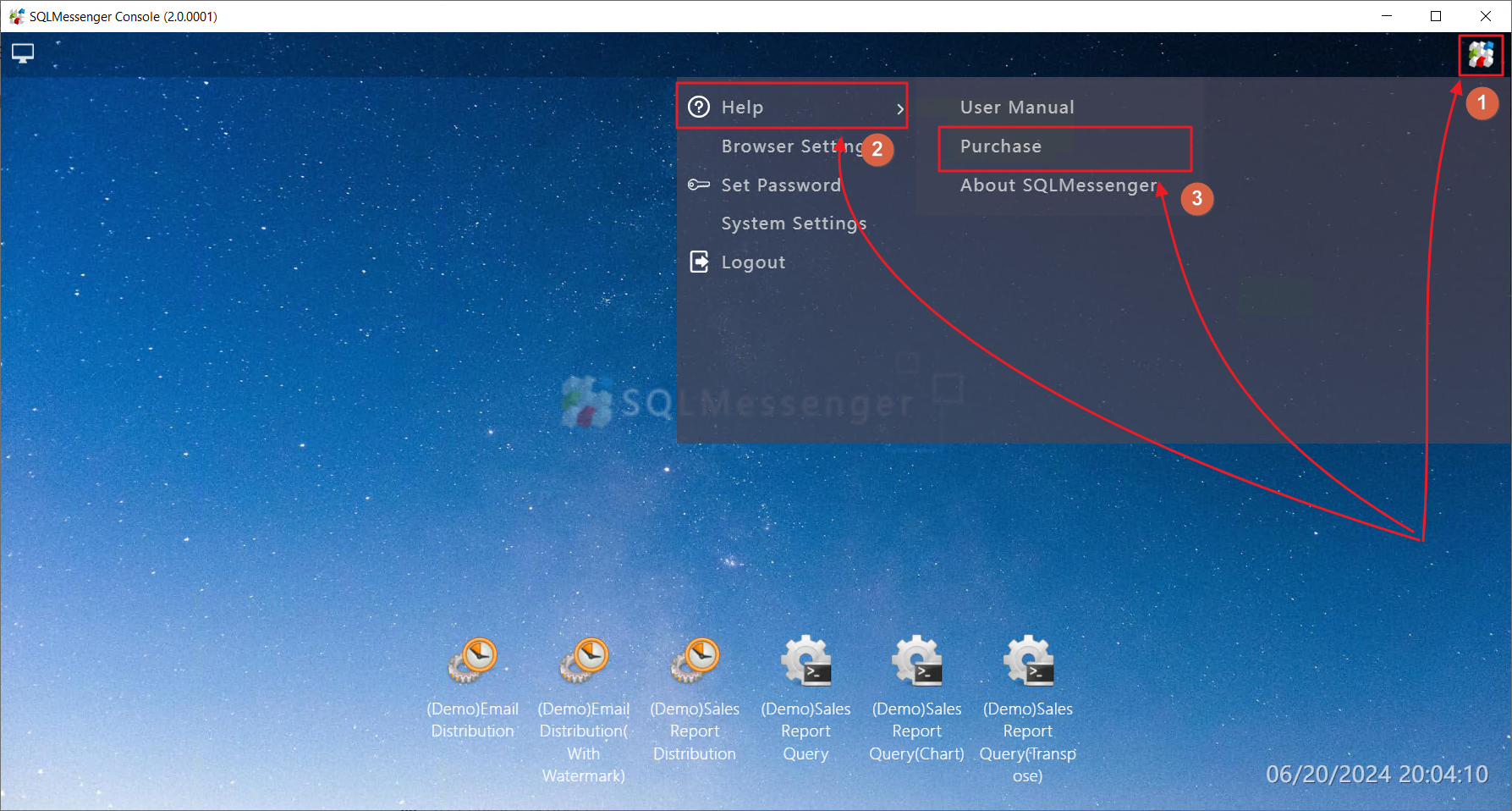
Step 1: In the SQLMessenger Console, click the "MainMenu" icon in the upper-right corner, then select "Help" -> "Purchase".
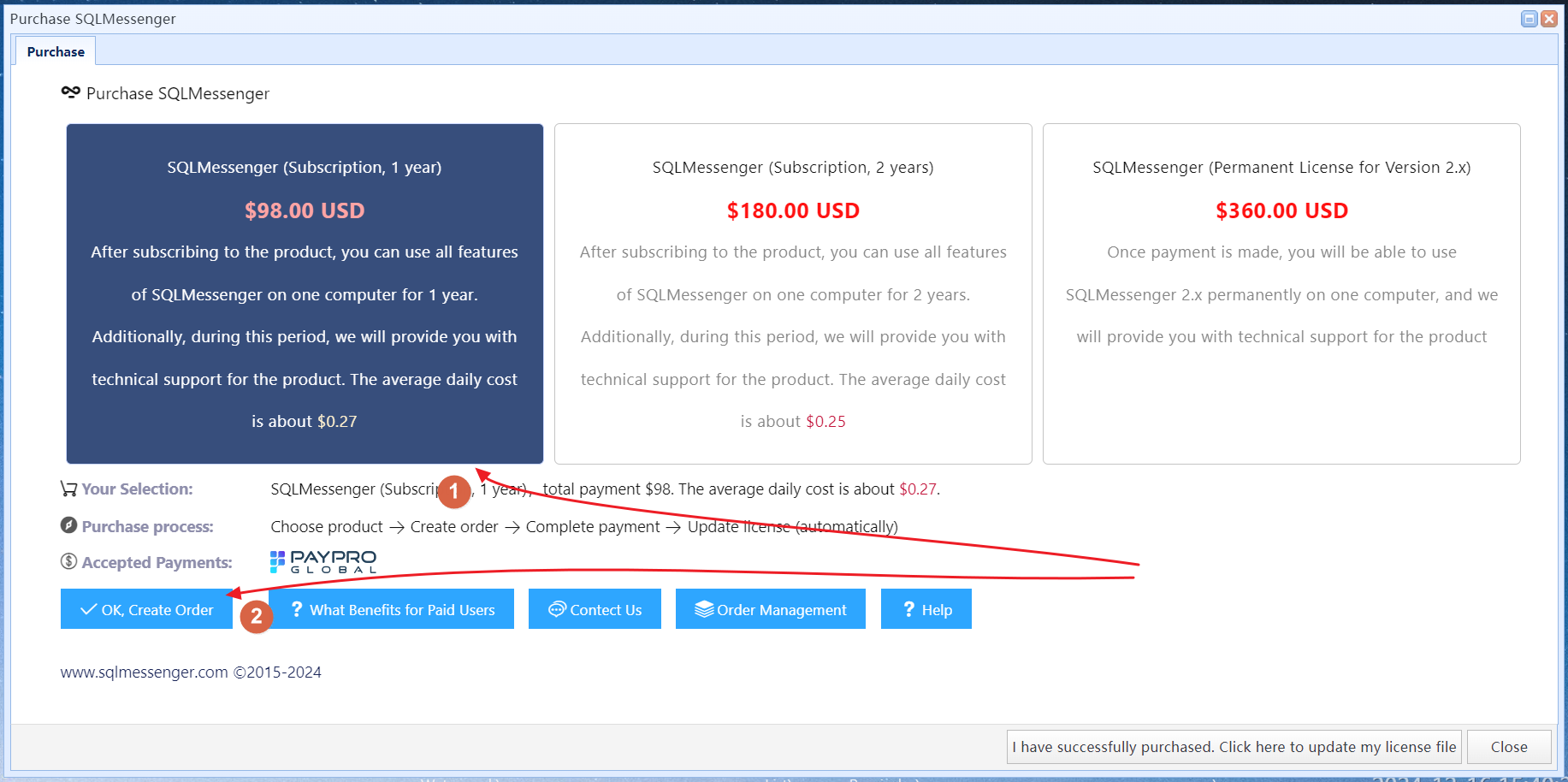
Step 2: Click the "Buy Now" button under the license you would like to purchase.
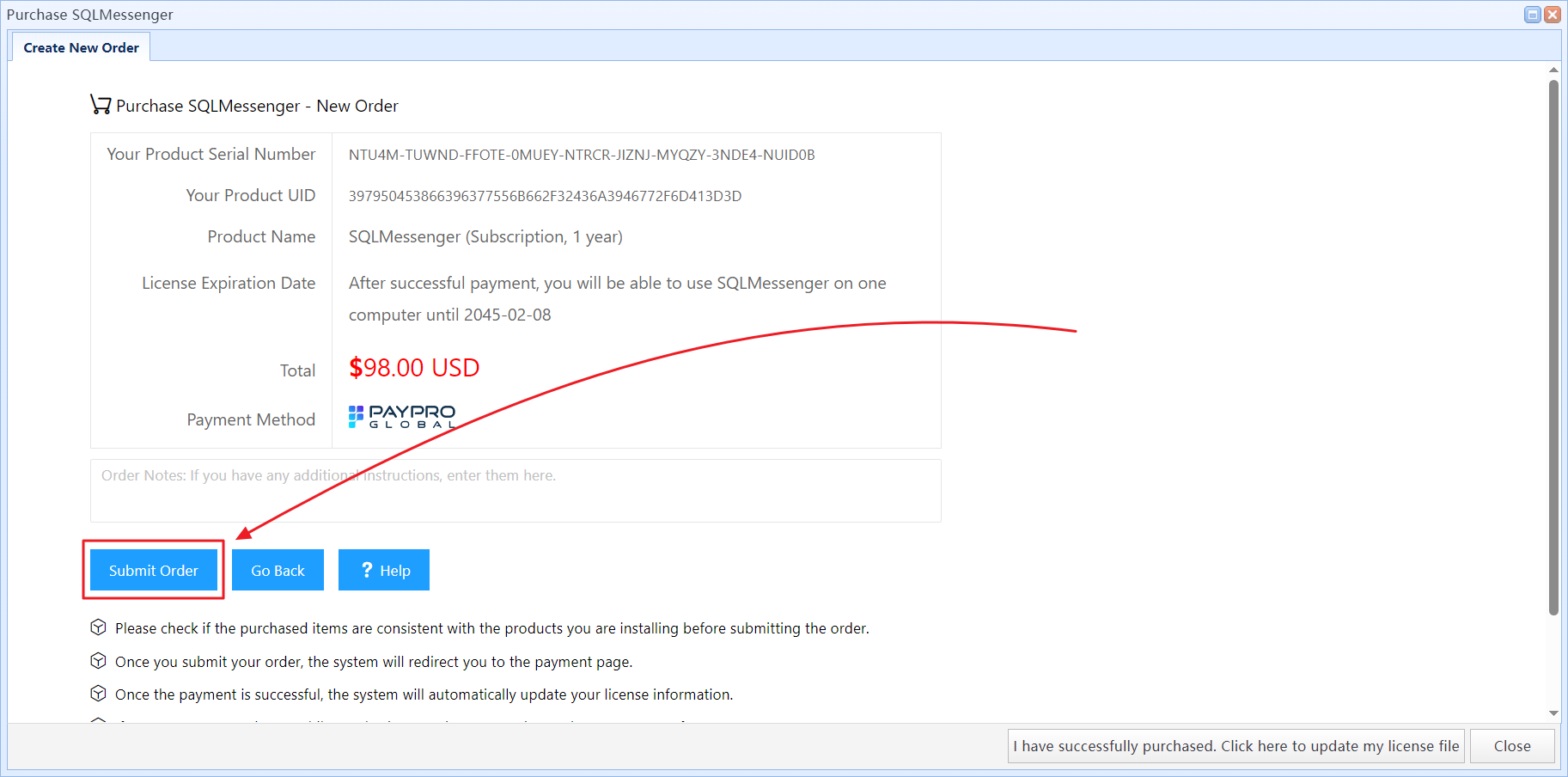
Step 3: Review your order details, then click the "Submit Order" button.
Step 4: In the Order Manager, click "Pay with PayPro" to proceed with payment.
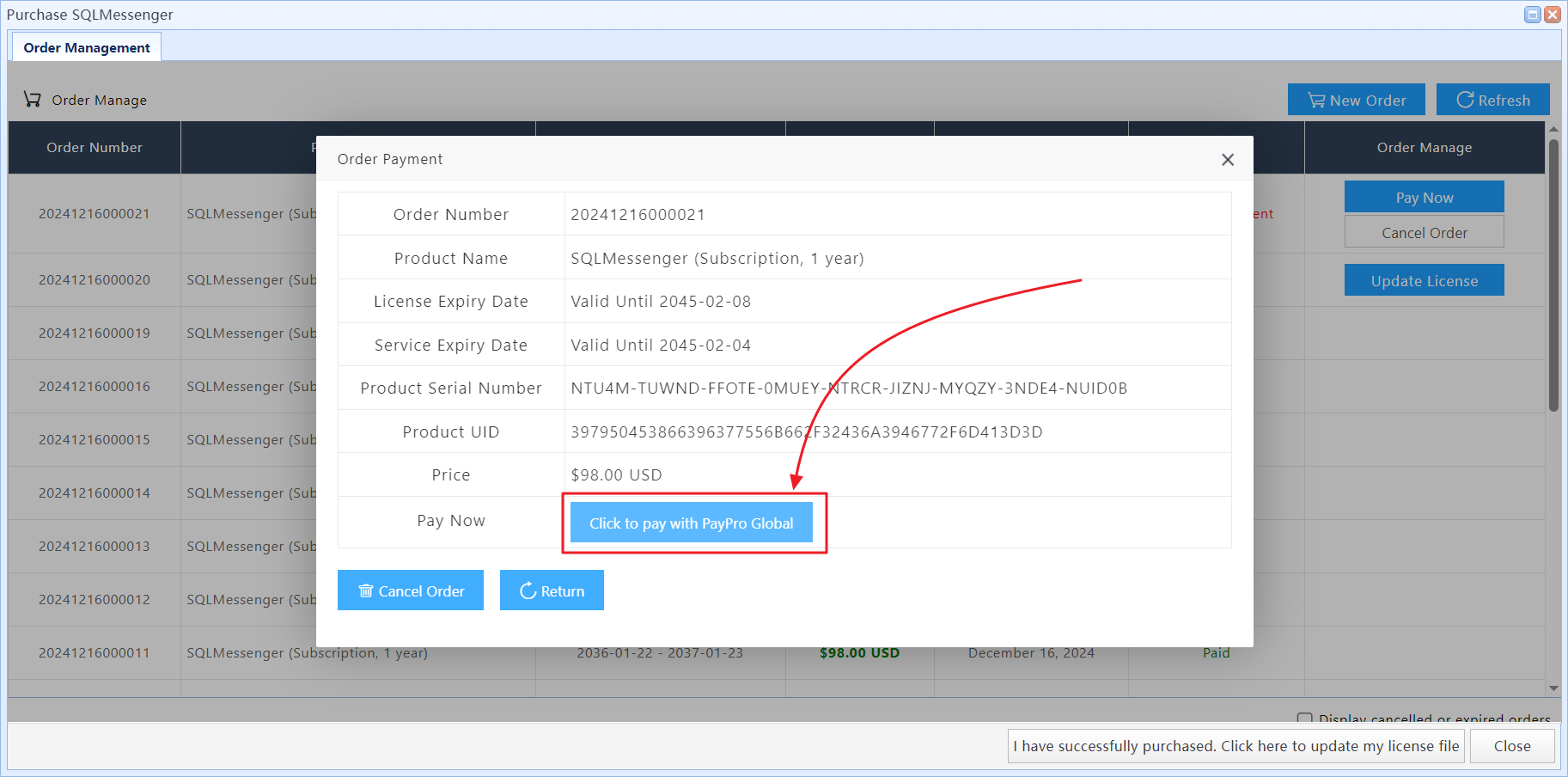
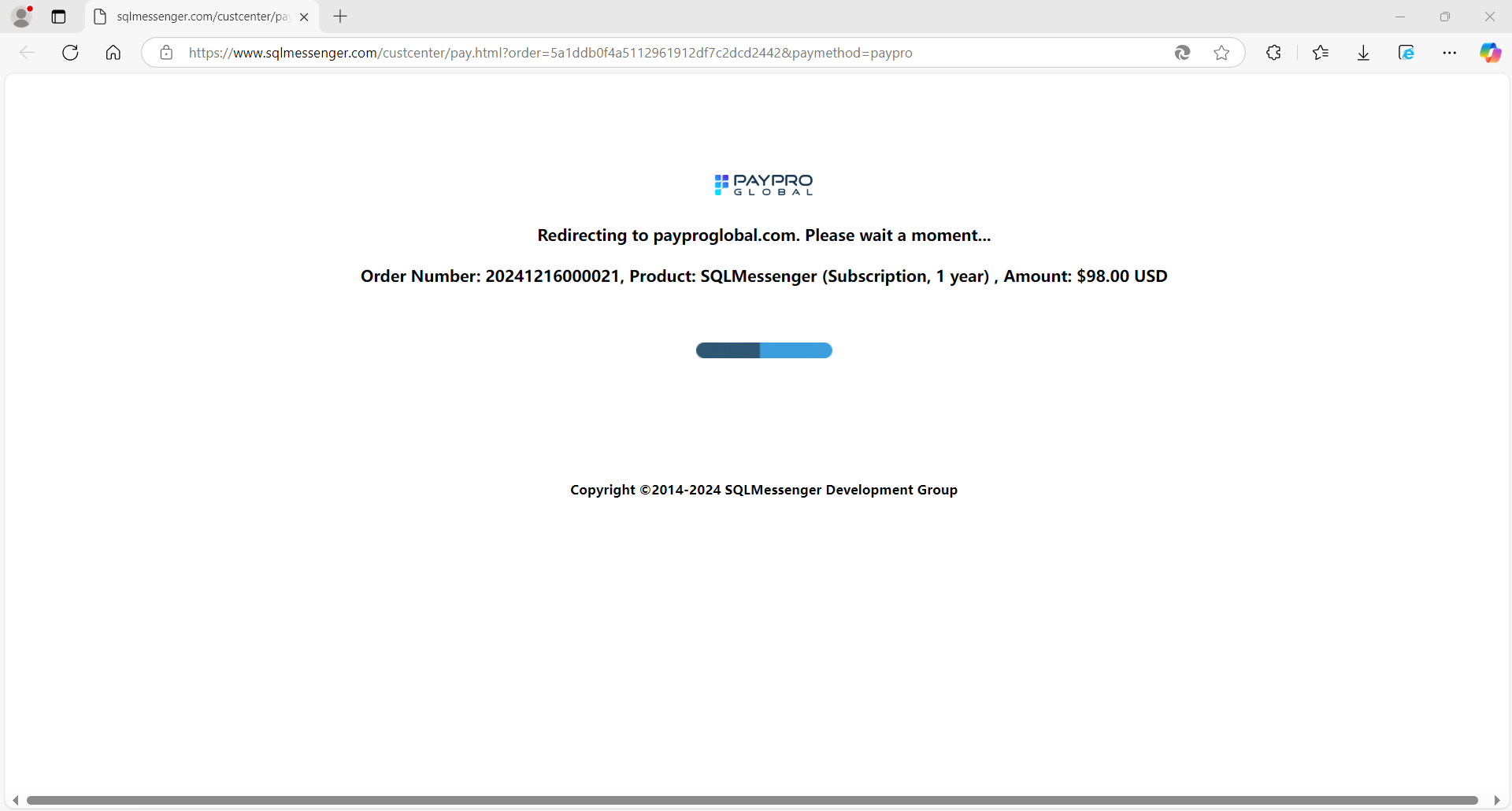
Step 5: After clicking "Pay with PayPro", the payment page will open on paypalglobal.com in your web browser.
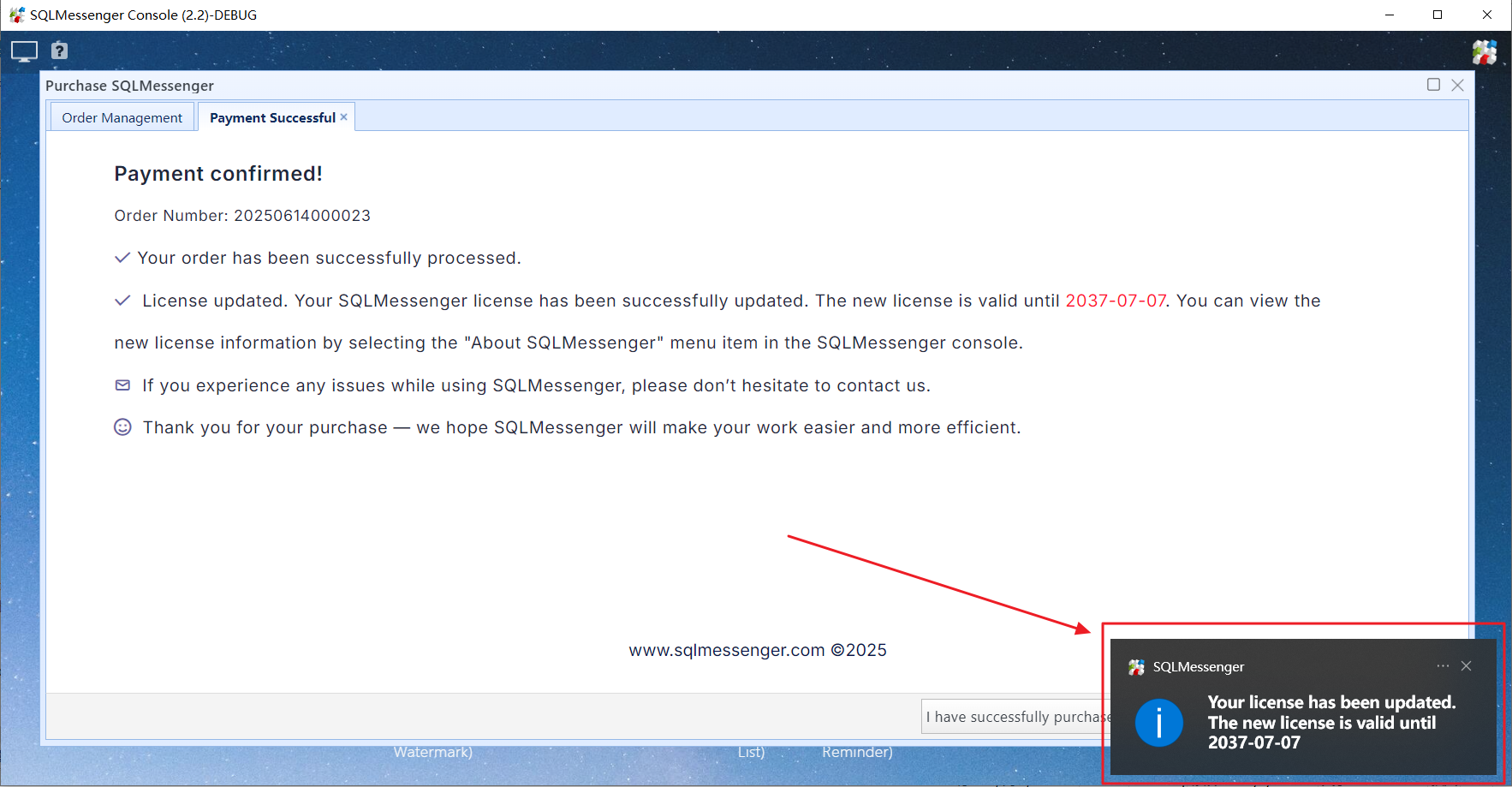
Step 6: Once payment is completed successfully, your license information will be updated automatically.
3 Purchase from the SQLMessenger Website
If the computer running SQLMessenger does not have Internet access, please use this method.
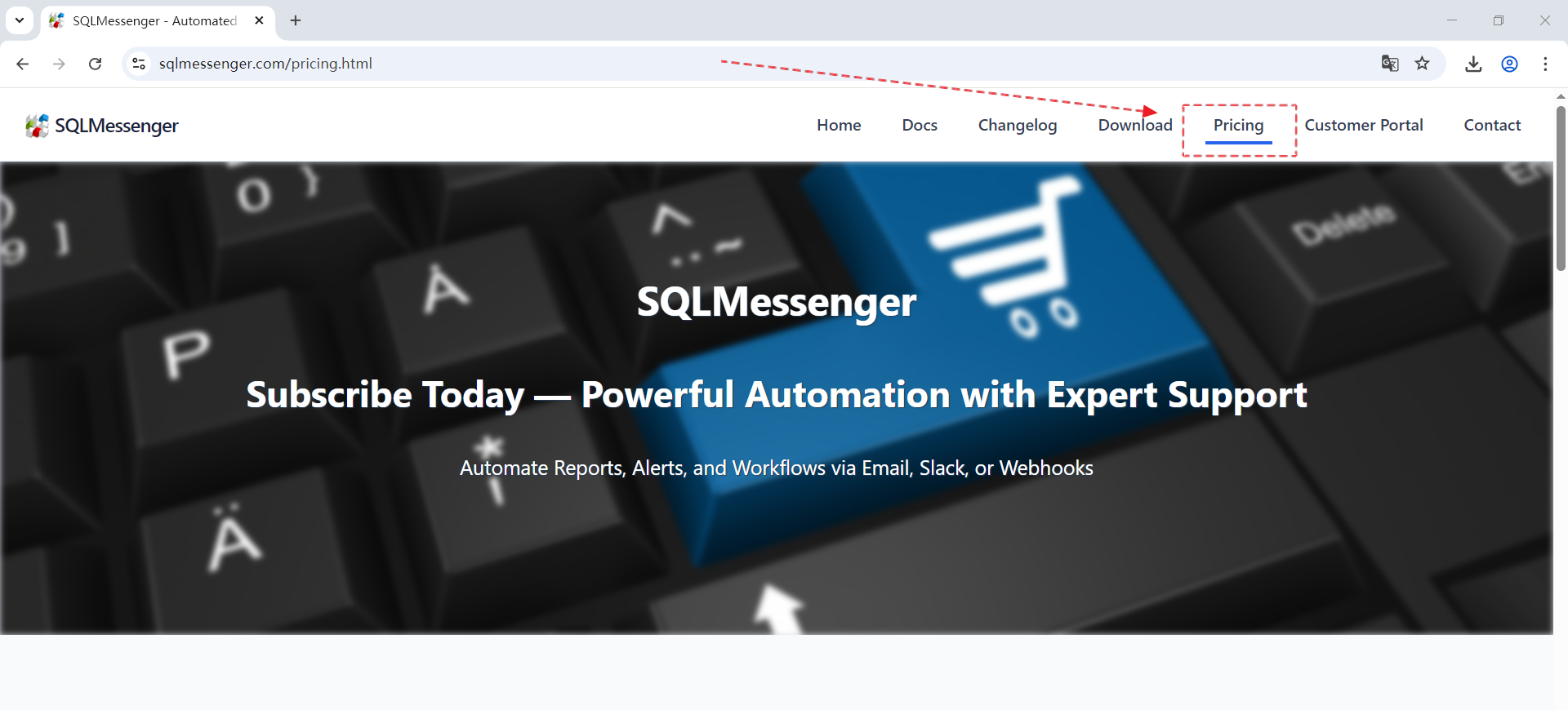
Step 1: Visit the SQLMessenger website at www.sqlmessenger.com and click "Pricing".
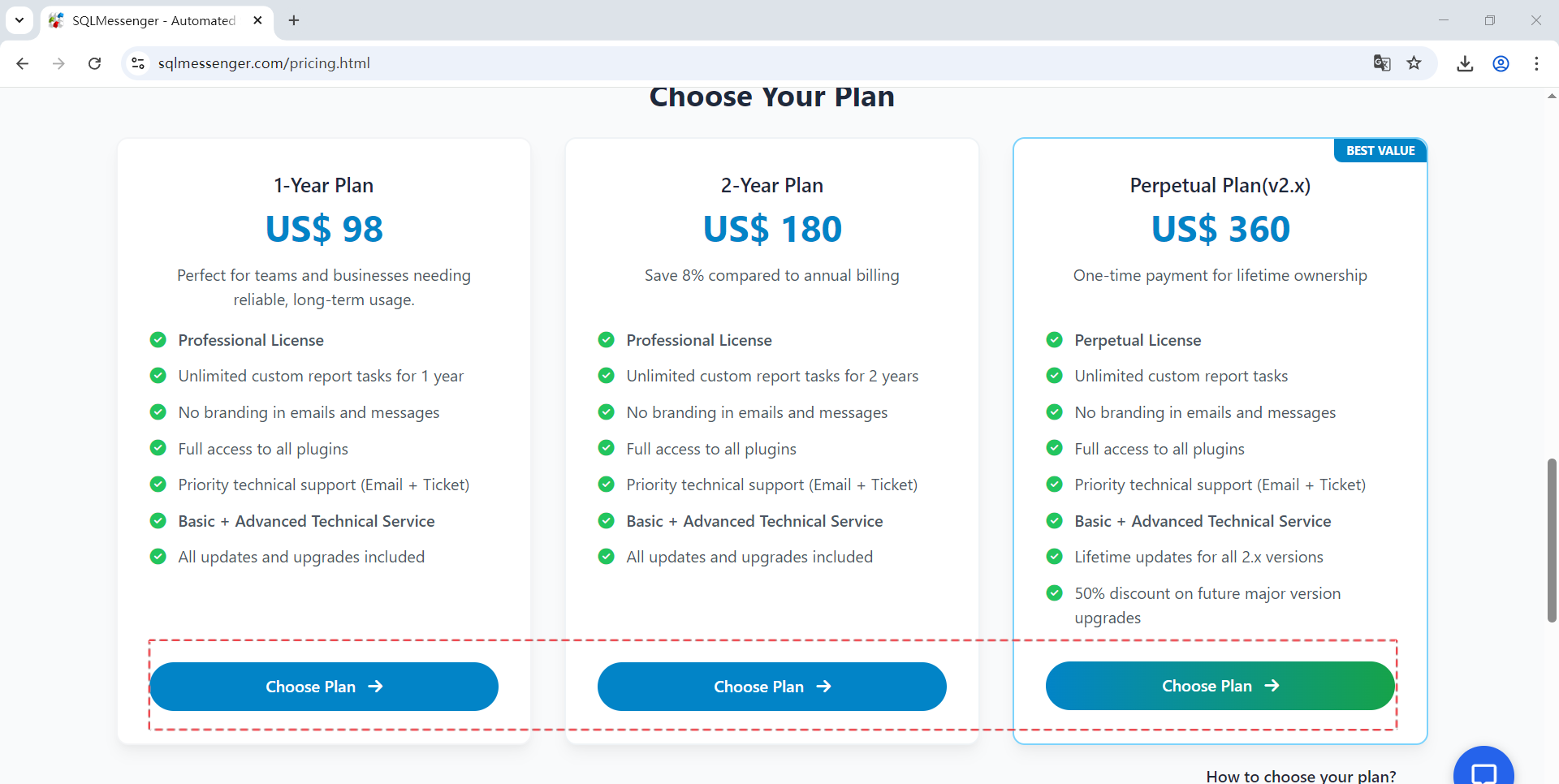
Step 2: Click the "Choose Plan" button under the plan you would like to purchase.
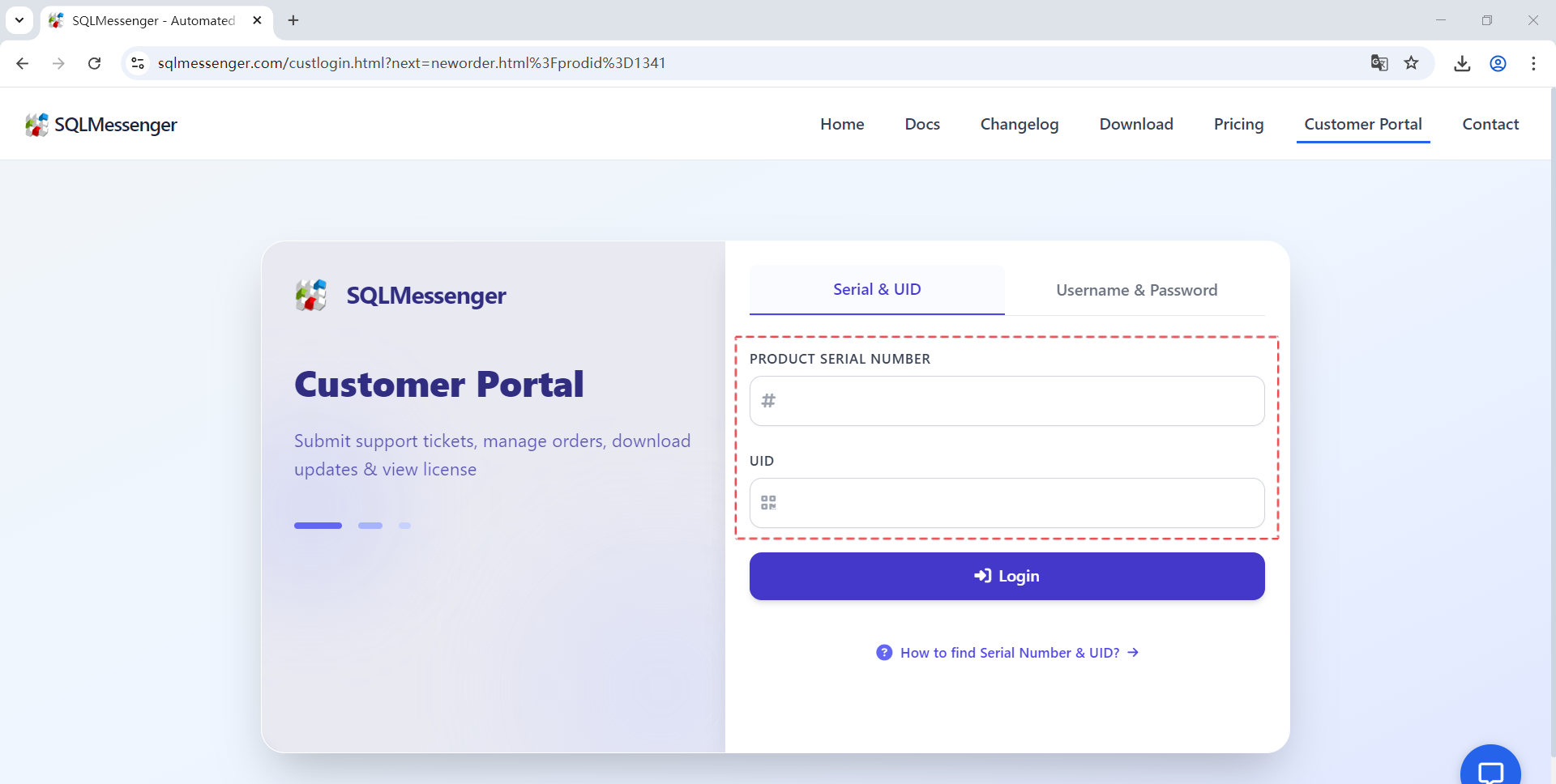
Step 3: On the login page, enter your SQLMessenger Serial Number and UID, then click "Login" to access the SQLMessenger Customer Portal.
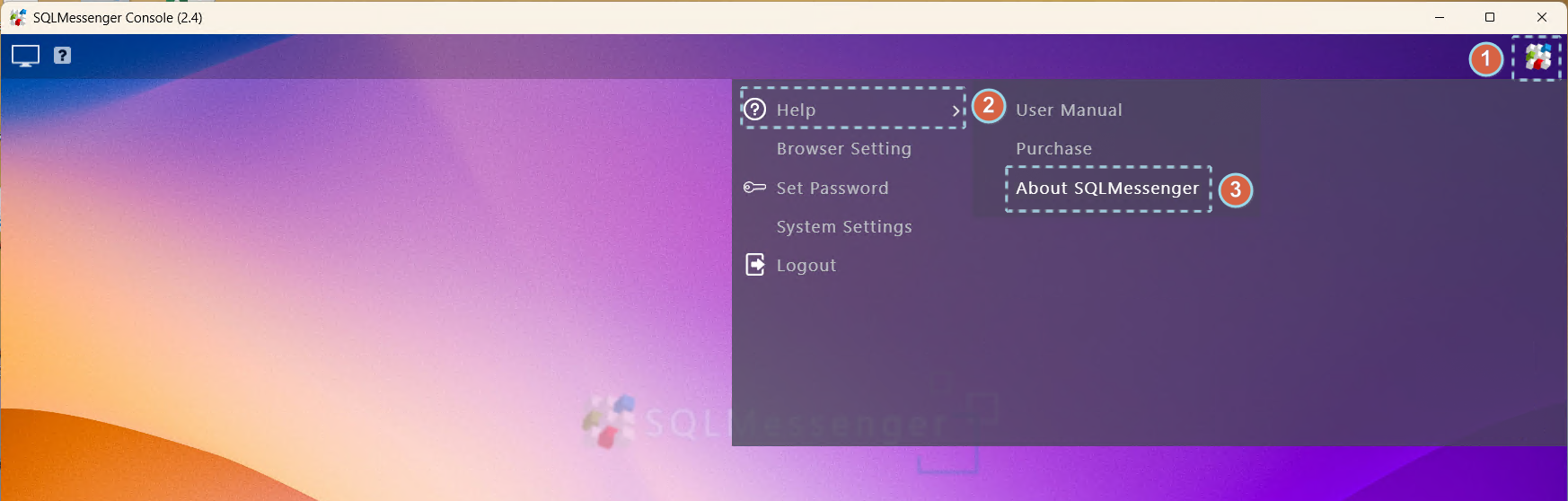
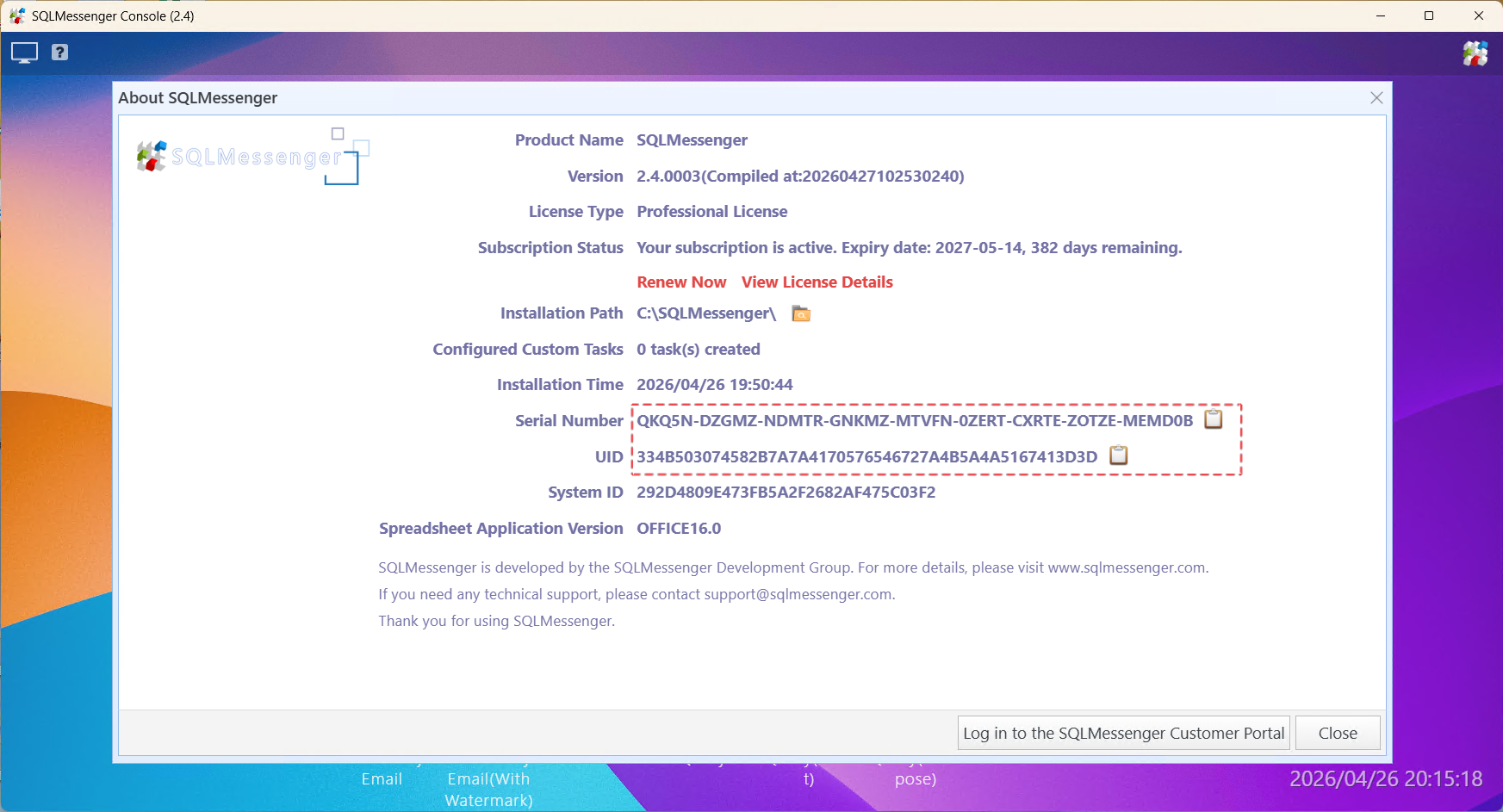
You can find your Serial Number and UID in the "Help" -> "About SQLMessenger" dialog in the SQLMessenger Console.
For more information about the Customer Portal, please see SQLMessenger Customer Portal.
Step 4: Review your order details, then click the "Submit Order" button.
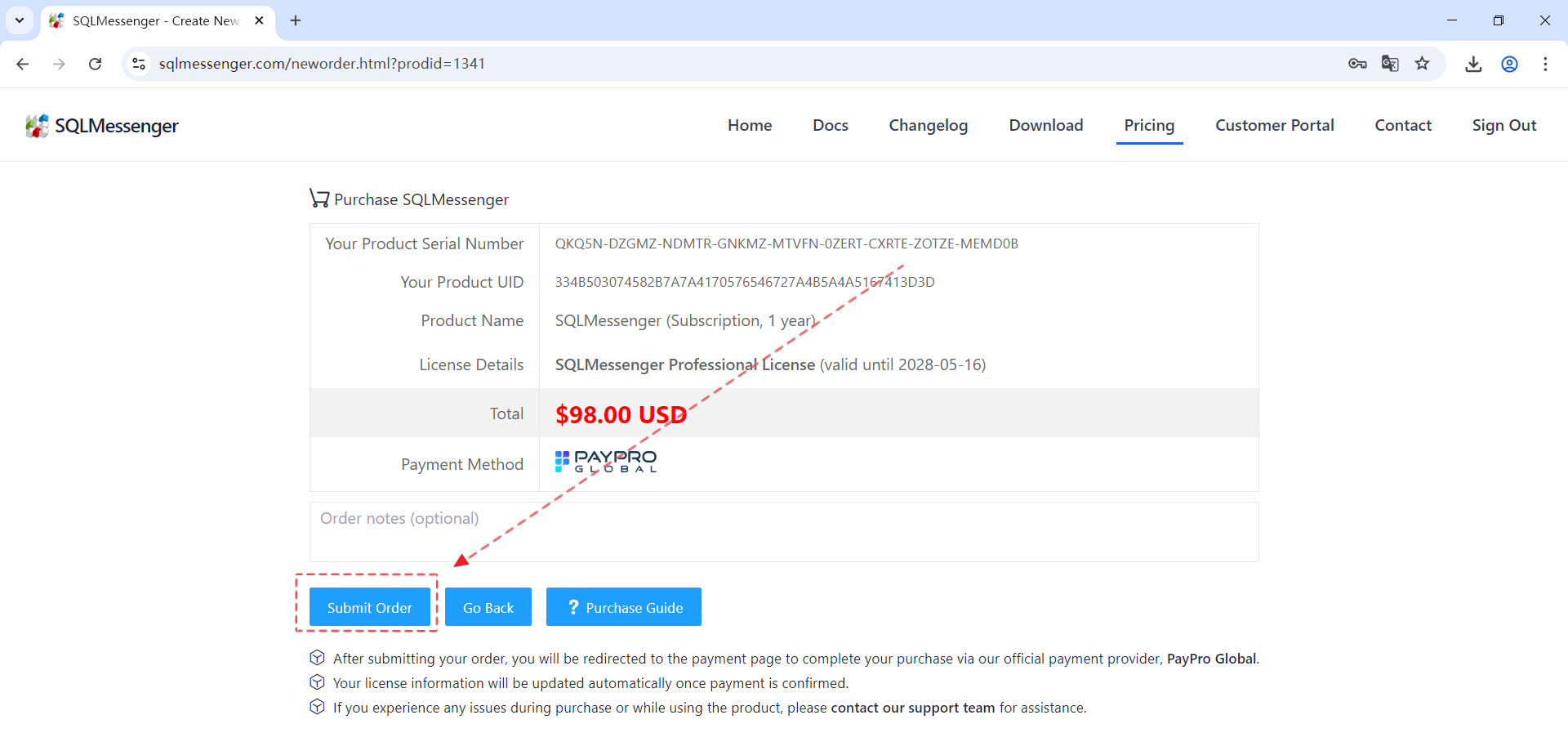
Step 5: In the Order Manager, click "Pay with PayPro" to proceed with payment.
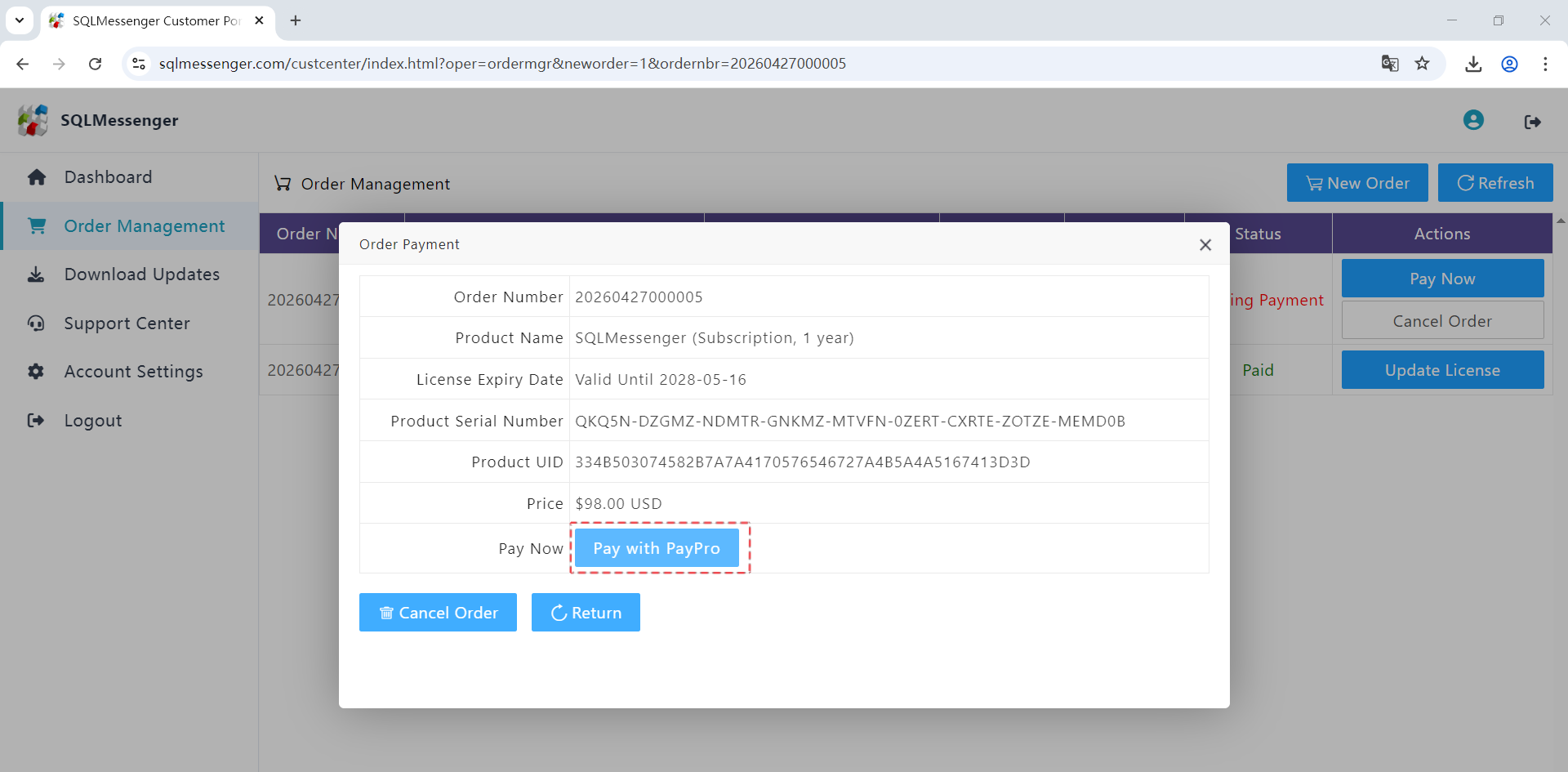
Step 6: After clicking "Pay with PayPro", the payment page will open in a new browser tab on paypalglobal.com.
Step 7: After payment is completed, download your new license file.
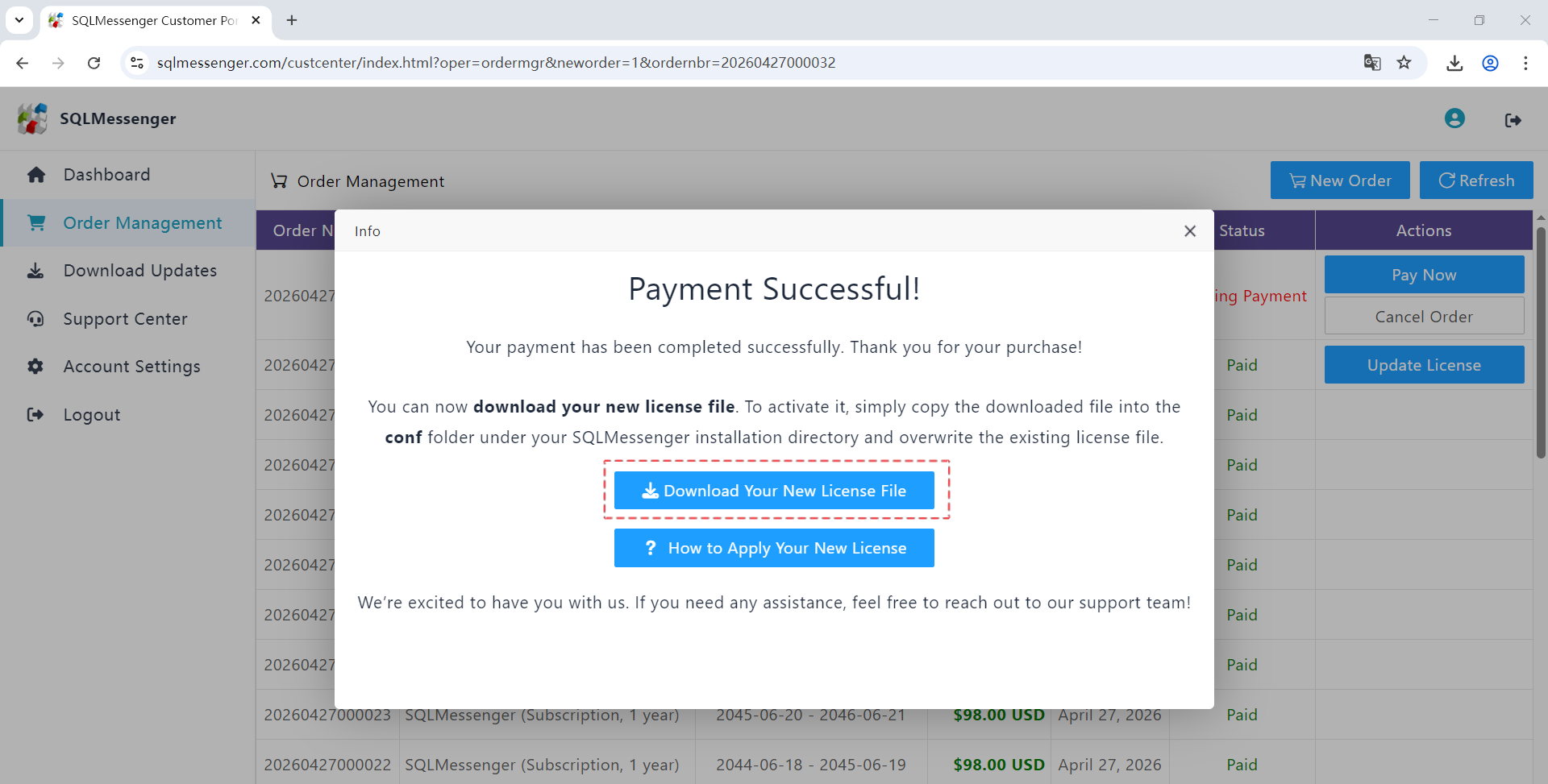
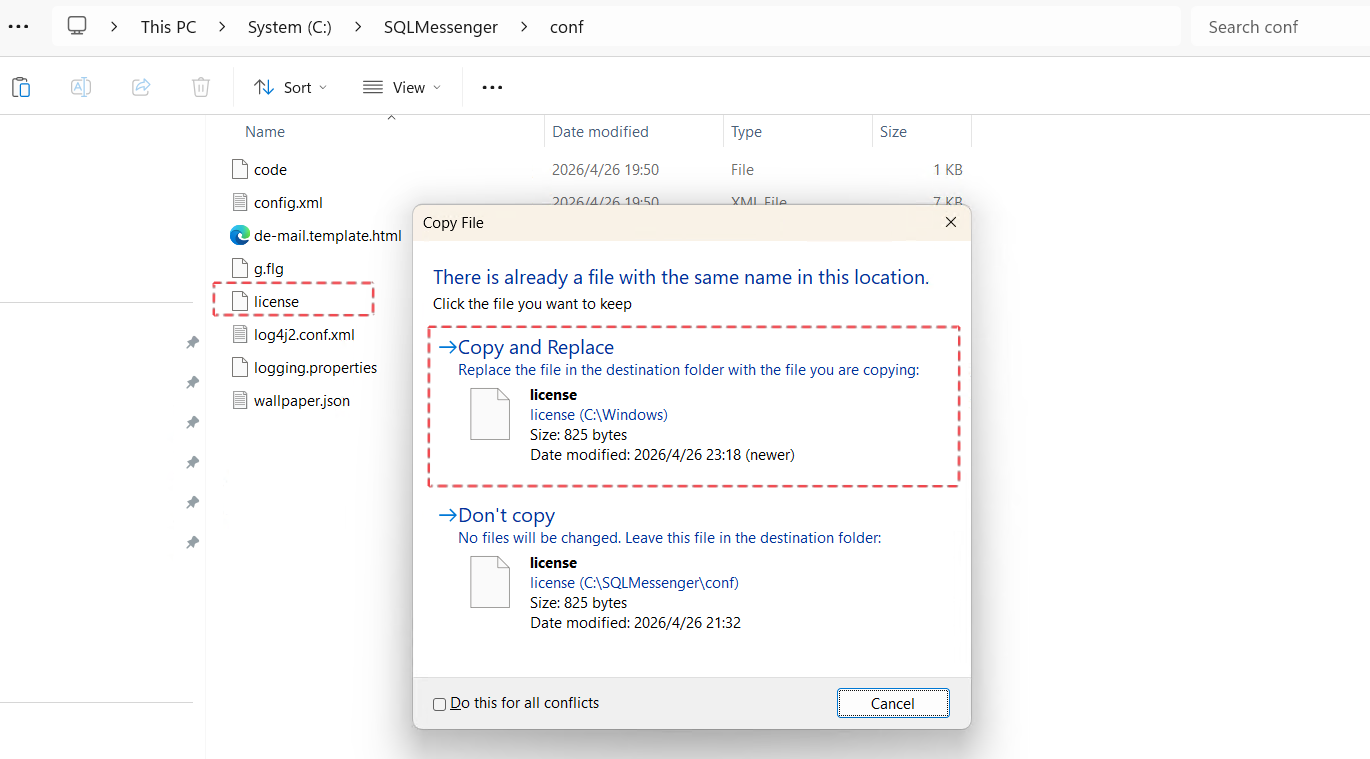
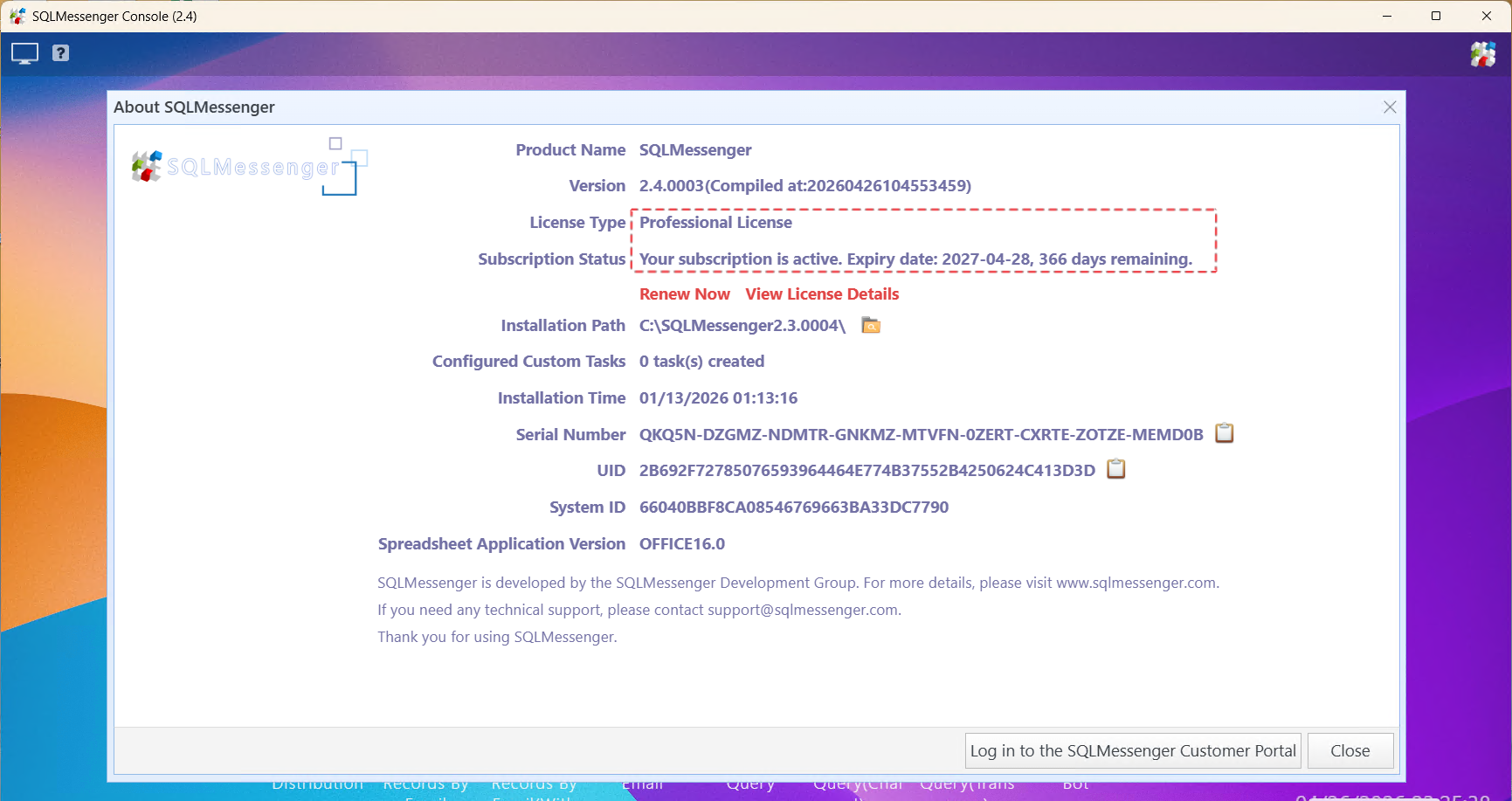
Step 8: Copy the license file (named "license", with no file extension) to the conf folder under your SQLMessenger installation directory, replacing the existing file. You can then verify your new license information in the "About SQLMessenger" dialog.
4 Q&A
Q: I completed the payment, but the license file hasn't updated automatically. What should I do?
A: Please follow these steps:
Step 1: Go to the SQLMessenger Console, click "Help" in the main menu, and select "Purchase" to open the Purchase page.
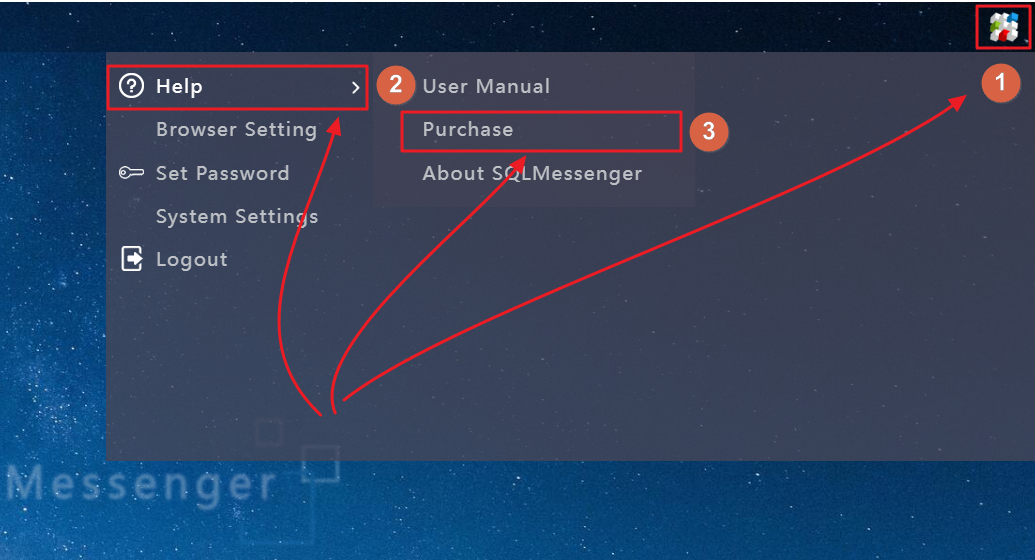
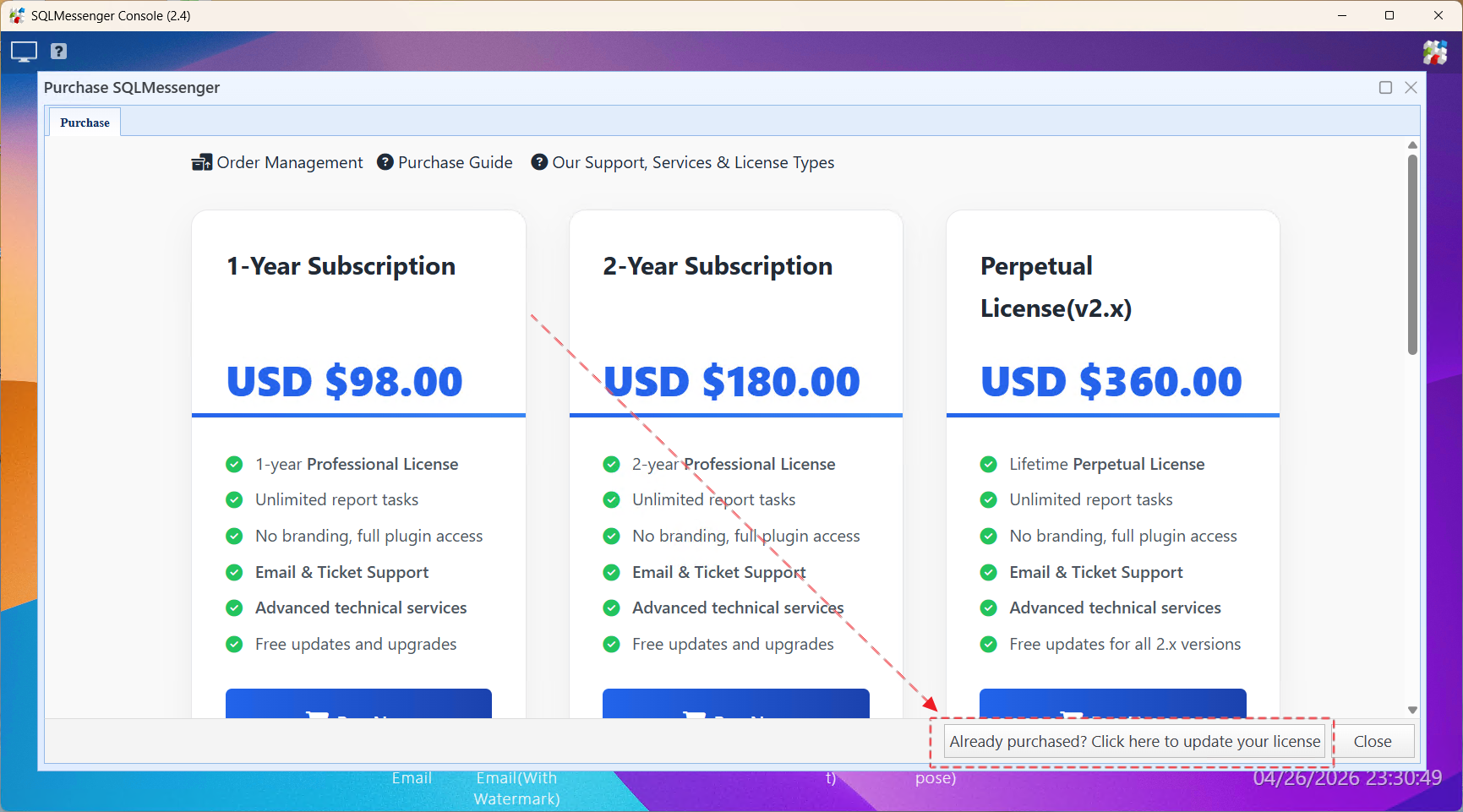
Step 2: Click the "Already purchased? Click here to update your license" button. SQLMessenger will attempt to locate your new license and update the license file automatically.
If you are still unable to update your license after following the steps above, try the following:
(1) If the computer running SQLMessenger has Internet access, restart the SQLMessenger service. Your license will then update automatically.
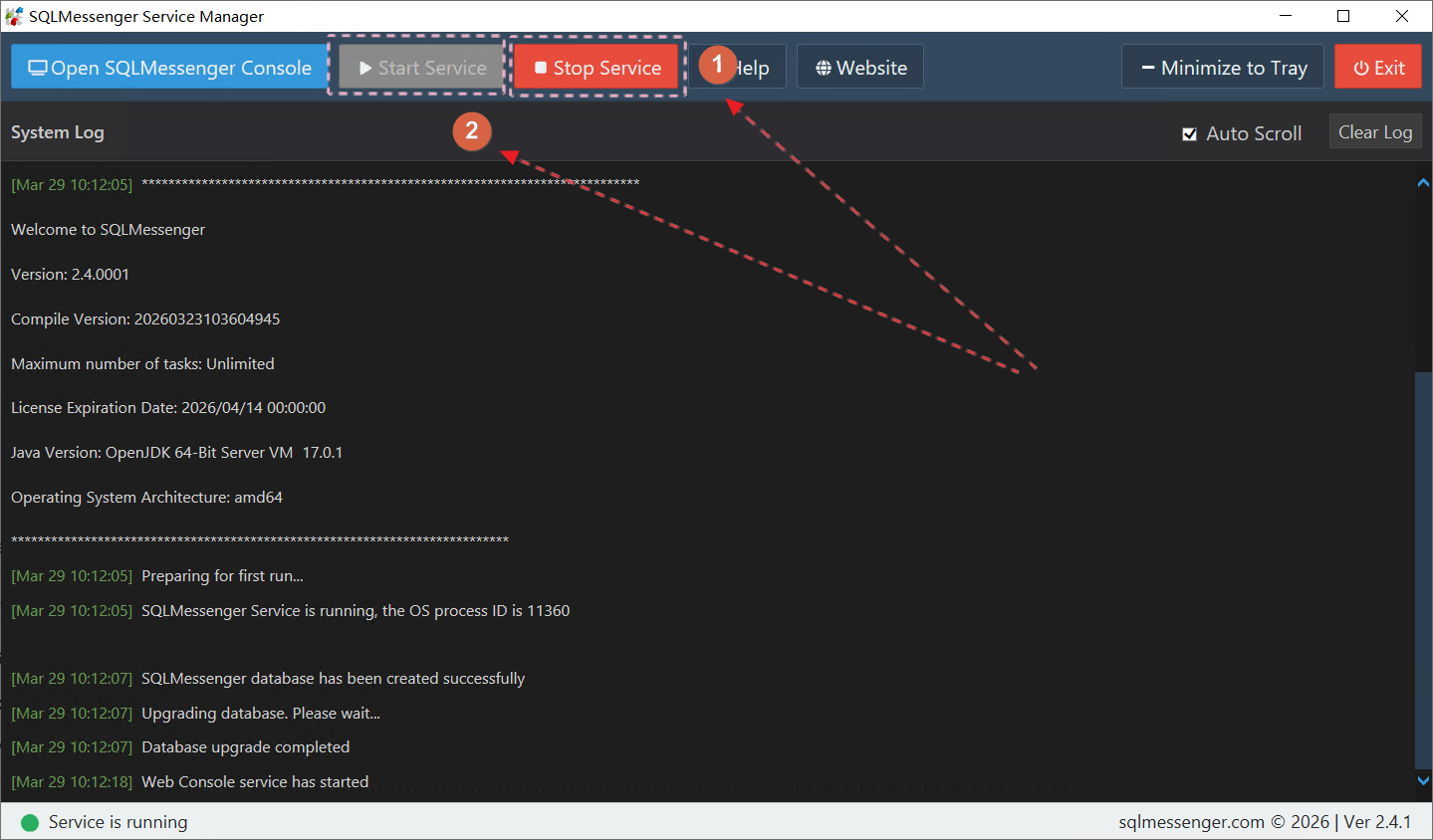
Restart the SQLMessenger Service
(2) If the computer does not have Internet access, or if the license still does not update after trying the above method, manually download and update the license file using the instructions in the next section.
Q: My computer cannot access the Internet. How can I update the license file?
A: Please follow these steps to download and update your license file through the SQLMessenger Customer Portal.
Step 1: On a computer with Internet access, open a web browser and visit www.sqlmessenger.com. Click the "Customer Portal" menu, then log in using your SQLMessenger Serial Number and UID.
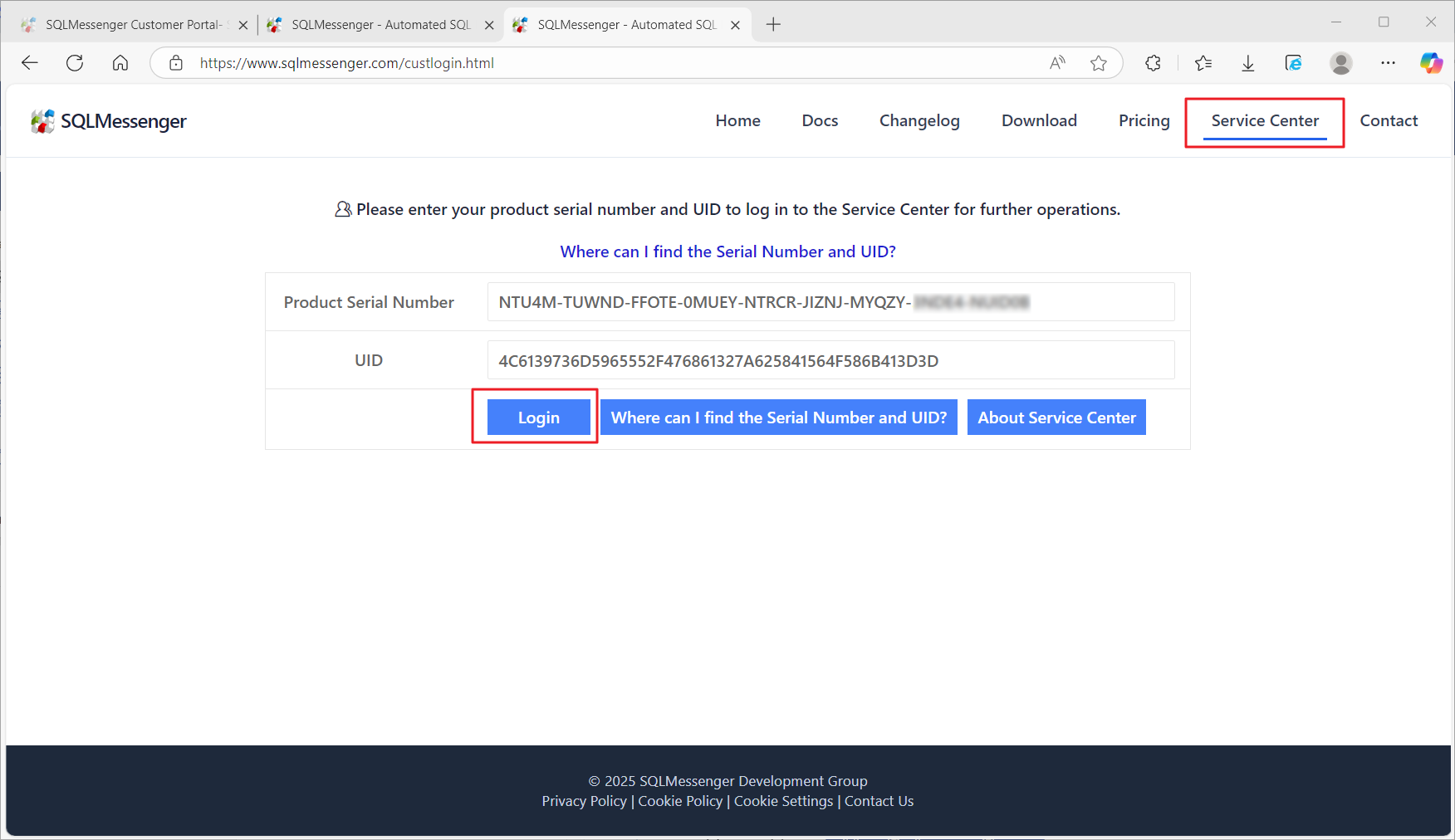
Step 2: On the Dashboard page, click the "Download License File" button to download your license file.
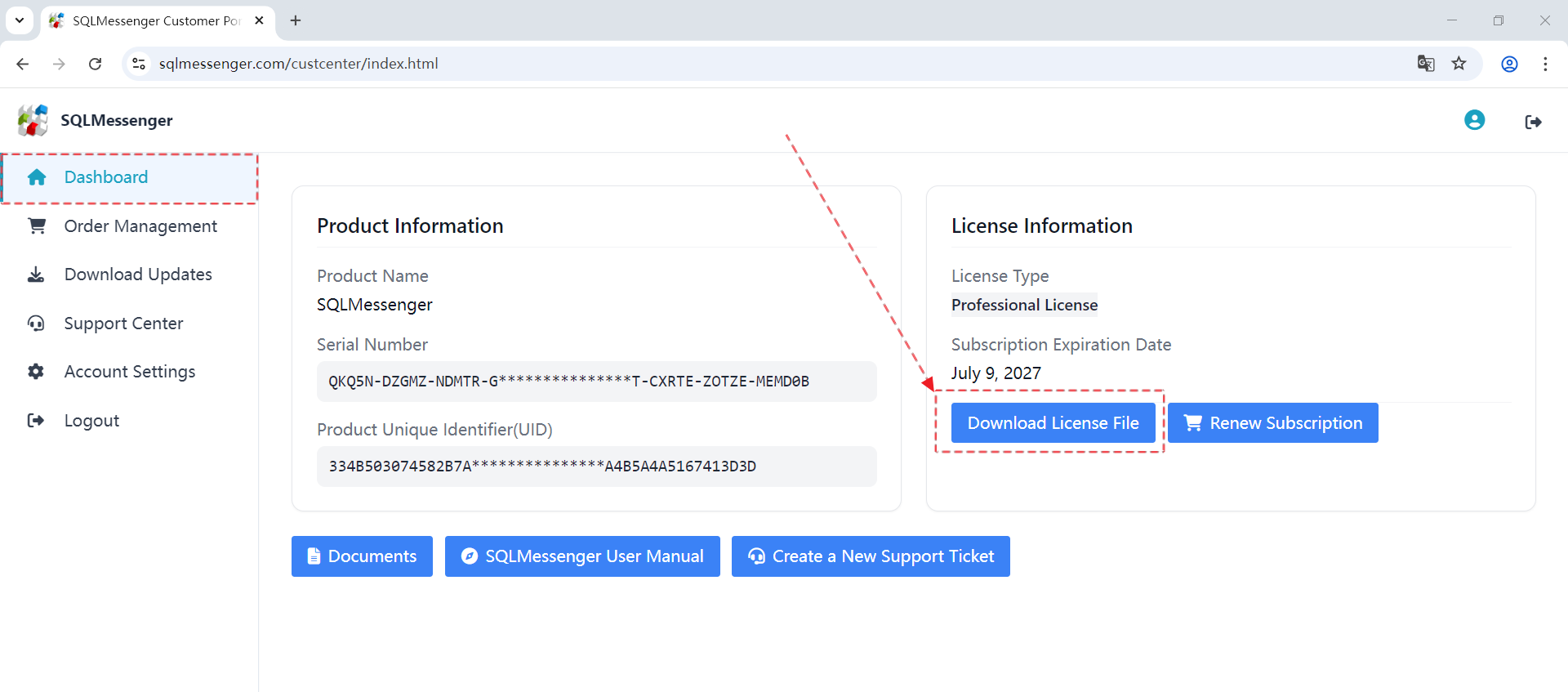
Step 3: Copy the downloaded license file to the conf folder under your SQLMessenger installation directory, replacing the existing file. The new license will take effect immediately. (We recommend backing up the existing license file before overwriting it.)
If the above steps do not resolve the issue, please send your product Serial Number and Order Number to support@sqlmessenger.com. We will be happy to assist you promptly.
Q: I encountered an issue while using SQLMessenger. How can I get technical support?
A: You can contact us through our online contact form or by email. Paid license holders can also submit support requests through our ticket system.
For more information, please see How to Get Support for SQLMessenger.