Home Docs Changelog Download Pricing Service Center Contact

Auto Start SQLMessenger when the System Starts Up

Auto Start SQLMessenger when the System Starts Up


SQLMessenger does not start automatically after installation. You can configure it to launch automatically with the operating system via the System Settings dialog.

Tips: You need to open the SQLMessenger console in easyconsole.exe to configure this option.

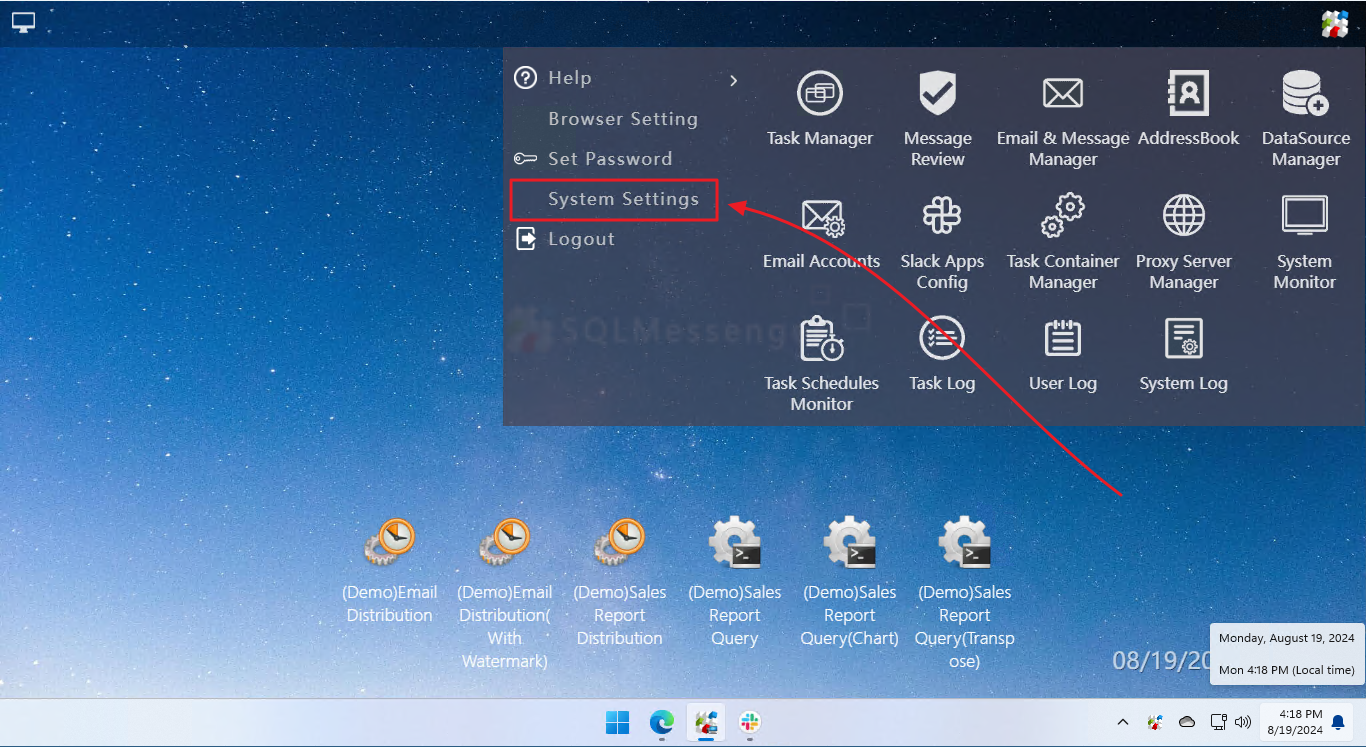
Step 1: In the main menu, click on "System Settings".
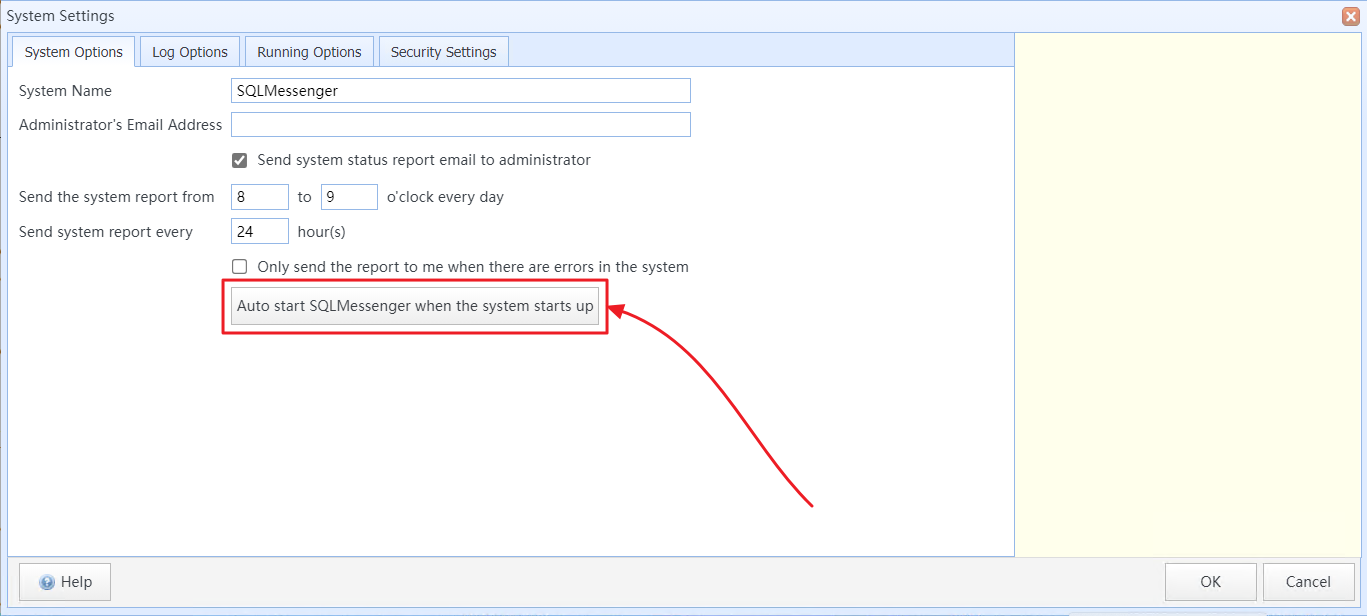
Step 2: Click the "Auto start SQLMessenger" button.
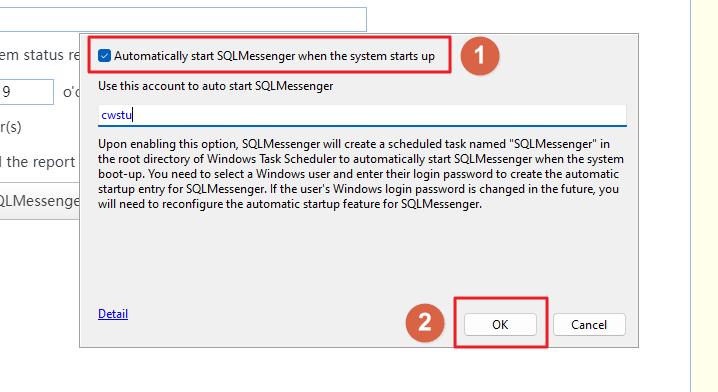
Step 3: Select the "Automatically start SQLMessenger when the system starts up" option, and then click "OK".
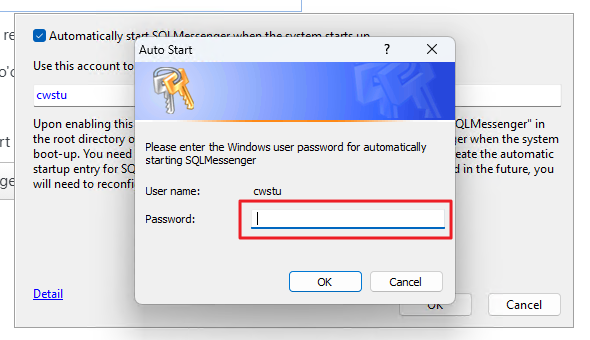
Step 4: Enter the login password for your Windows account, and then click "OK".
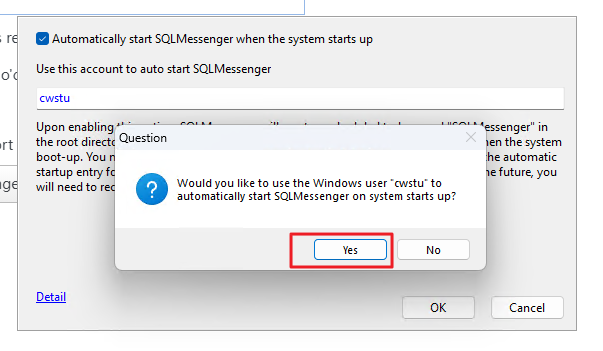
Step 5: After successful password verification, click "Yes".
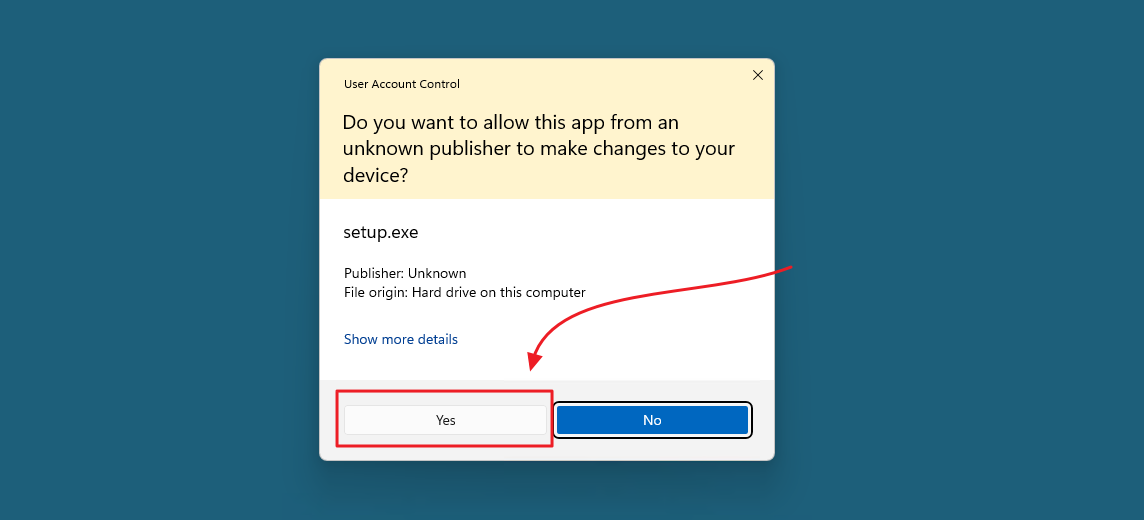
Step 6: If a Windows security prompt appears, confirm by clicking "Yes".
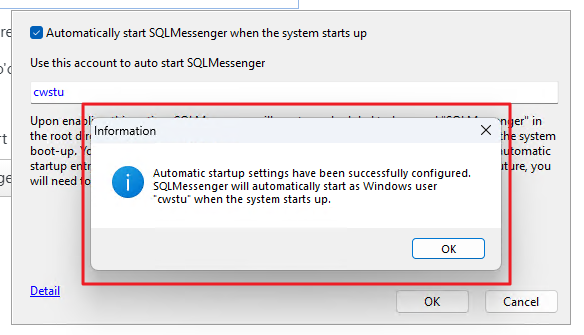
Step 7: The SQLMessenger auto-start entry has been created successfully.
After completing the setup, SQLMessenger will create a task named 'SQLMessenger' in the Windows Task Scheduler. This task will automatically run at system startup to launch SQLMessenger.
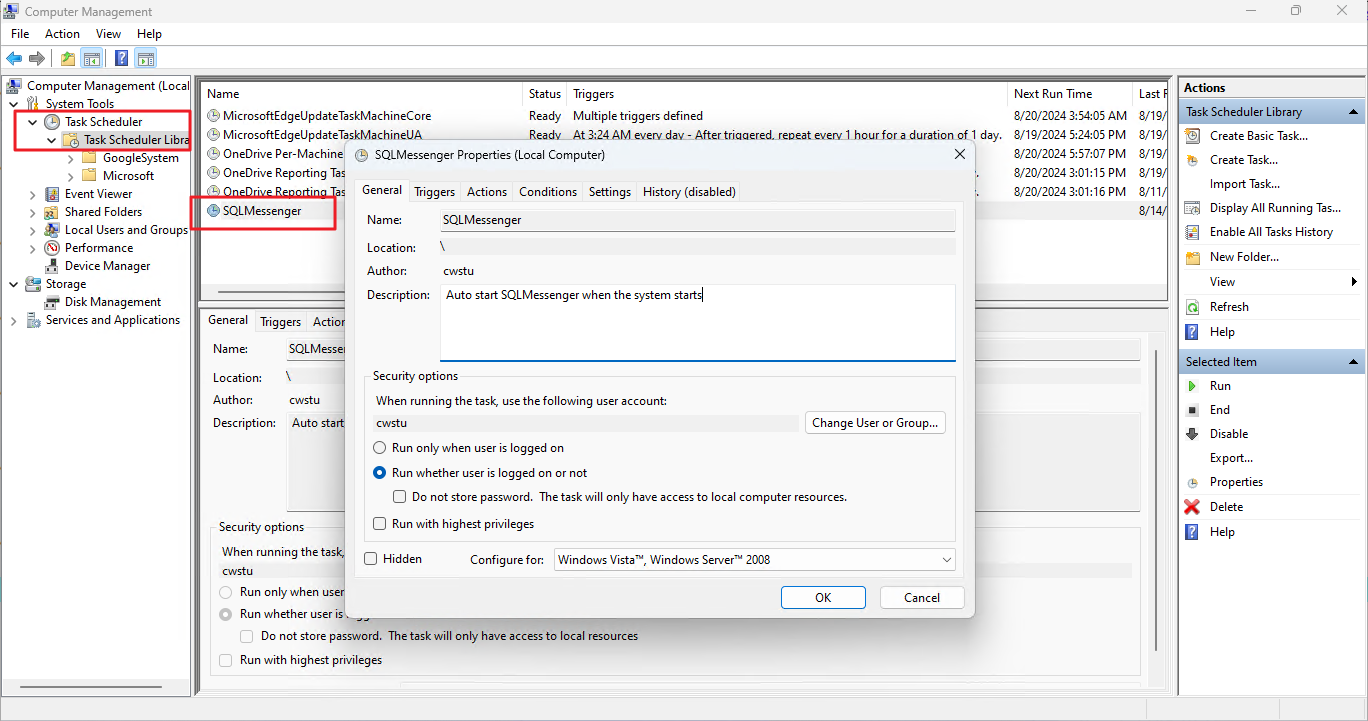
SQLMessenger's Auto-Start Entry

System Settings, Getting Started with SQLMessenger

Last updated on August 19, 2024


Cookie Settings

We use cookies to enhance your browsing experience, serve personalized content, and analyze our traffic. By clicking "Accept All", you consent to our use of cookies in accordance with our Cookie Policy.

You can change your preferences at any time by clicking on "Cookie Settings" in the website footer.

Cookie Preferences

Manage your cookie preferences. You can enable or disable different types of cookies below. Necessary cookies cannot be disabled as they are required for the website to function properly.

Necessary Cookies

Always active

These cookies are essential for the website to function and cannot be switched off. They are usually only set in response to actions made by you such as setting your privacy preferences, logging in or filling in forms.

Preferences Cookies

Makes the site easier to use

These cookies allow the website to remember choices you make and provide enhanced, more personal features.

Analytics Cookies

Helps us improve our website

These cookies help us understand how visitors interact with our website, which helps us improve our products and services.

Marketing Cookies

Used to track visitors across websites

These cookies are used to track visitors across websites. The intention is to display ads that are relevant and engaging.